
Participant
May 15, 2018
Answered

Checking 'Paint on transparent' doesn't remove brush stroke... please help.

  • May 15, 2018
  • 1 reply
  • 7686 views

Hello there!

I am trying to animate the appearance of a drawing using the paint effect, but no matter what I do I can't get the "paint on transparent" option to work correctly. Instead, once I click "Paint on transparent" the drawing disappears (as expected), but the brushstroke remains (not expected). Screenshots below! I'm not sure what I'm doing wrong or what setting I've messed up.

These are the steps I've been following:

1) Set brush settings to

          Mode: Normal

          Channels: RGBA

          Duration: Write-on

2) Open the desired layer and create a brush stroke that covers the 'drawing'

3) Select the paint effect and then under the effect controls menu check the box "Paint on transparent."

I worried that it was some sort of preview setting, but the effect doesn't work right if I render the video either. Can anyone see what I'm doing wrong? Any insights or suggestions are appreciated!

SCREENSHOTS

------

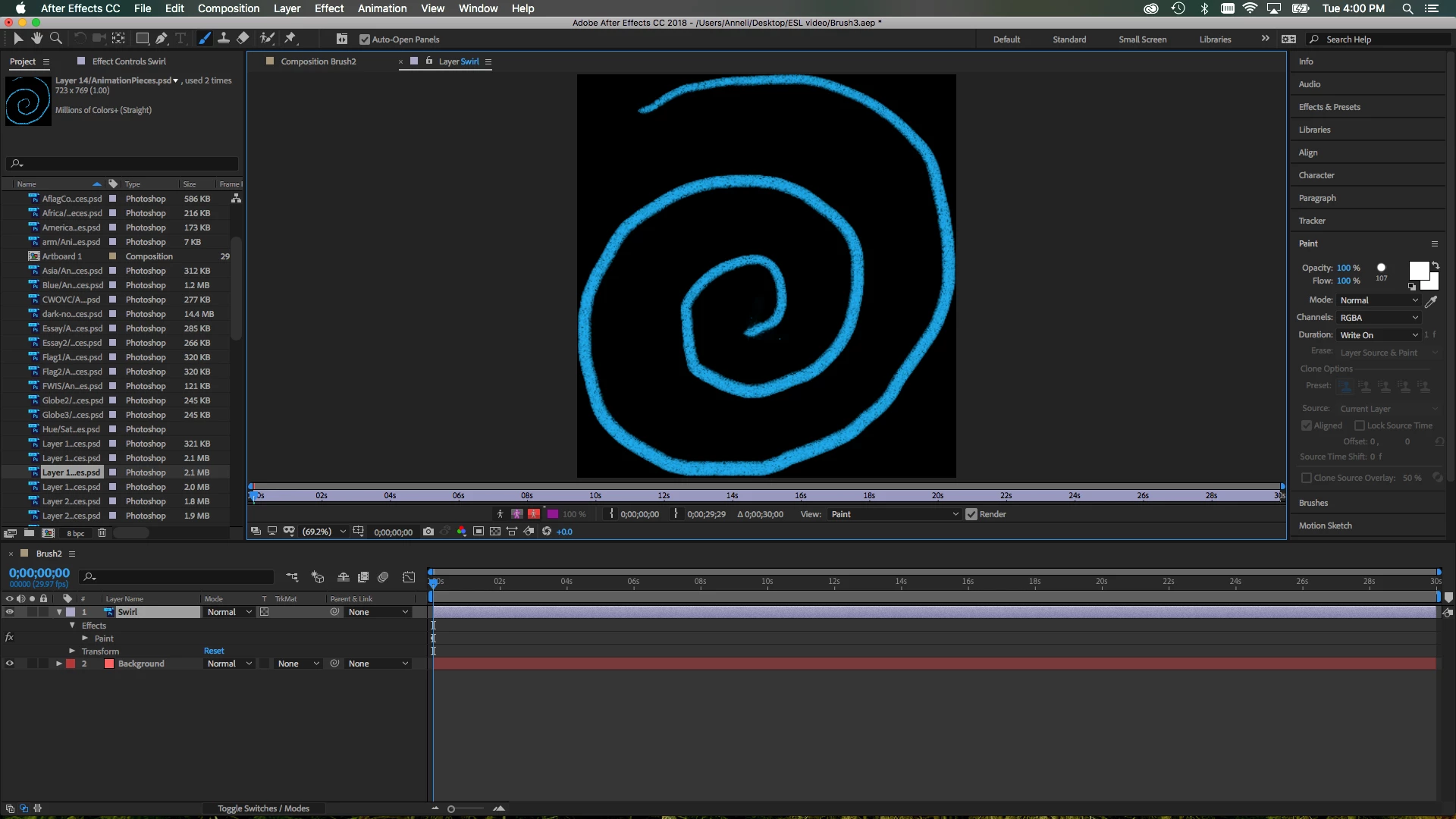
Layer with drawing – brush settings:
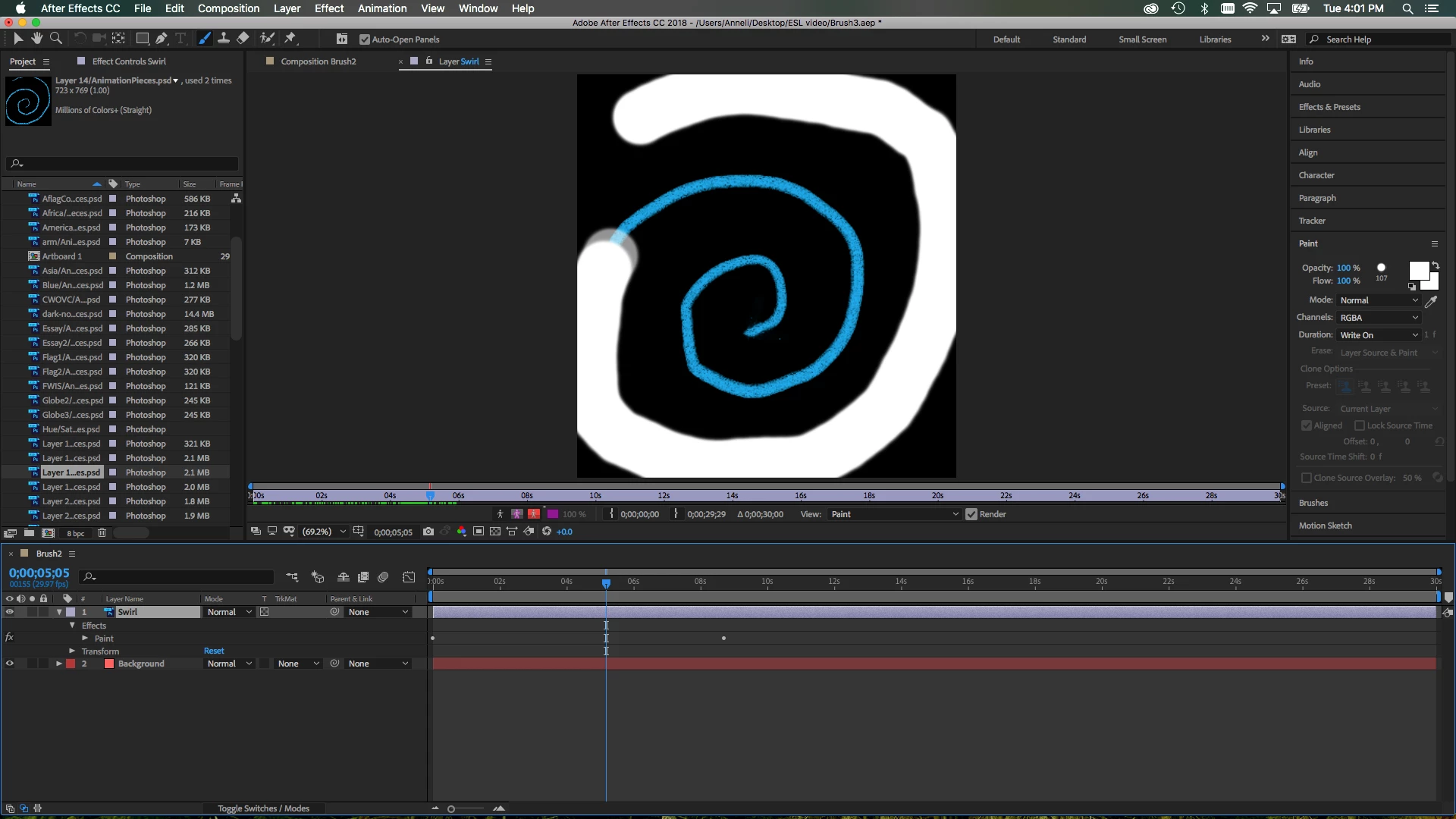
The animated brush stroke:
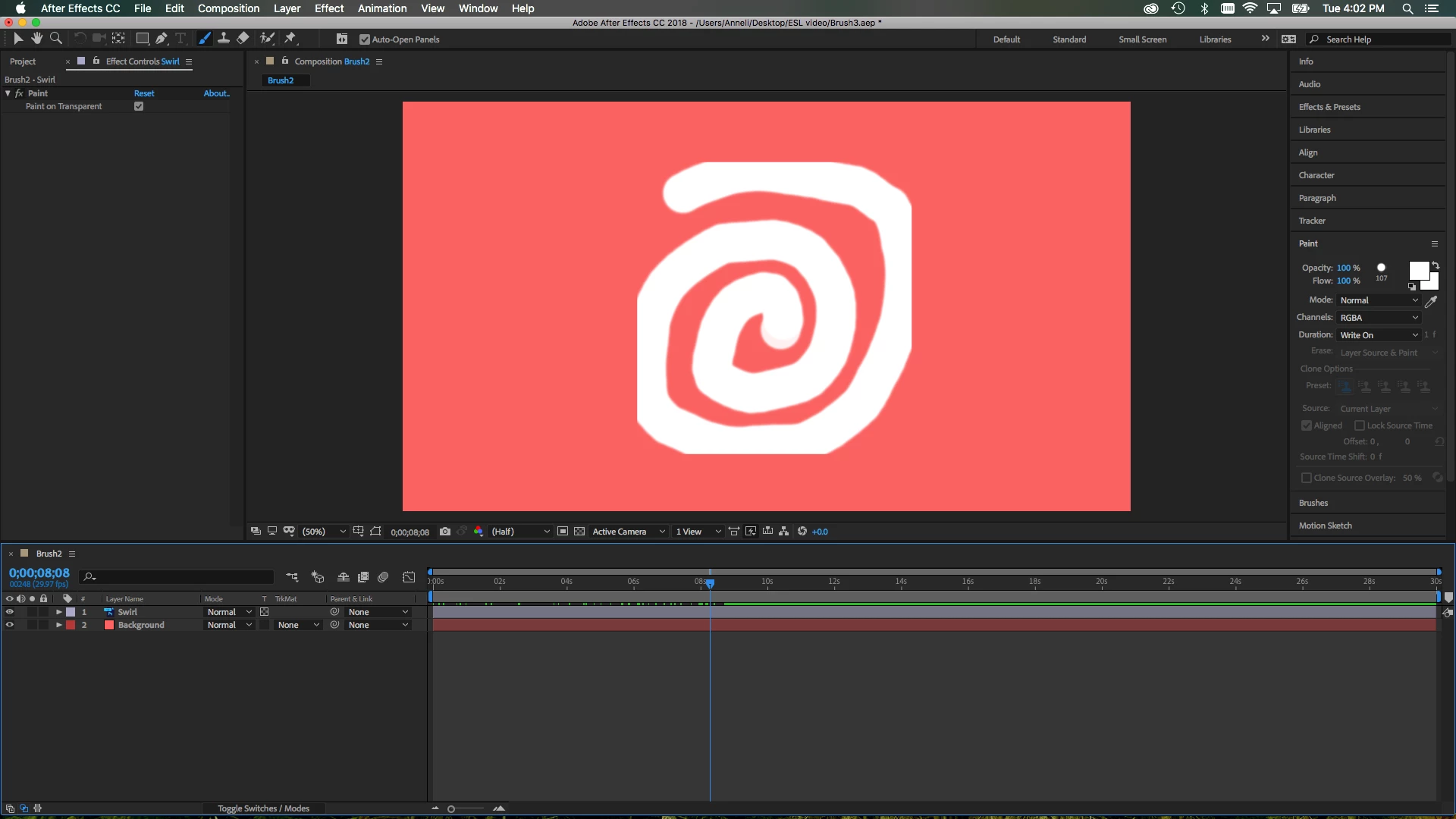
The result of checking "Paint on transparent":

Brush stroke is STILL VISIBLE in composition... WHY?!
This topic has been closed for replies.
Correct answer Roei Tzoref

you are painting on transparent means that the brush stroke you painted will be on transparent, i.e knock out the background. in this case - your artwork.... so you just see the paintstroke.

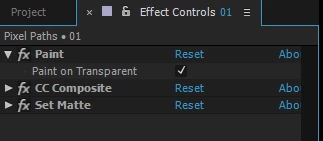
if you want to reveal the underlying artwork with your brush stroke, you could use a stack of effects to create this result.

1. set your paint to be on transparent. this will knock out your artwork and just show the paint stroke

2. add the CC Composite effect. this will composite the original artwork over your paint stroke
3. add the set matte effect. this will matte the composite with the original artwork

1 reply

Roei Tzoref
Roei TzorefCorrect answer
Legend
May 15, 2018

you are painting on transparent means that the brush stroke you painted will be on transparent, i.e knock out the background. in this case - your artwork.... so you just see the paintstroke.

if you want to reveal the underlying artwork with your brush stroke, you could use a stack of effects to create this result.

1. set your paint to be on transparent. this will knock out your artwork and just show the paint stroke

2. add the CC Composite effect. this will composite the original artwork over your paint stroke
3. add the set matte effect. this will matte the composite with the original artwork

Participant
May 15, 2018

Ahhh I see! I didn't realize I had to duplicate the original layer... Thanks for your help. 

Roei Tzoref
Legend
May 16, 2018

No need to duplicate the original layer for this method to work. Just apply the effects as described.