Inspiring
April 26, 2017
Answered

clone stamp not sticking...

  • April 26, 2017
  • 2 replies
  • 4562 views

I'm really new to AE; have been watching tutorials and will continue to learn. In the meantime there's something relatively simple I'm trying to do; use the clone stamp to "erase" my tripod from a 360 video shot (don't need motion tracking, it's a static shot). I'm using 360VRToolbox plugin, "reorient sphere" setting to change the equirectangular view to something better for cloning tripod.

I am able to clone/erase tripod, but when I change the view back to equirectangular, my cloning work gets shifted, so it's no longer in the right place--an entirely different part of the frame is getting cloned. Still learning about layers and comps, maybe it has to do with that?

Any help would be appreciated, or links to tutorials, etc.

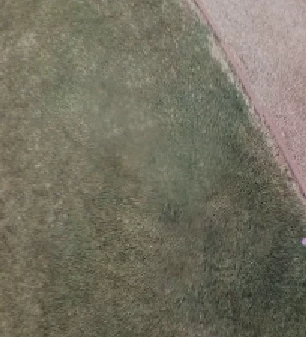
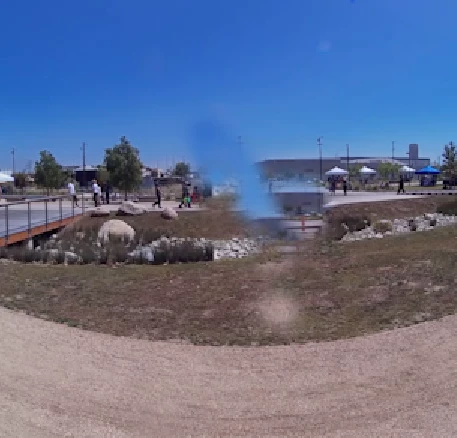
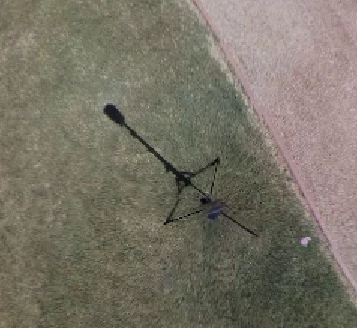
Attaching screenshots of tripod, erased tripod, and how cloning work gets shifted after reverting back to equirectangular view.
This topic has been closed for replies.
Correct answer Roei Tzoref

So, you are clone stamping the object out and then rendering the length of the video to "lock it down"?  Right?  What kind of reorienting are you doing?  Rotating?

Right. I'm using the 360VR Toolbox plugin (reorient sphere specifically) to reorient an equirectangular spherical panorama, to access the nadir. At 1:05 in this video, what I'm doing is shown: 360VR Toolbox Public Beta Launch Video - YouTube

In any case, if you are stamping it, locking it down, and adjusting it resulting in it slipping, that tells me there is either movement in the video or the process is creating a movement that is impacting that clone stamp.

The clone work isn't slipping; it's staying where it is, instead of moving back down to the bottom of the frame with the image, when I change the effect back to equi orientation.


Thanks Roei. I've tried precomposing the layer but still having the issue.

I don't see you selected "move all attributes". these are the steps: you flatten your footage, clone stamp it, then precomp "move all attributes", then on that precomp you apply the reverse back with the plugin. try it.

2 replies

kirkeric
Inspiring
April 26, 2017

I'd just add that if it is a still shot, I'm not even sure I'd use the clone stamp.

I'd just copy a section of the grass, place it over the item and feather the edges.  It will probably look less obvious too.

Eric

jimtronAuthor
Inspiring
April 26, 2017

Thanks Kirkeric: It is a video clip, but camera locked down...copying a section of grass would work, but the problem I'm having is to get a clear view of tripod I have to reorient equirectangular view--which is no problem--but after erasing tripod, I'm having trouble baking that work in, so when I go back to equi view the retouching is in the wrong place.

Again, I'm super new to AE, probably doing something dumb. I've tried rendering and pre-composing.

Roei Tzoref
Roei TzorefCorrect answer
Legend
April 26, 2017

So, you are clone stamping the object out and then rendering the length of the video to "lock it down"?  Right?  What kind of reorienting are you doing?  Rotating?

Right. I'm using the 360VR Toolbox plugin (reorient sphere specifically) to reorient an equirectangular spherical panorama, to access the nadir. At 1:05 in this video, what I'm doing is shown: 360VR Toolbox Public Beta Launch Video - YouTube

In any case, if you are stamping it, locking it down, and adjusting it resulting in it slipping, that tells me there is either movement in the video or the process is creating a movement that is impacting that clone stamp.

The clone work isn't slipping; it's staying where it is, instead of moving back down to the bottom of the frame with the image, when I change the effect back to equi orientation.


Thanks Roei. I've tried precomposing the layer but still having the issue.

I don't see you selected "move all attributes". these are the steps: you flatten your footage, clone stamp it, then precomp "move all attributes", then on that precomp you apply the reverse back with the plugin. try it.

Mylenium
Legend
April 26, 2017

You have to pre-compose. The cloning works just as it should, but apparently you don't understand how AE's rendering order works. You can't just toggle stuff inside an effect and hope AE somehow will magically know what to do.

Mylenium

jimtronAuthor
Inspiring
April 26, 2017

Thanks for the reply; I wasn't expecting magic, as I said I'm new to AE, trying to understand how it works.

I read about precomposition here, but in this description it's assumed that I have multiple layers in the timeline panel, which I don't have.

Roei Tzoref
Legend
April 26, 2017

Hi jimtron. It Also says this: "Precomposing a single layer is useful for adding transform properties to a layer and influencing the order in which elements of a composition are rendered."

some render operations require precomposing. Some are obvious, And some you learn by trial and error. This is because Some effects (most) will rasterize the layer after the effect is applied and this allows you to apply multiple effects on the same layer. some won't so you have to precomp to reasterize.

Precompose the layer with the clone effect and choose "move all attributes". Now apply the second effect To the precomp.