I'm still a bit confused to the workflow. From what I understand you have an artist the gives you a layer PSD file, that you bring in to AE and animate. For some reason the tool you use to retrieve the keyframe data for the game engine requires each of these layers to be a png. Then you need a cropped PNG image, not an animated png sequence to put in the game engine so that the keyframe data you extract from AE will point to the right image and make it move.
If that's right have you tried using actions in Photoshop to export a png for every layer in the PSD file. There is, or at least there used to be a script in Photoshop that did that exact thing:
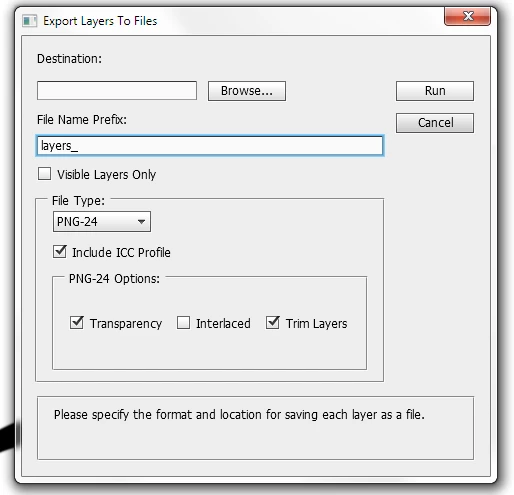
If all you need is to have the PSD layers turned into trimmed PNG's then you're done.
If that would work you might also want to try this script: GitHub - jwa107/Photoshop-Export-Layers-to-Files-Fast:
If you need to actually replace the layers in the AE comp with PNG files then I would first try just renaming the layers and see if your script or tool is smart enough to figure out the names. If that does not work then you could set up a new folder in AE's project panel and import your exported PNG layers then use the replace layer method to replace the PSD layers with the PNG files (Alt/Option + Click and drag).
If, on the other hand, you need to export each animated layer in the comp as a separate PNG sequence then the easiest thing to do would be to pre-compose every layer in the comp then render each of those pre-comps to an image sequence.
I have to admit, that I'm still quite confused about your workflow. If you listed it out in a clear step by step workflow all the way to the game engine then we might be able to give you a better idea of what to do.
| If that's right have you tried using actions in Photoshop to export a png for every layer in the PSD file. There is, or at least there used to be a script in Photoshop that did that exact thing. If that would work you might also want to try this script: GitHub - jwa107/Photoshop-Export-Layers-to-Files-Fast: |
since CC2015 there's right click->Export As feature that can do this much faster and with additional tools and an interface too
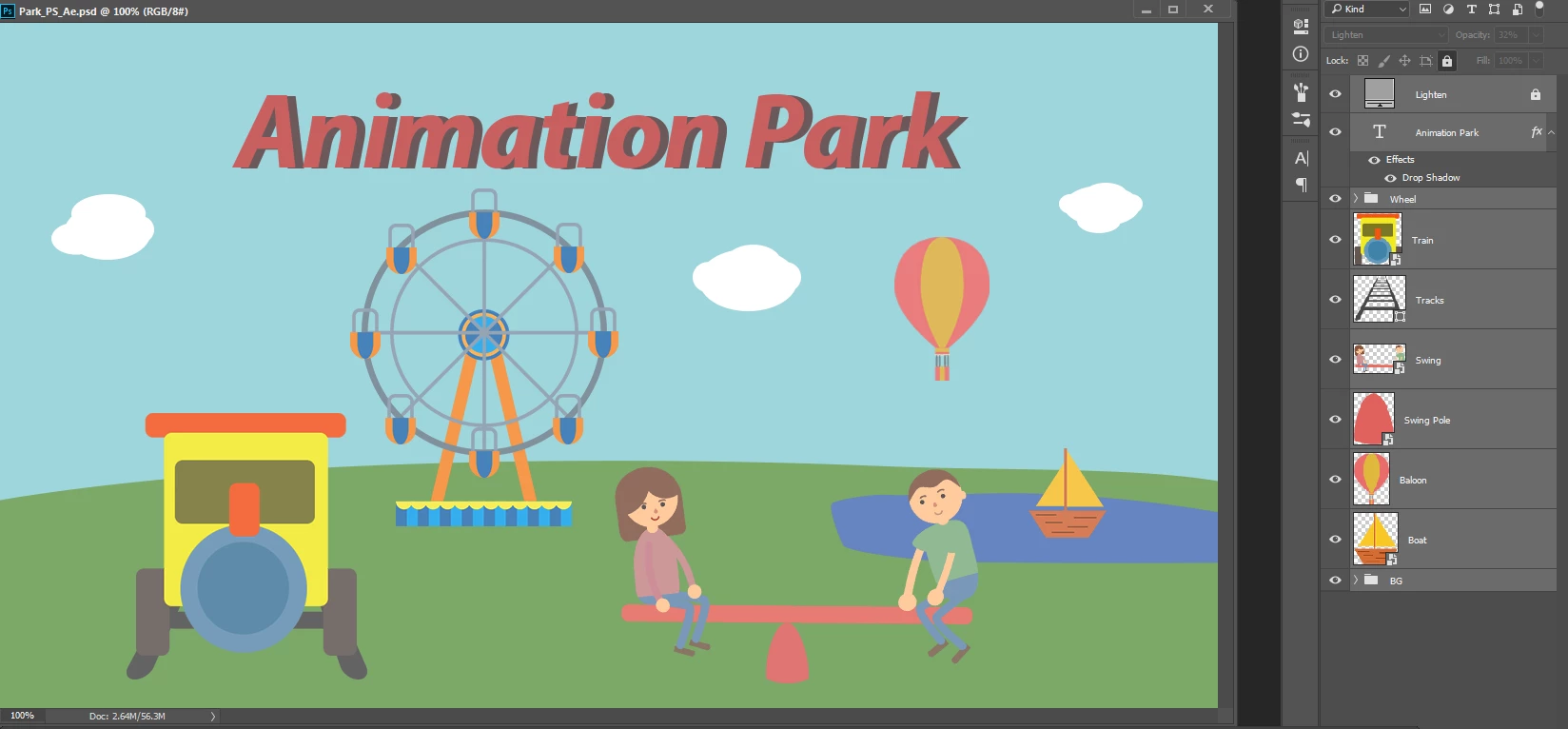
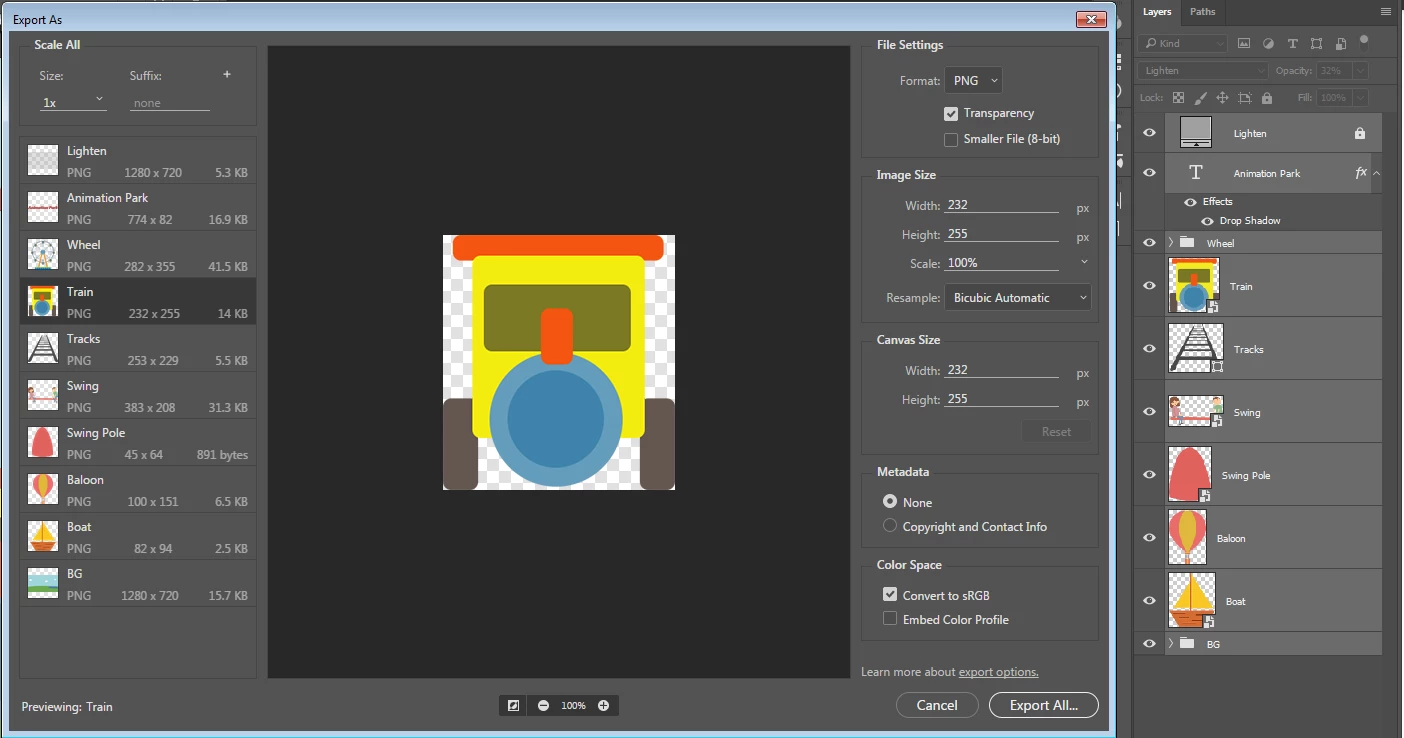
and there's even another command "Quick export as PNG" that can do this in one go to a folder of your choosing

 AdChoices