Greetings! Usually I don't enter Adobe forum, but I was looking for the solution of the same problem as we both have. And I found it! You simply have to duplicate your video, put it on top of the comp and turn on "Paint on transparent" option. And you can add multiple effects without affecting the video itself.
What version of AE are you using right down to the build?
Try this:
- Trim a video clip in the Footage panel
- Create a new composition from the trimmed clip
- Select the Paint workspace
- Double click the footage to load it in the Layer Panel
- Pick the Paint tool
- Set the stroke to Continuous, or Write On, or Single Frame, it doesn't matter at this point
- Hold down the Ctrl/Cmnd key to adjust the brush and drag it out to get a fairly big brush
- Draw a stroke anywhere
- Press the U key twice to reveal everything you modified on the layer
- Answer these questions:
- Do you see a stroke?
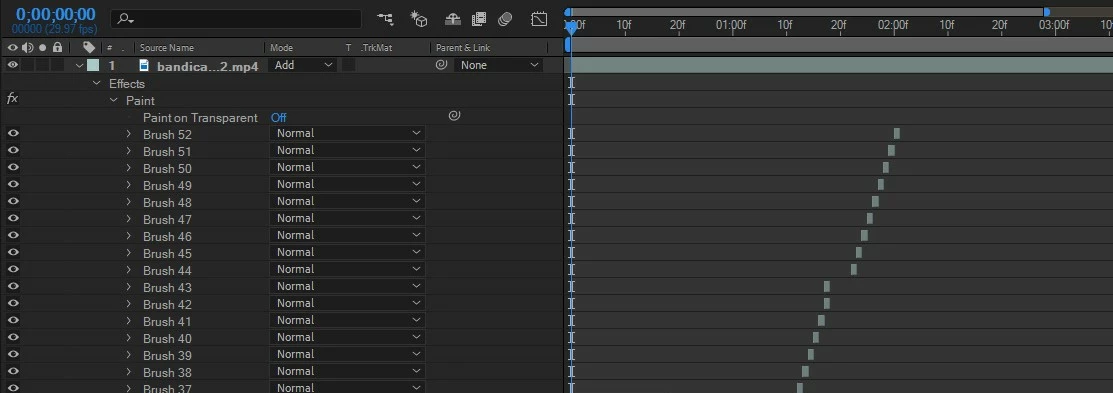
- If you select the Paint effect in the timeline, spin down the properties and change Paint On Transparent to "on" do you still see the stroke
- If the stroke goes away you need to update your version of AE - If the stroke is still visible add a new Black Solid to the composition Ctrl/Cmnd + y
- In the timeline select the Paint effect on the footage layer, Just the Paint effect, not the brush stroke and press Ctrl/Cmnd + C to copy the effect
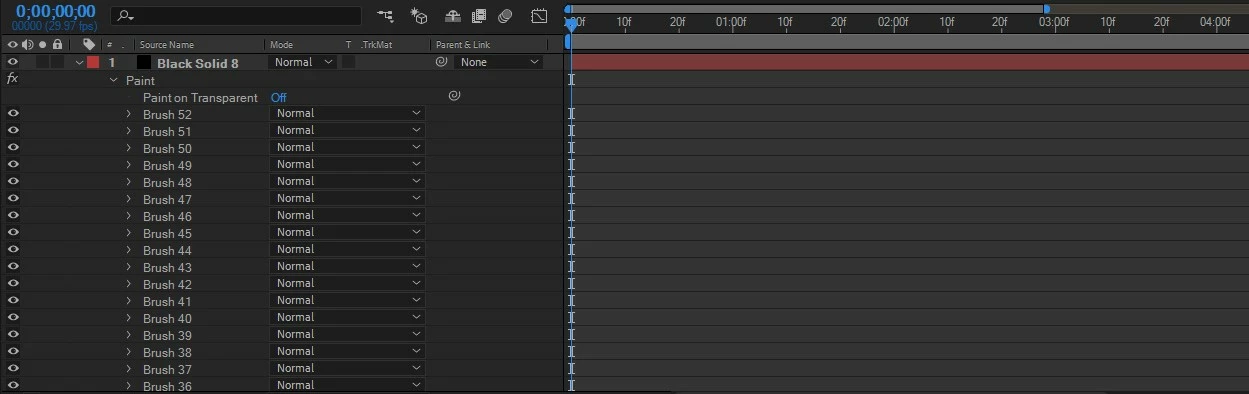
- Select the black solid and press Ctrl/Cmnd + v to paste and the stroke should appear
The problem with that quick tutorial is the way she described copying and pasting an effect. Sometimes if you select a specific property in the effect and copy and paste you don't always get the other properties. You have just experienced a common problem you get when you try and follow tutorials presented by amateurs. Their lack of experience and some luck or not remembering exactly what they did lead you down the inefficient and sometimes dead-end workflow path. Her use of the blend modes was also only one option, personally, I would have used Add because it has more range, and there are different looks you can get with glow if you have a transparent layer and you use the Alpha Channel. The use of Stroke on a mask path is also a limited workflow. I would have drawn a shape layer path and added shape layer animators. You have a lot more options. These are the chances you take when you try and follow tutorials presented by amateurs and keep going over the same steps again and again instead of looking for other, better, tutorials.
If all else fails and you really need to get a paint effect on a solid layer you can always select the footage with Paint applied in the timeline, Select a solid you have created in the Project Panel, hold down the Alt/Option key and drag the solid to the timeline. This will just replace the footage with the solid and everything else will stay the same.

 AdChoices