
Participating Frequently
February 20, 2020
Question

flicker effect with saber

  • February 20, 2020
  • 2 replies
  • 2799 views

hello,

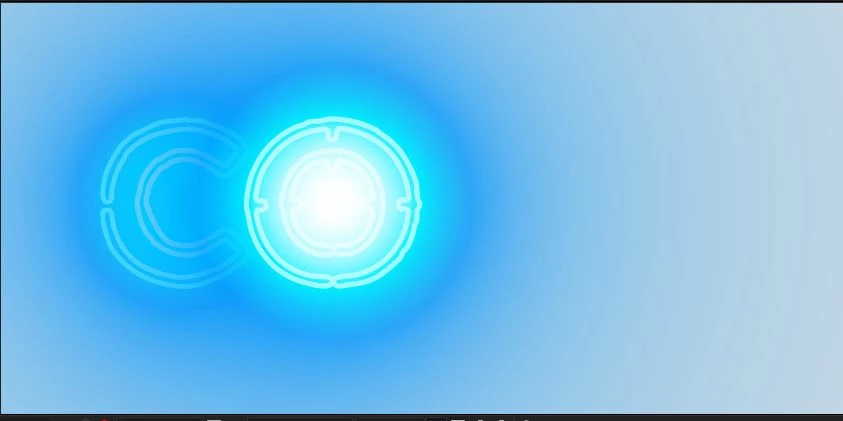
I have a logo which is made from text (transparent text image, not a text layer)


i autotraced it and using the masks i added neon effect with saber,

now i am trying to make indvidual letter (part of the image) to flicker, how can i do it?


i tried to seperate the letters i want as  a diffrent layer, but the problem is two layers with two saber effects dont make the 2 glows to work together - one is just covering the other as in the screen shot
 

This topic has been closed for replies.

2 replies

Community Expert
February 21, 2020

Text layers or mask paths - it doesn't make any difference in how you set things up. Your screenshot showing the two layers, both with saber applied, can be helped by changing the blend mode. A better option would be to get all of those masks on a single layer. I don' see any reason to have them in two separate nested comps. 


Once again, you have not revealed the modified properties of your layers. My screenshot was created by pressing the U key twice with all layers selected so I could show you how to get two different Saber effects to work on the same layer. All you really need to do is get all of those masks on a single solid and apply one copy of Saber. 


If the masks must be on two different layers then you need to use a blend mode. It may not look the same as having all masks on one layer. This is what I mean. Carefully look at all 3 screenshots. I am showing you everything I changed on the layers except the masks. 

No blend mode changes = the kind of composite you are getting.

Change the blend mode of the top layer to Screen and the composite is now pleasing with the highlights from the bottom layer showing through. 

All the masks on separate layers allow interaction between the outlines that are more realistic than you can get using blend modes. All of the settings on the Saber Effect are necessary to get this composite to work. All of these variations allow you to put a background in the comp.  

Community Expert
February 21, 2020

It would be a lot more helpful if you included a screenshot of the entire UI showing the modified properties of the layers so we did not have to guess at your settings. Here's one way to do something like that:

  1. Start with a black solid and a text layer
  2. Draw a mask around one of the letters in the text layer
  3. Duplicate the text layer and invert the mask
  4. Add the Saber Effect to the Black Solid (Saber) and set the Core Type to Text Layer and choose the first text layer + masks for the options
  5. Go to the Render Settings and set Composite Settings to Add and Alpha Mode to Mask Core
  6. Duplicate the Saber effect in the layer (Ctrl/Cmnd + d)
  7. Go to Customize Core in the second copy of Saber and set the source to the second text layer
  8. Change the Glow color on one of the copies of Saber so you can see the difference between the two effects

You end up with this:

That screenshot shows you everything that I did to all layers except the shape of the mask path I drew around the I.


No matter how you do this you will need two copies of the text layer. You can then modify each of the copies of Saber to get the look you want. 


If you need more control you'll need two copies of the solid layer and you will have to set the composite settings of the top copy to Transparent so you can blend it with the bottom copy.


Participating Frequently
February 21, 2020

thank you that is helpfull,


but in my comp the text is not a text layer , its just an image of a letter,