Eligijus_Petrauskis
Participant
January 27, 2017
Answered

Glow effect / seperate by color

  • January 27, 2017
  • 2 replies
  • 7362 views

Hello everybody

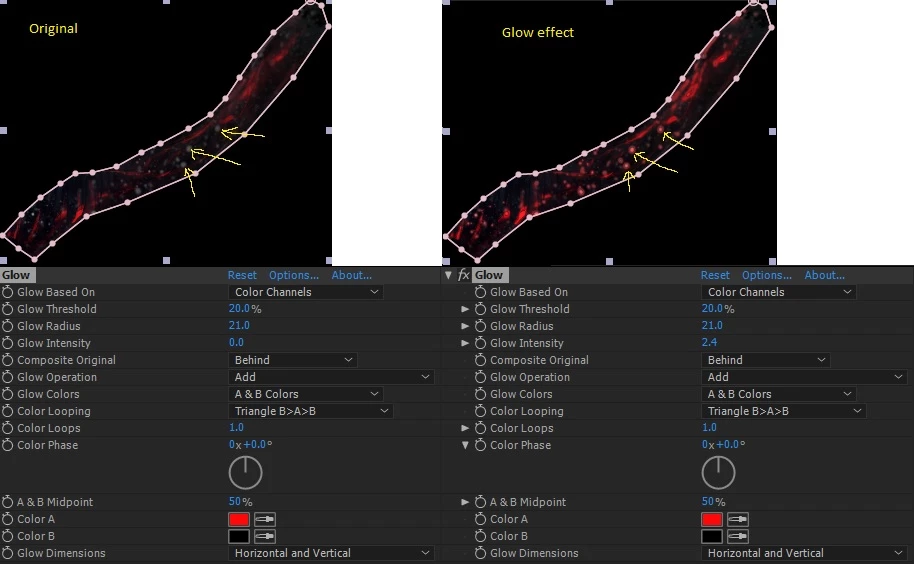
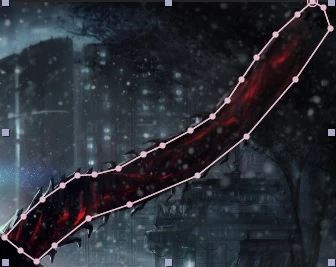
I'm kinda new to the after effects, but I have worked and studied tutorials for a couple of days and I have hit the wall. I want to make a certain parts of my picture to glow. Red color to be exact. But I don't want my whole picture or mask to glow, my goal is to make certain element glow. See the pictures below:

These dots are actually the snow from the picture:

And obviously I don't want the snow to glow red only the "tissue" part.

Any help would be much appreciated.

Thank you

    This topic has been closed for replies.
    Correct answer Roei Tzoref

    I tried to copy what you did, but now I have 3 pictures.(black & white, glowing, and original). but they don't overlap(blend) with each other. My composition doesn't have those little squares(see picture below) next to the file name.

    3 layers is correct. set your switches tab to show the transfer modes by pressing F4 or clicking here (1) or here (2) at the bottom of your timeline panel:
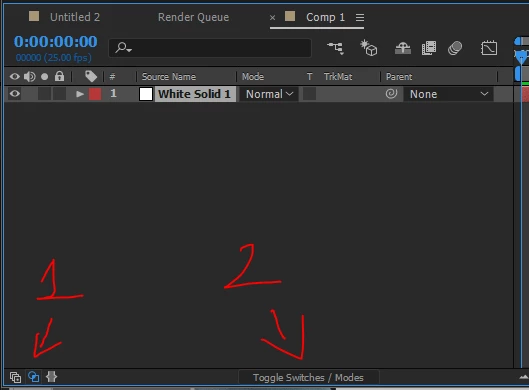
    now you have the transfer modes where you can set one layer to use the matte of another
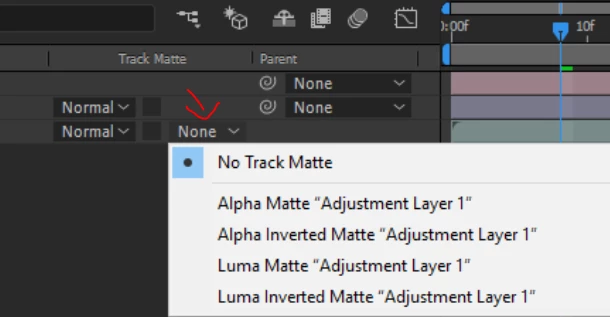
    BUT WAIT

    if this is a still image, this would be much less trouble if you prepared everything in Photoshop before going into Ae:

    remove the snowflakes in Photoshop by using any one of PS's trademarks - the state of the art retouching techniques that are available for you (healing brush, stamp, etc.) also separating any other element you wish will be much easier with PS, instead of using AE's masks and mattes. after you are done, import the artwork to Ae and now you can create the glows and add snowflakes with any of the particle effects like CC Snow or CC particle world.

    also - this is a very big photo. what output do you have in mind? HD? 4K? are you planning to zoom in? this photo is 8k width - the more pixels, the harder Ae has to work to make calculations. you should make sure you bring your raster images as big as they need to be and no more than that.

    more about preparing your PS artwork to Ae here: https://helpx.adobe.com/after-effects/using/preparing-importing-still-images.html#preparing_and_importing_photoshop_files

    2 replies

    Roei Tzoref
    Legend
    January 27, 2017

    the way I understand you situation, you have a footage where the snow is embedded in the video so you can't separate the element from the snow. and you want that element to glow but not the snow... is that correct? show us the full shot - high quality unaltered frame so we can see exactly what you are up against. you might be able to create a matte based on color and contrast for the element separating the snowflakes from the element and then you can use an effect on the branch without it affecting the snow flakes.

    Eligijus_Petrauskis
    Participant
    January 28, 2017

    Thank you for the reply. Sorry for my long reply, unfortunately I work long hours.

    It's not a footage, it's a picture, I'm trying to make it alive( by glowing, snowing , hair moving etc.) it's my first pancake.

    What you did is quite nice.

    I tried to copy what you did, but now I have 3 pictures.(black & white, glowing, and original). but they don't overlap(blend) with each other.

    My composition doesn't have those little squares(see picture below) next to the file name.

    Oh and here's the original picture:

    http://wall.alphacoders.com/big.php?i=681016

    Roei Tzoref
    Roei TzorefCorrect answer
    Legend
    January 28, 2017

    I tried to copy what you did, but now I have 3 pictures.(black & white, glowing, and original). but they don't overlap(blend) with each other. My composition doesn't have those little squares(see picture below) next to the file name.

    3 layers is correct. set your switches tab to show the transfer modes by pressing F4 or clicking here (1) or here (2) at the bottom of your timeline panel:

    now you have the transfer modes where you can set one layer to use the matte of another

    BUT WAIT

    if this is a still image, this would be much less trouble if you prepared everything in Photoshop before going into Ae:

    remove the snowflakes in Photoshop by using any one of PS's trademarks - the state of the art retouching techniques that are available for you (healing brush, stamp, etc.) also separating any other element you wish will be much easier with PS, instead of using AE's masks and mattes. after you are done, import the artwork to Ae and now you can create the glows and add snowflakes with any of the particle effects like CC Snow or CC particle world.

    also - this is a very big photo. what output do you have in mind? HD? 4K? are you planning to zoom in? this photo is 8k width - the more pixels, the harder Ae has to work to make calculations. you should make sure you bring your raster images as big as they need to be and no more than that.

    more about preparing your PS artwork to Ae here: https://helpx.adobe.com/after-effects/using/preparing-importing-still-images.html#preparing_and_importing_photoshop_files

    Eligijus_Petrauskis
    Participant
    January 27, 2017

    By the way, I'm using After Effects CC.

    [Moved from non-technical Forum Lounge to specific Program forum... Mod]

    [Here is the list of all Adobe forums... https://forums.adobe.com/welcome]