Steve23676490goq7
Participating Frequently
March 24, 2022
Answered

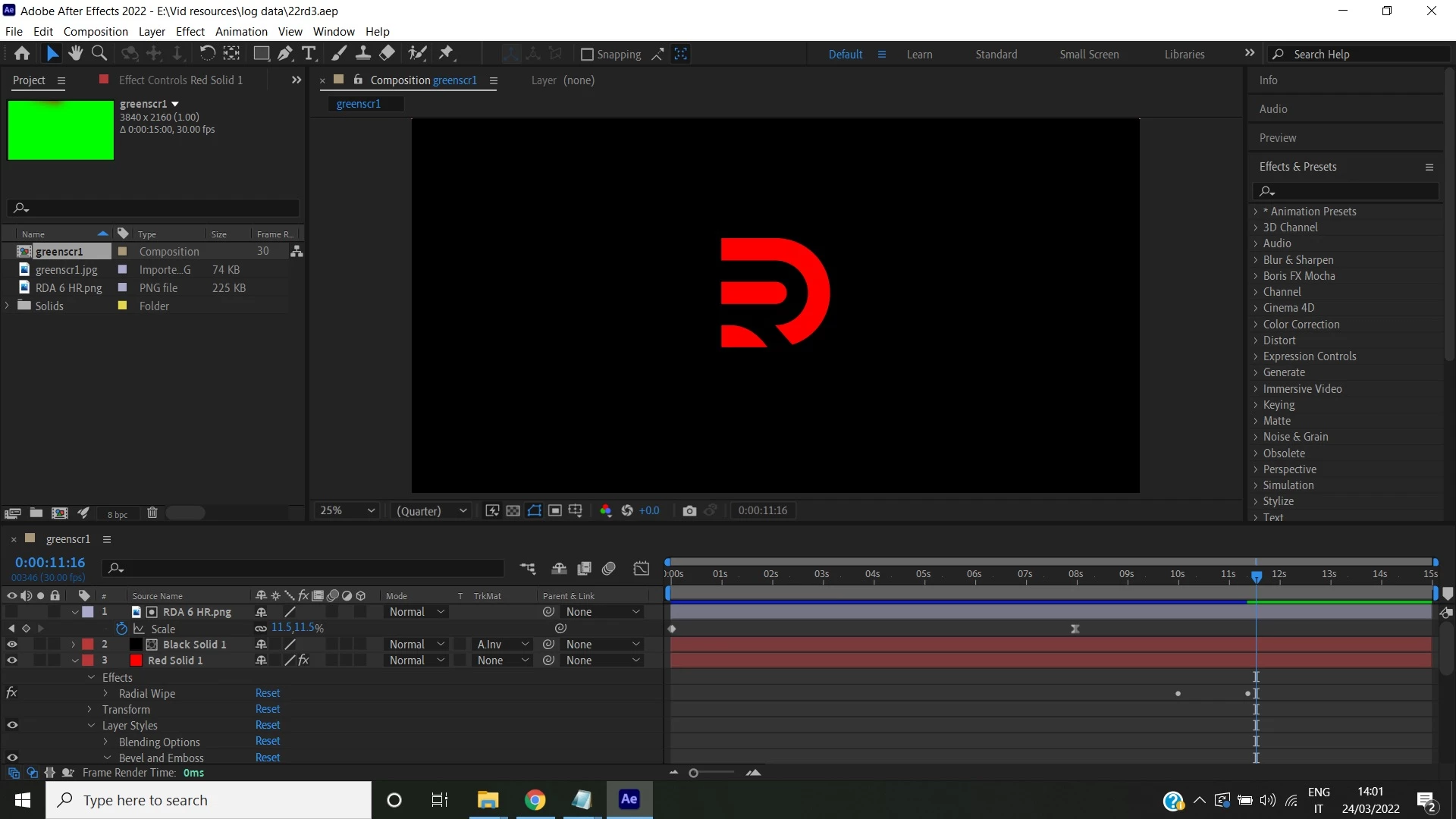
Guys help! Got a huge problem. I need to bevel this logo shape

  • March 24, 2022
  • 2 replies
  • 1575 views

Guys after creating this animation with this shape, I want it beveled

Is it possible to have it beveled? I tried but the part that is beveled which I have hidden is not the shape I want beveled but the animated one

Newbie to Ae so what am I doing wrong???


Project files below:

This topic has been closed for replies.
Correct answer Rick Gerard

I think you are way overcomplicating things.


Here's my suggestion:

  • Get rid of the green JPG and replace it with a green solid
  • Pre-compose layer 1 (the animated PNG), moving all attributes to the new comp
  • Delete the Black Solid (Layer 2)
  • Set the Alpha Track matte for the Red Solid (now layer 2)
  • Select the Bevil Alpha layer styles on the Red Solid and use the edit menu to Copy with Property links
  • Reveal layer styles on the bottom layer (Green Solid) and delete Bevil Alpha
  • Add the Set Matte effect to the bottom layer and choose the nested comp top layer as the source (your pre-comp)
  • With the bottom layer selected (Green Solid) Ctrl/Cmnd + V to paste the Bevil and Emboss layer style and link all properties to the Red Solid layer (layer 2) so any adjustments you make on the Layer Styles settings in Layer 2 will show up in layer 3

That should do it. I have uploaded the comp.
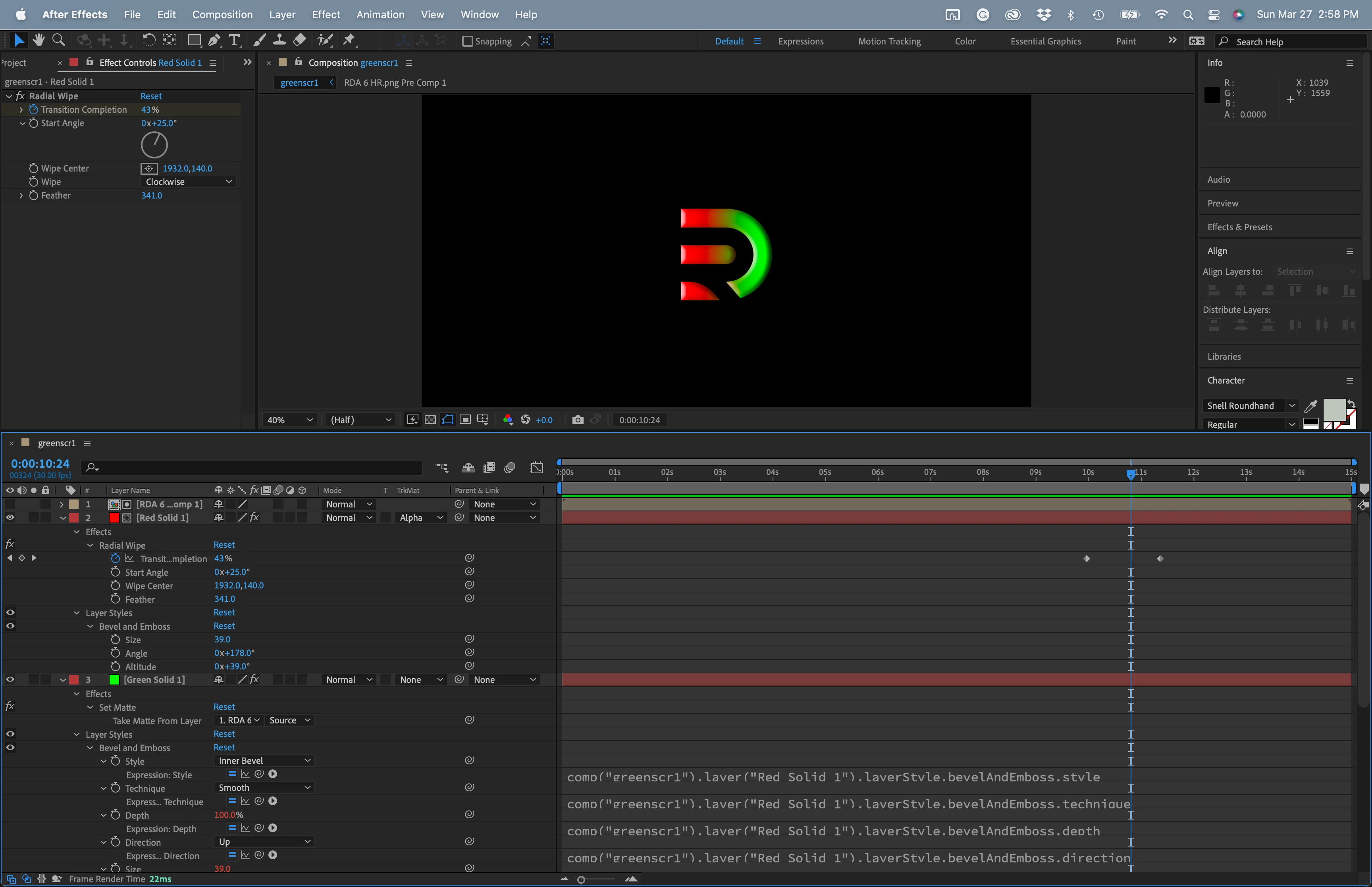
I would also suggest that you work on the timing. An 8-second move on a motion graphic is an eternity, and you should use some easing to give the animation some life. 


One more thing. The Bevil Alpha Effect has limited controls, so I would not use it unless you want limited control over the edges. 


I just had another thought. You could also pre-compose the Red and Green layer with the wipe, use the animated PNG as a track matte, and apply the Bevil Alpha layer style to the pre-comp. 


I hope this helps.

2 replies

Rick GerardCommunity ExpertCorrect answer
Community Expert
March 27, 2022

I think you are way overcomplicating things.


Here's my suggestion:

  • Get rid of the green JPG and replace it with a green solid
  • Pre-compose layer 1 (the animated PNG), moving all attributes to the new comp
  • Delete the Black Solid (Layer 2)
  • Set the Alpha Track matte for the Red Solid (now layer 2)
  • Select the Bevil Alpha layer styles on the Red Solid and use the edit menu to Copy with Property links
  • Reveal layer styles on the bottom layer (Green Solid) and delete Bevil Alpha
  • Add the Set Matte effect to the bottom layer and choose the nested comp top layer as the source (your pre-comp)
  • With the bottom layer selected (Green Solid) Ctrl/Cmnd + V to paste the Bevil and Emboss layer style and link all properties to the Red Solid layer (layer 2) so any adjustments you make on the Layer Styles settings in Layer 2 will show up in layer 3

That should do it. I have uploaded the comp.

I would also suggest that you work on the timing. An 8-second move on a motion graphic is an eternity, and you should use some easing to give the animation some life. 


One more thing. The Bevil Alpha Effect has limited controls, so I would not use it unless you want limited control over the edges. 


I just had another thought. You could also pre-compose the Red and Green layer with the wipe, use the animated PNG as a track matte, and apply the Bevil Alpha layer style to the pre-comp. 


I hope this helps.

Steve23676490goq7
Participating Frequently
March 29, 2022

Rick I'm stuck at the last 3 points

  • Reveal layer styles on the bottom layer (Green Solid) and delete Bevil Alpha

Please what do I click to reveal layer styles and delete bevel alpha??

Inspiring
March 24, 2022

There are lots of ways to achieve this effect and even simplify it, but to answer your question, you're beveling a red solid, not the logo itself. It would be best if you brought this logo in as a vector shape (or recreated it in After Effects) so you could change the colors and even add the "Bevel Alpha" effect (as opposed to the "Bevel & Emboss" layer style). You would have much more control if you could adjust the effects instead of trying to matte out a solid with a beveled PNG.

Steve23676490goq7
Participating Frequently
March 26, 2022

it did not work

I tried the luma inverted matte which produced a bevel with the animation however the luma inverted matte produced a dull green and dull red color when the animation goes from green to red....how do I maintain the standard or even brighter green or red color?