
Inspiring
May 14, 2025
Answered

How can I make these rotational lines even using the repeater

  • May 14, 2025
  • 2 replies
  • 785 views

Hi community. 


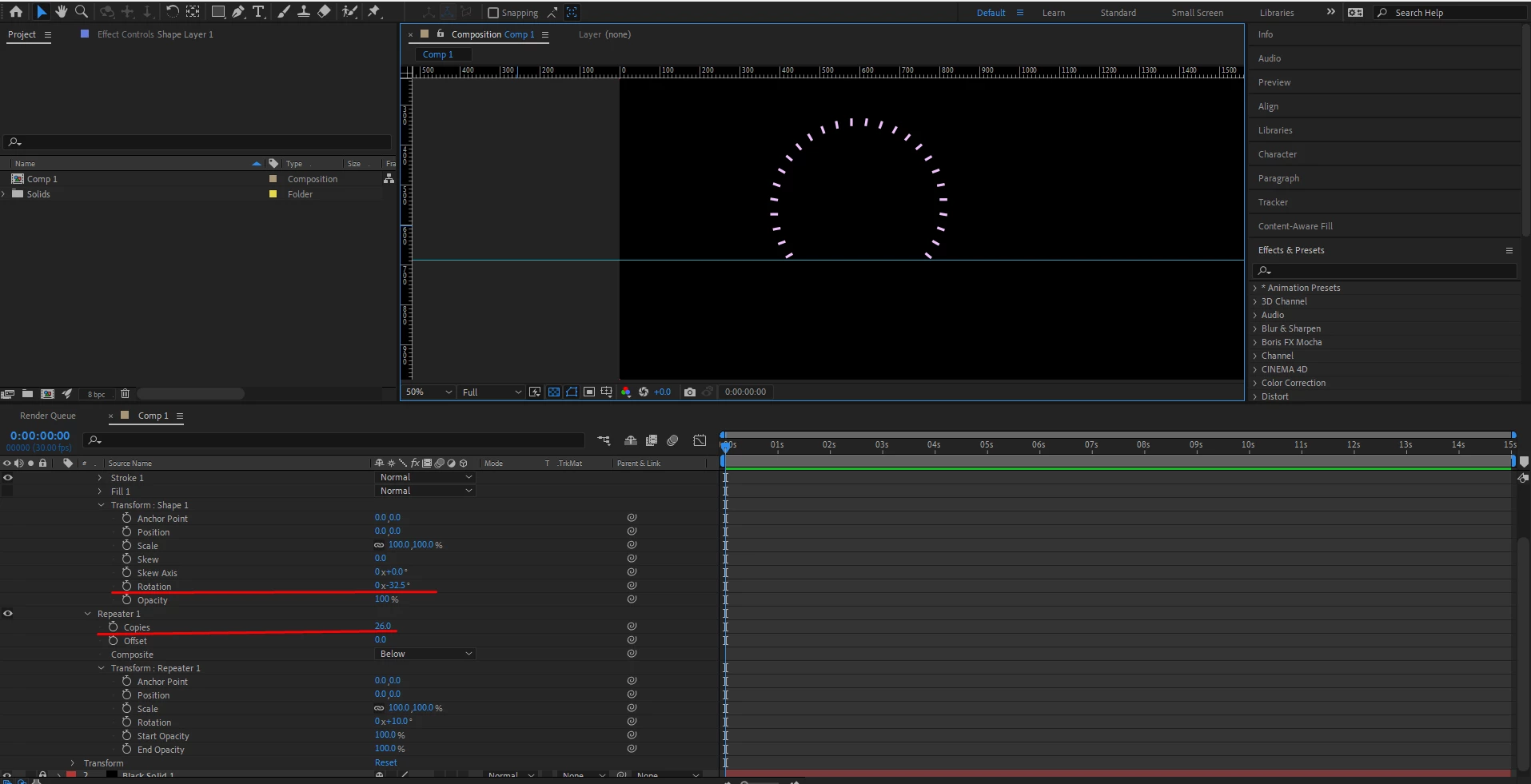
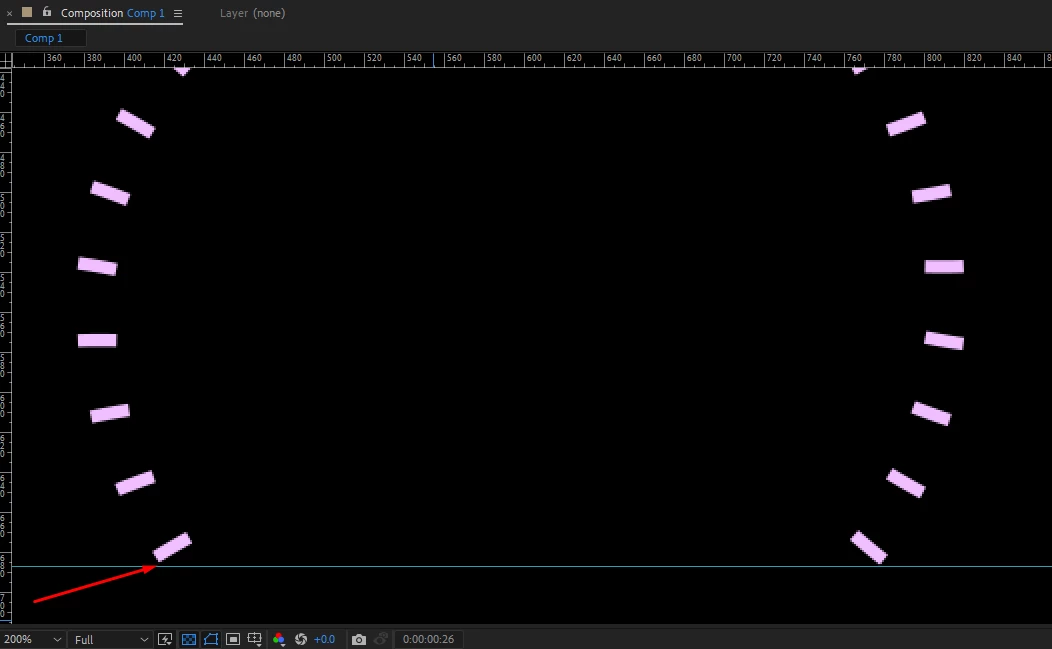
I have used the repeater to animate lines in a circular direction. The issue Im facing is getting an even number of rotation for the lines. Is it even correct in AE using decimals to achieve accurate rotation and positioning? for example, 34.3, or 34.5 etc etc. Or for multimedia online graphics the pixels must always default to a rounded off number, example: 34. 35, 56, etc etc.


Correct answer Rick Gerard

My expression lets you choose any angle for the open part, and the project file is included. The included shape layer is all you need.

2 replies

Participating Frequently
May 14, 2025

Yes, it's completely fine to use decimal values when working with rotation in After Effects' Repeater. In fact, it's often necessary if you're aiming for precision, especially when distributing elements evenly in a circular pattern. The key is to calculate the correct rotation angle based on how many copies you're creating.


For example, if you want to animate 10 lines around a circle, you would divide 360° by 10, which gives you 36° per copy. That value 36 would then be entered into the Repeater's Transform > Rotation field, and you'd keep the position at 0,0 to rotate around the center properly.


Using decimal values like 51.43° (which you'd get for 7 lines: 360 ÷ 7) is perfectly accurate and won’t cause any issues. Pixels and rotations in After Effects don’t have to be whole numbers precision is actually improved with decimal inputs. You also want to make sure your shape’s anchor point is centered correctly, as that affects how your shapes rotate.


If you’d like a more dynamic setup, you can even use expressions to divide 360 by the number of copies automatically, which is helpful if you're experimenting with different numbers. Just be sure not to round the numbers, as that can result in uneven spacing.


For a visual example, you might want to check out this video: Radial Shape Layer Repeater in After Effects  it covers exactly what you're trying to achieve.

Rick GerardCommunity ExpertCorrect answer
Community Expert
May 15, 2025

My expression lets you choose any angle for the open part, and the project file is included. The included shape layer is all you need.

Community Expert
May 16, 2025

To take it one step further, is it possible to be able to make each rectangle line create the sequential reveal, appear one at a time from left to right, while increasing the copies?


The easiest solution for revealing the circle of dashes is to add Radial Wipe to the layer. Check out the sample comp.

Community Expert
May 14, 2025

I think you are running into a simple math problem. If you want to fill an entire circle with shapes, you simply divide 360 by the number of shapes using an expression. For example, 360/33 = 10.90909091 


If you want to use a portion of the arc (I assume your guideline at the bottom is the portion of the arc, you just need to do a little more math and adjust the circle's radius.


Here's the workflow I would follow.

  1. Create a new shape layer by double-clicking the Rectangle tool
  2. Press the u key twice to reveal all modified properties of the shape layer and delete the stroke
  3. Unlink the Rectangle Path 1/Size property, and set the size of the rectangle to something like 8, 40
  4. Type tr in the Layer Search field to reveal the Rectangle 1/Transform Rectangle 1 property, spin it down
  5. Drag the Transform Rectangle 1/Anchor Point value Y value up to something like 400 to move the rectangle
  6. Drag the Transform Rectangle 1/Rotation value to the left to something like -120 to set the starting point of the rotation
  7. Select Contents and then use the Add menu to add a Repeater to the shape
  8. Spin down Repeater and Repeater/Transform Repeater 1
  9. Reset the Transform Repeater 1/Position to 0, 0
  10. Add this expression to the Transform Repeater 1/Rotation property
    arc = content("Rectangle 1").transform.rotation * -2;
    n = content("Repeater 1").copies - 1;
    arc/n​
  11. Adjust the Transform Rectangle 1/Anchor Point Y value and the Transform Rectangle 1/Rotation value to get the radius of the circle of rectangles and the gap you want at the bottom
  12. Adjust the Repeater 1/Copies value to control the number of copies


That should get you there. I have included an AEP file with the solution. The easiest way to animate the number of copies is to add Radial Wipe to the Shape layer.