faredjhi
Participant
November 9, 2017
Answered

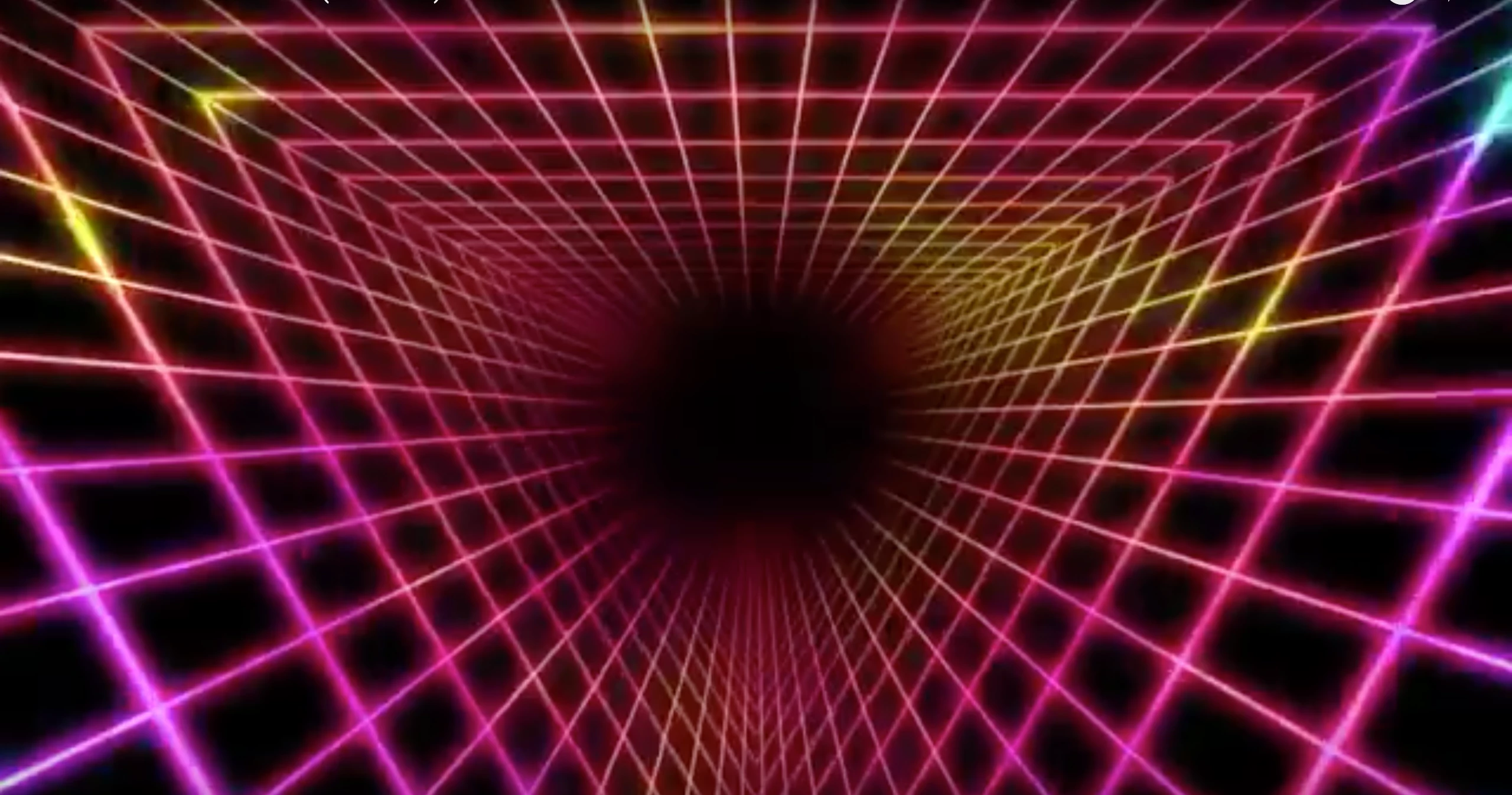
How do you do this effect?

  • November 9, 2017
  • 2 replies
  • 895 views

I've been trying several times to make a triangle tunnel effect. I've tried using 'Grid' but it does not align as a triangle.

I would gladly appreciate your help!
This topic has been closed for replies.
Correct answer Rick Gerard

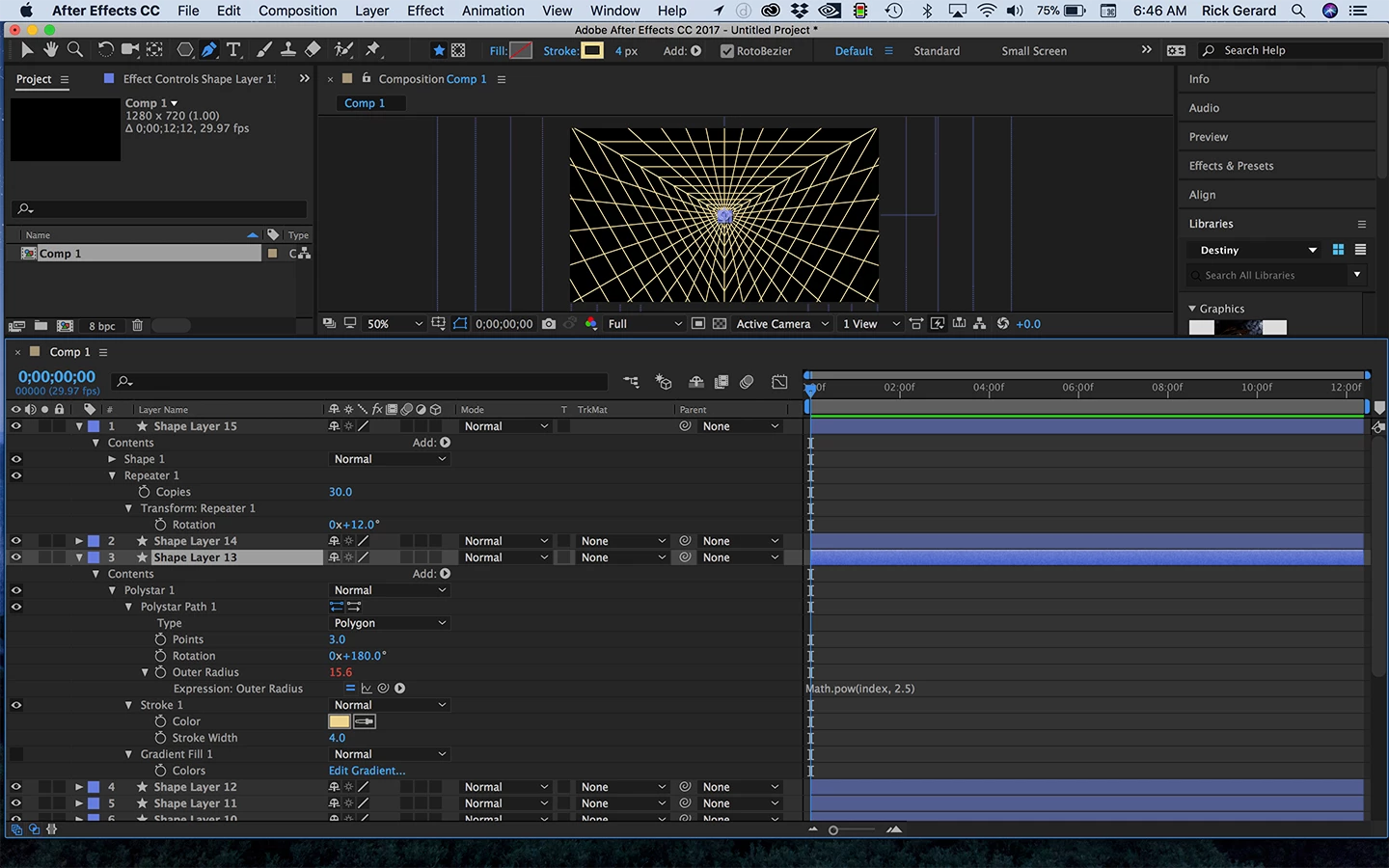
One easy way to get this effect and keep the stroke width consistent is to use a triangle shape layer and add an expression to the size that uses exponents. The expression looks like this:

Math.pow(index, 2.5)

This takes the layer number, the index, and raises it by the power of 2.5. Set the second number to anything that gives you the faked perspective you desire.

Then add a shape layer with a single line extending from the center of the comp to an outside corner and add a repeater for rotation. Decide how many copies you want, 30 for example, and divide 360 by that number to get the rotation offset (360/30 = 12). You'll get something like this which you can pre-compose and then use as a track matte for a gradient filled shape layer and then add glow.
A second option is to use Radio Waves and a mask. You can create any shape and get movement. You can then also use shape layer/repeater trick to get the radiating lines.
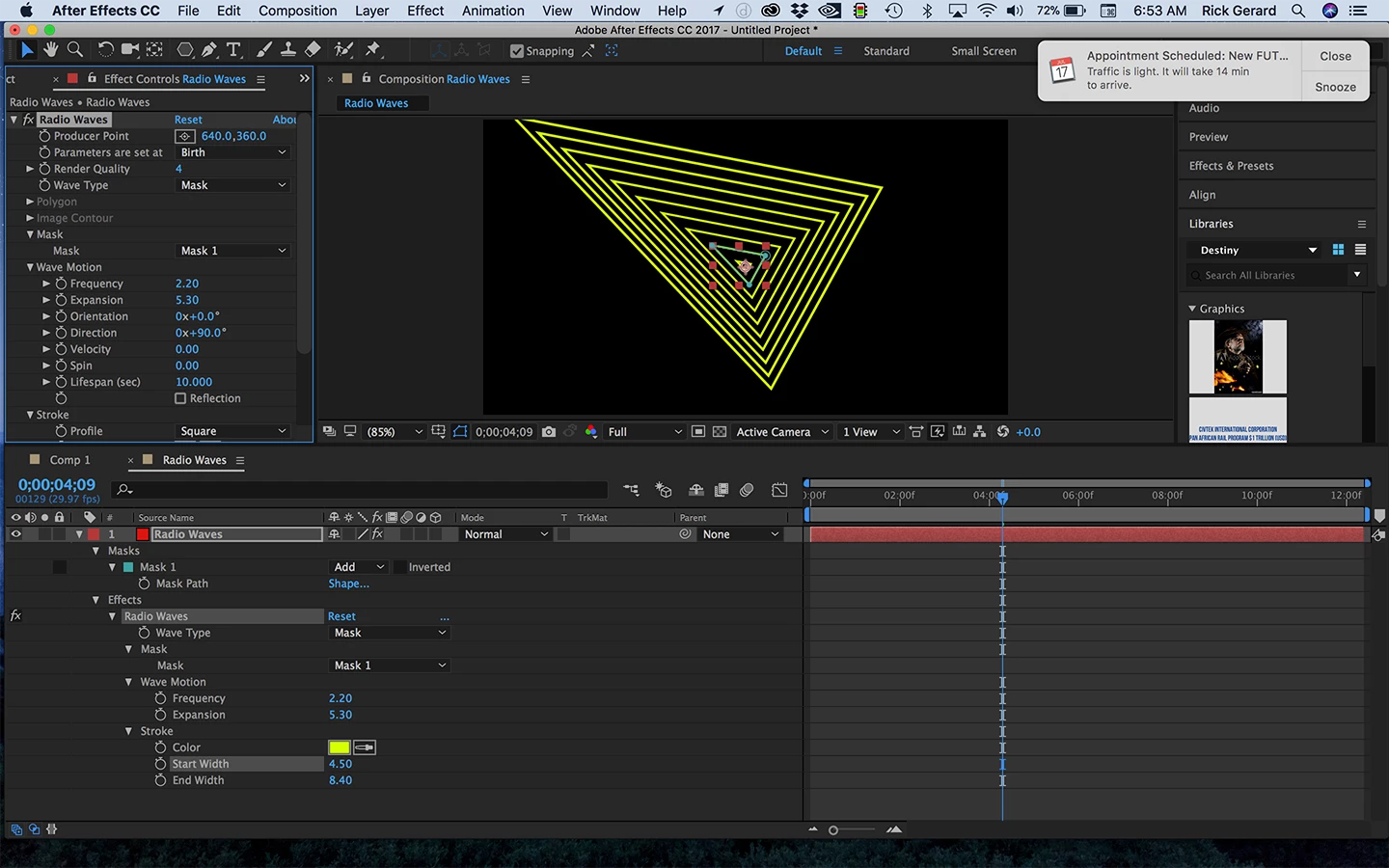
Then you can do the same pre-comp and use as a track matte trick go get your gradient and glow.

There are other options. It just depends on what exactly what you are trying to do. I hope this gets you started.

2 replies

Rick GerardCommunity ExpertCorrect answer
Community Expert
November 9, 2017

One easy way to get this effect and keep the stroke width consistent is to use a triangle shape layer and add an expression to the size that uses exponents. The expression looks like this:

Math.pow(index, 2.5)

This takes the layer number, the index, and raises it by the power of 2.5. Set the second number to anything that gives you the faked perspective you desire.

Then add a shape layer with a single line extending from the center of the comp to an outside corner and add a repeater for rotation. Decide how many copies you want, 30 for example, and divide 360 by that number to get the rotation offset (360/30 = 12). You'll get something like this which you can pre-compose and then use as a track matte for a gradient filled shape layer and then add glow.

A second option is to use Radio Waves and a mask. You can create any shape and get movement. You can then also use shape layer/repeater trick to get the radiating lines.

Then you can do the same pre-comp and use as a track matte trick go get your gradient and glow.

There are other options. It just depends on what exactly what you are trying to do. I hope this gets you started.

faredjhi
faredjhiAuthor
Participant
November 9, 2017

Oh wow this is my first time posting on this forum and I can't say thank you enough for the helpful tutorial you showed!

Thank you once again! Cheers

Community Expert
November 10, 2017

I am doing as told but I keep coming to the same problem on the final layer which is the lines. After rotating it, it gave me messy lines as shown below.


Carefully check the modified properties of my line. First, the starting point of the line must be exactly on the anchor point of the shape layer and the end must be perfectly lined up with one of the corners. Then you set up the repeater, make sure that position and anchor point are both at zero and just fill in the angle and the number of copies.

If you are slightly off you can set the repeater for say 3 or 4 copies then select the the first vertex and drag it around until the other 3 copies line up perfectly.

Mylenium
Legend
November 9, 2017

A bunch of simple shape layer elements can easily create this - a triangle poly, a Repeater and then a similar setup for the perpendicular lines.

Mylenium
