By far the easiest way to do what you want to do is to: Add a null, parent the scaled layer to the null, use the null’s scale to control the null. When the Null's scale is 100, 100 the layer's scale will be 89, 64.
Option 2: Add an expression point control to the scaled layer (Effect>Expression Control>Point control, rename the effect NewScale or something like that, then tie the scale property to the point control using the following expression.
x = effect("New Scale")("Point")[0] - 100 + value[0];
y = effect("New Scale")("Point")[1] - 100 + value[1];
[x, y]
or add two sliders and call one x and the other y and use this expression:
x = value[0] - 100 + effect("X scale")("Slider");
y = value[1] - 100 + effect("Y scale")("Slider");
[x, y]
You could tie the Y slider to the X slider with a simple Pickwhip created expression so you only have to adjust one of the sliders like this:
effect("X scale")("Slider")
When you set the NewScale values to 100 the scale property will be 89, 64. Use the NewScale expression control to manipulate scale.
There is no way to make the scale values read anything but the actual values. If you were to try and add an expression that did the math directly like this [value[0] - 11, value[1] - 36] when you typed in 100 for X and Y scale you would get 89 for X and 65 for Y which is what you want but the values would say 89, 65, they would just be in red.
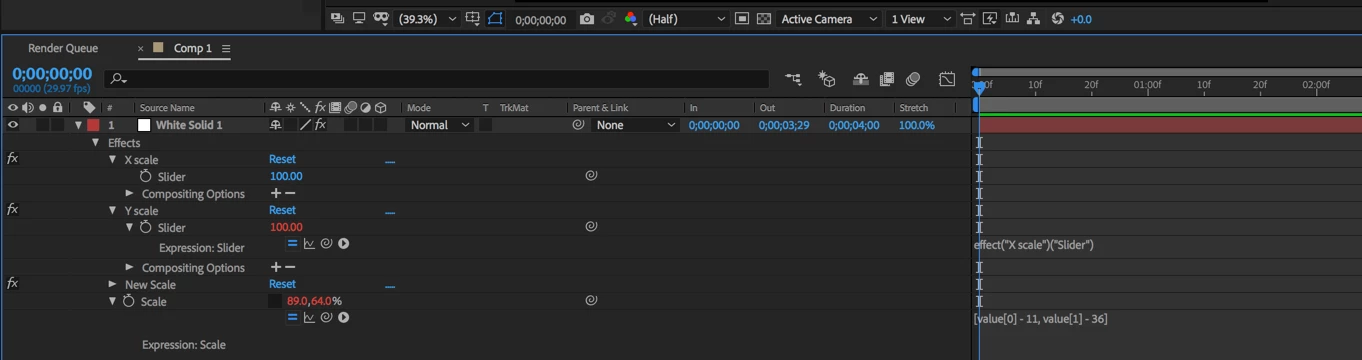
I'm really curious, why would you want to this? The solution that makes the most sense is to just add a parent like this:

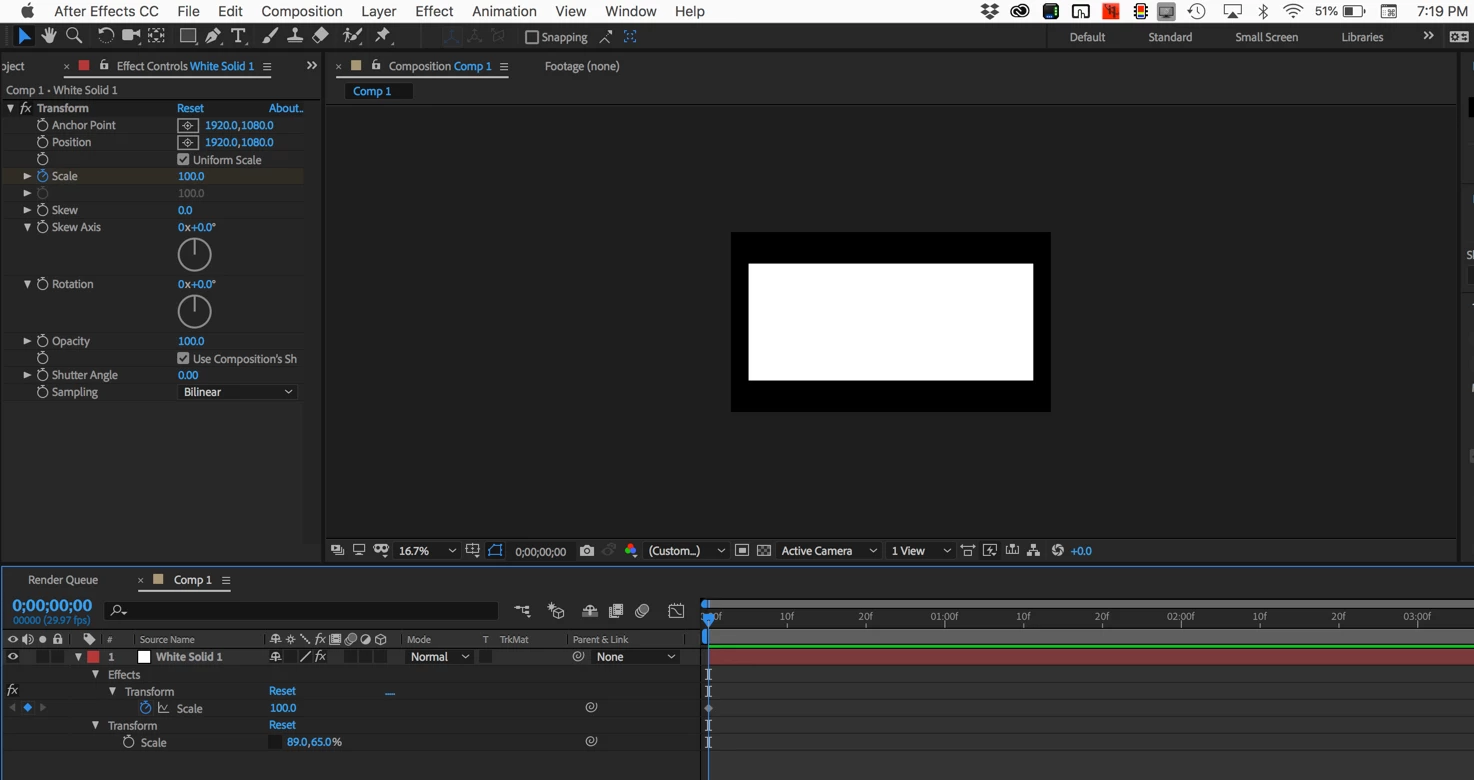
Just thought of another way. Add Effect>Distort>Transform to your scaled layer. Do the scaling with the Transform Effect.

 AdChoices