Participant
May 20, 2025
Answered

How to animate an exisiting arrow graphic?

  • May 20, 2025
  • 1 reply
  • 385 views

I have an existing arrow graphic used for a logo, that needs to be animated so that it follows the shape and finishes as it is in the logo, is there a way of doing this without drawing one single path? as it is made of geotmetric shapes rather than a single stroke. 

Correct answer ShiveringCactus
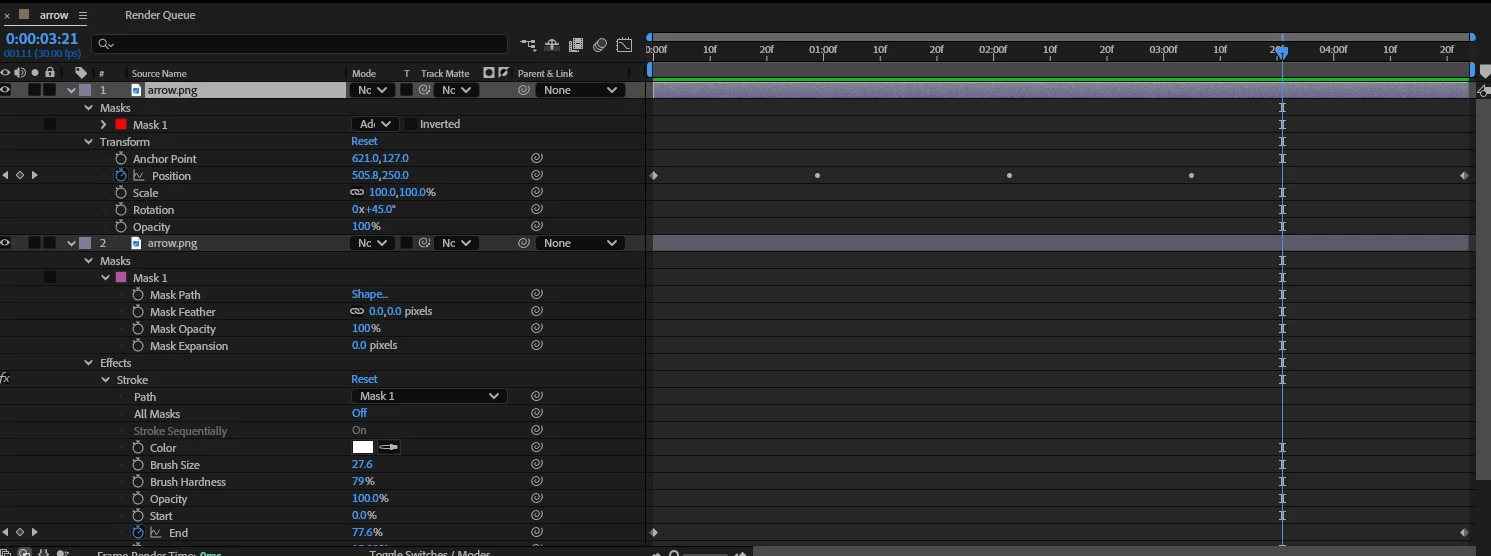
  1. Take your image and use the mask tool to draw a path on the line.
  2. Copy your image and cutout the arrowhead.
  3. Expose its position properties and then switch back to the mask
  4. Copy the Mask path to your clipboard.  Then paste this into the position properties of the arrow head
  5. Adjust the Anchor Point so that the arrowhead lines up with the image
  6. Go to Layer > Transform > Auto-orient and choose Orient along Path
  7. Back on the image with the mask, go to Effect > Generate Stroke.
  8. Set the brush size to be large enough to hide the line (around 30 in my test).  Then set the Paint style dropdown to be Reveal Original Image.
  9. Keyframe the End property to go from 0% to 100% over the same time as the position keyframes.
  10. Add a white solid for the background.

And you're done.


In your original post you said "without drawing a single path" and obviously this method does that.  Is there a reason why you can't have a path?  You could have manually set the positions for the arrowhead instead of using the path as position data, but this way you get the reveal bonus too.

1 reply

ShiveringCactus
Community Expert
Community Expert
May 20, 2025

Try Omino Snake - it's a free plugin that distorts a precomp into a mask path.

https://omino.com/pixelblog/?s=snake


If that doesn't work for your project I think I'd just manually do it.  While that might seem odd, figuring out an automated process and then correcting it will take longer manually animating a logo reveal.

Participant
May 20, 2025

Thankyou will give this a look! how would you manually do it to allow the shape to follow the path in essentially 4 sections rather than one continous line? 

ShiveringCactus
Community Expert
ShiveringCactusCommunity ExpertCorrect answer
Community Expert
May 20, 2025
  1. Take your image and use the mask tool to draw a path on the line.
  2. Copy your image and cutout the arrowhead.
  3. Expose its position properties and then switch back to the mask
  4. Copy the Mask path to your clipboard.  Then paste this into the position properties of the arrow head
  5. Adjust the Anchor Point so that the arrowhead lines up with the image
  6. Go to Layer > Transform > Auto-orient and choose Orient along Path
  7. Back on the image with the mask, go to Effect > Generate Stroke.
  8. Set the brush size to be large enough to hide the line (around 30 in my test).  Then set the Paint style dropdown to be Reveal Original Image.
  9. Keyframe the End property to go from 0% to 100% over the same time as the position keyframes.
  10. Add a white solid for the background.

And you're done.


In your original post you said "without drawing a single path" and obviously this method does that.  Is there a reason why you can't have a path?  You could have manually set the positions for the arrowhead instead of using the path as position data, but this way you get the reveal bonus too.