
Participant
December 24, 2018
Answered

How to change direction in trim path? How to make tail of lines round, straight cut, or like a comet tail?

  • December 24, 2018
  • 2 replies
  • 14698 views

Check this GIF for more understanding. I am trying to vanish upper line of hamburger menu vanish in left direction whereas simultaneously down line i wanted to vanish in right direction, but i am unable to vanish in right direction? and down line tail is not straight cut, it is more like comet tail, how to change tail of it?
Imgur: The magic of the Internet

This topic has been closed for replies.
Correct answer Rick Gerard

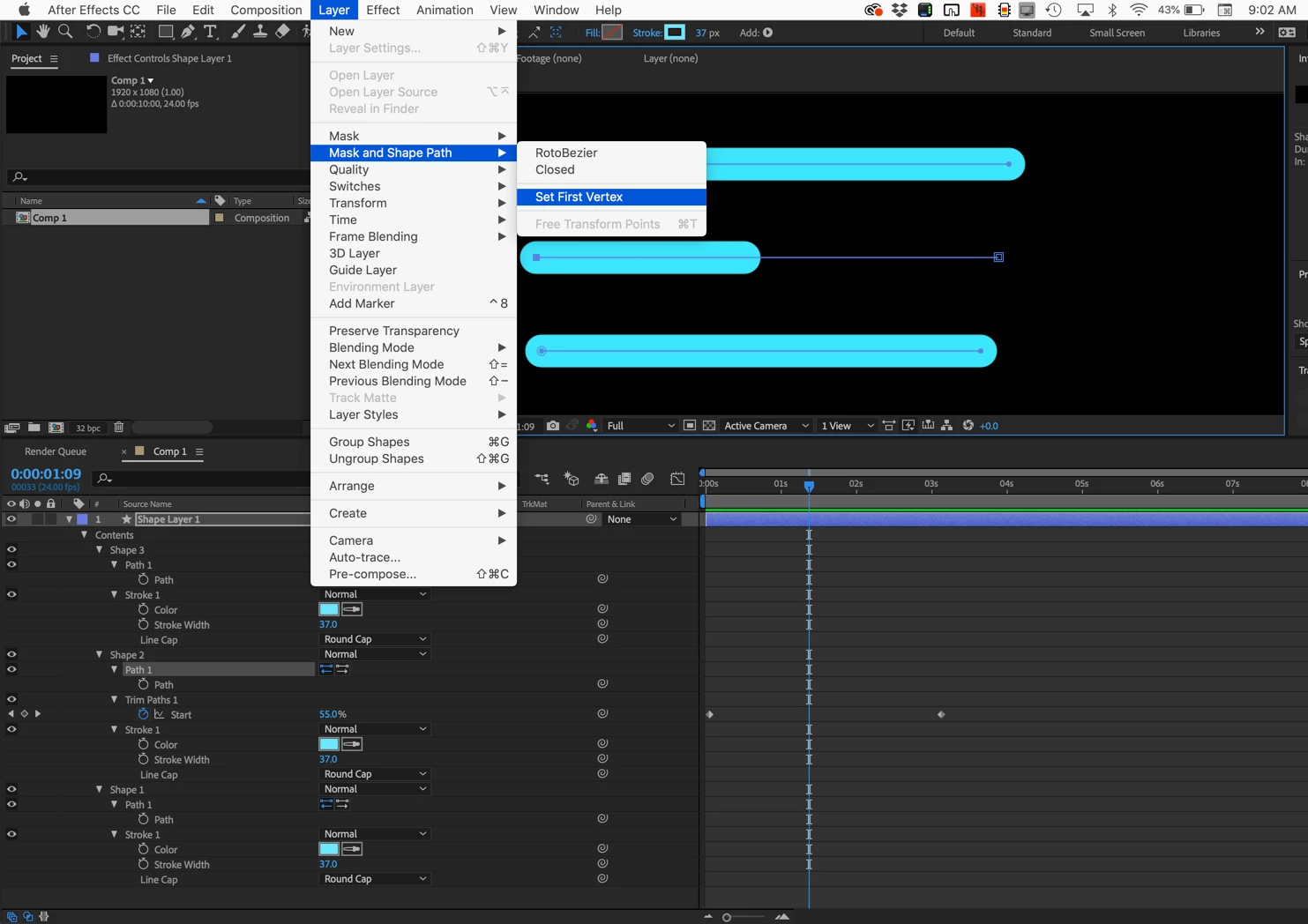
Personally, I would just do that kind of a reveal using an animated mask (yes, you can add a mask to a shape layer), or a track matte.  Trim paths are only really useful for simple strokes. If you want to reverse the direction of a trim path, then you can simply change which property you animate (start vs end) or use the vertex you want to use as the first vertex then use the menu Layer>Mask >Set First Vertex. You can also add a trim path animator to each path in a shape layer. About five minutes with the User Guide (type trim paths in the Search Help field at the top right corner of AE) will give you details.

This screenshot shows everything modified to create 3 stroked lines apply trim paths to the center line, then prepare to change the direction of the animation from left to right to right to left by changing the first vertex:

After the first vertex has been changed:

2 replies

Rick GerardCommunity ExpertCorrect answer
Community Expert
December 24, 2018

Personally, I would just do that kind of a reveal using an animated mask (yes, you can add a mask to a shape layer), or a track matte.  Trim paths are only really useful for simple strokes. If you want to reverse the direction of a trim path, then you can simply change which property you animate (start vs end) or use the vertex you want to use as the first vertex then use the menu Layer>Mask >Set First Vertex. You can also add a trim path animator to each path in a shape layer. About five minutes with the User Guide (type trim paths in the Search Help field at the top right corner of AE) will give you details.

This screenshot shows everything modified to create 3 stroked lines apply trim paths to the center line, then prepare to change the direction of the animation from left to right to right to left by changing the first vertex:

After the first vertex has been changed:

Mohammad.Harb
Community Expert
Community Expert
December 24, 2018

Create each line on a separate shape layer ,

or create a new shape path inside the shape layer and apply the trim path to each one individualy

OussK
Community Expert
Community Expert
December 24, 2018

the problem is you try to trim a rectangle and not a stroke so to fix that you must create a path instead of rectangle, also you can simply flip the direction of path to reverse the direction of trim, check this quick tutorial (also i show how to make round line)