
Inspiring
May 8, 2022
Answered

How to create 3D text without fill?

  • May 8, 2022
  • 1 reply
  • 591 views

Can anyone tell me how to create 3D text without a fill?

I created text then hit the no-fill option, this works perfect.

But now I want to give it some depth then rotate it slightly in X, Y, and Z.

Once I hit the 3D Layer option to do my rotate and give it depth, the text fills it's self.  I don't want filled text.

I have tied adding "Stroke" but this has no effect.

I have tried playing with "Vegas" but still is filled.

Is there a botton I can push to keep my No-fill choice and not have the program undo selections I have made?
This topic has been closed for replies.
Correct answer Rick Gerard

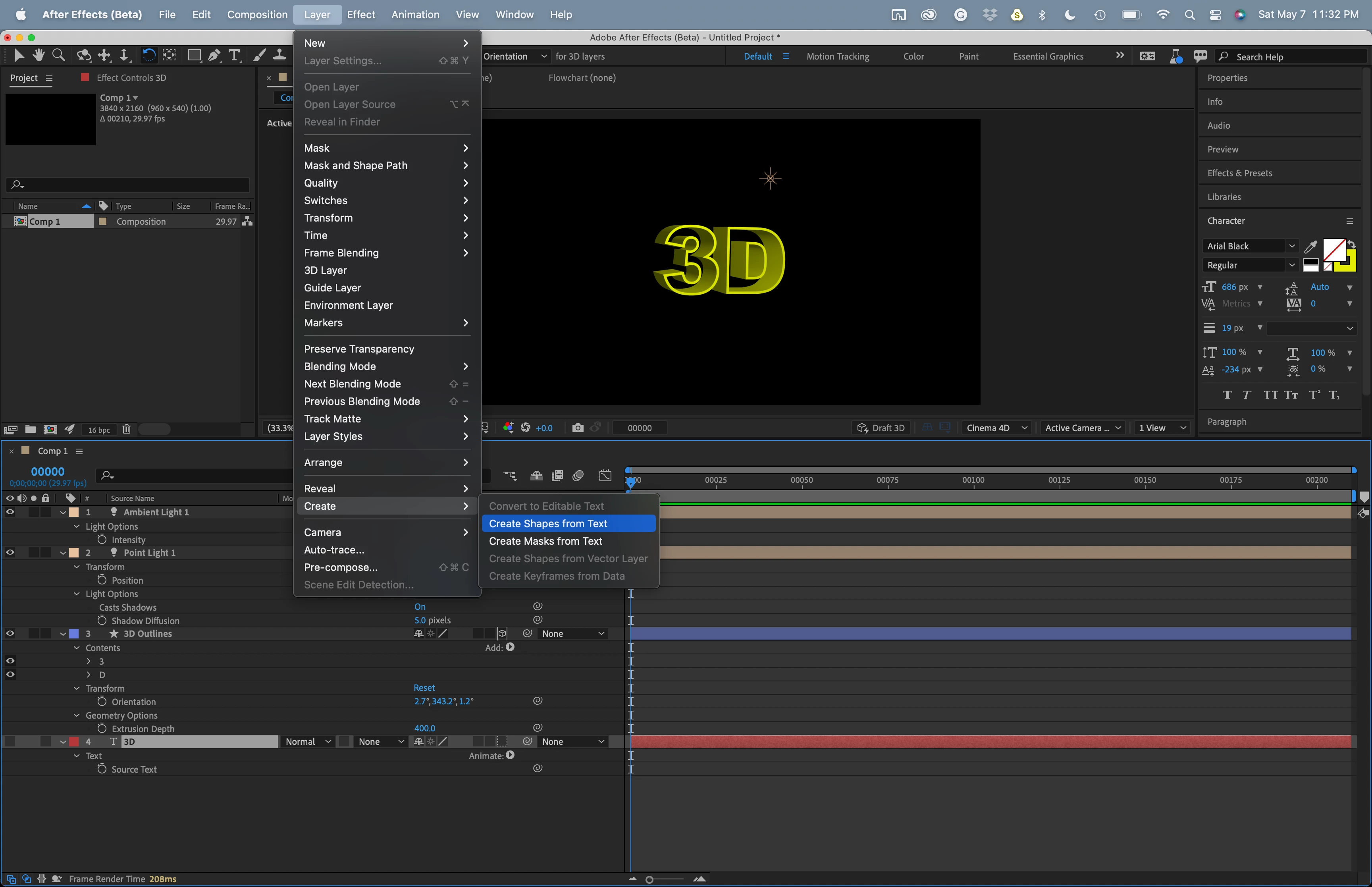
Create your text layer, select Layer/Create/Create Shapes From Text from the menu, make your shape layer 3D, press AA to reveal geometry options, and add light and some ambient light. Takes about 2 minutes:

The screenshot shows everything I modified and the shapes created from the text.

1 reply

Rick GerardCommunity ExpertCorrect answer
Community Expert
May 8, 2022

Create your text layer, select Layer/Create/Create Shapes From Text from the menu, make your shape layer 3D, press AA to reveal geometry options, and add light and some ambient light. Takes about 2 minutes:

The screenshot shows everything I modified and the shapes created from the text.

Inspiring
May 8, 2022

Thank you so much for making that easy.