Participant
November 1, 2023
Answered

How to 'cut' the display image and make a new layer from it?

  • November 1, 2023
  • 2 replies
  • 558 views


Hello, I am a beginner stuck in AE.

In the screenshot above, I drew a layer with the pen tool, the yellow layer named Anatolia. I want to extract the inner side of this layer, and create a new layer out of it.   


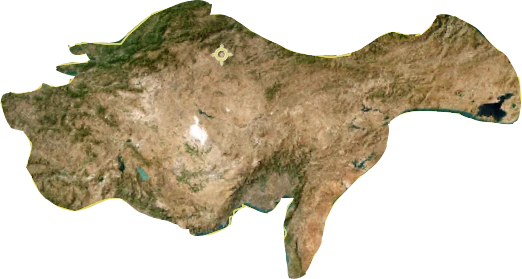
Just like this one below. The layer I want should look like it. How can I do that?

p.s. the original world map layer is 3d, if there is something related to it 


This topic has been closed for replies.
Correct answer thepixelsmith

I beliewve what you are trying to do it create a mask on the image layer.

To achieve that, what you should have done is select the image layer and use the pen tool to draw your mask there. That would have given you the result you seem to be looking for.

Since you are at this point there are a couple of ways to go forward from here:

Track Matte

1- Duplicate the Map Layer.

2- Fill in your shape layer

3- On the duplicate Mask layer select the shape layer as the track matte.


Copy Shape Path to Mask Path - this is more work

1 - Duplicate the Map layer

2 - On the shape layer reveal the shapes properties until you see the one called Path.

3 - Click on the shape path and copy it (Edit > Copy)

4 - Select the Map Copy

5 - Choose Layer > Mask > New Mask

6 - Reveal the Masks Path Propety and click on it to select it.

7 - Choose Edit > Paste

That should copy the shape path to the mask path.


Either of the techniques I outlined above should get you the result you are looking for. Each has pros and cons though.

2 replies

thepixelsmith
Community Expert
thepixelsmithCommunity ExpertCorrect answer
Community Expert
November 2, 2023

I beliewve what you are trying to do it create a mask on the image layer.

To achieve that, what you should have done is select the image layer and use the pen tool to draw your mask there. That would have given you the result you seem to be looking for.

Since you are at this point there are a couple of ways to go forward from here:

Track Matte

1- Duplicate the Map Layer.

2- Fill in your shape layer

3- On the duplicate Mask layer select the shape layer as the track matte.


Copy Shape Path to Mask Path - this is more work

1 - Duplicate the Map layer

2 - On the shape layer reveal the shapes properties until you see the one called Path.

3 - Click on the shape path and copy it (Edit > Copy)

4 - Select the Map Copy

5 - Choose Layer > Mask > New Mask

6 - Reveal the Masks Path Propety and click on it to select it.

7 - Choose Edit > Paste

That should copy the shape path to the mask path.


Either of the techniques I outlined above should get you the result you are looking for. Each has pros and cons though.
Participant
November 7, 2023

Thank you so much, appreciate it a lot!

Participant
November 1, 2023

Sorry for the bad resolution, here is a detailed screenshot,