Participant
February 10, 2021
Answered

How to: liquid footage / automated masks

  • February 10, 2021
  • 2 replies
  • 573 views

Hi all! 

So I have two questions. 

1. Is there any way to create masks automatically with footage? For example, lets say I have a round circle bouncing in black/white - can I somehow create a automatic mask from the white bouncing ball? 

2. Is there any way to create liquid footage? I am aiming for an effect where "footage gets spilled upon footage". So instead of a 2d-animated splash, make a filmed video liquid. 

Thank you so much in advance. 
This topic has been closed for replies.
Correct answer angie_taylor

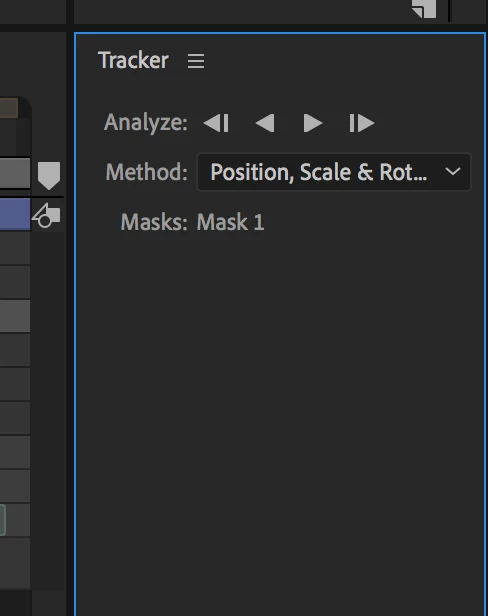
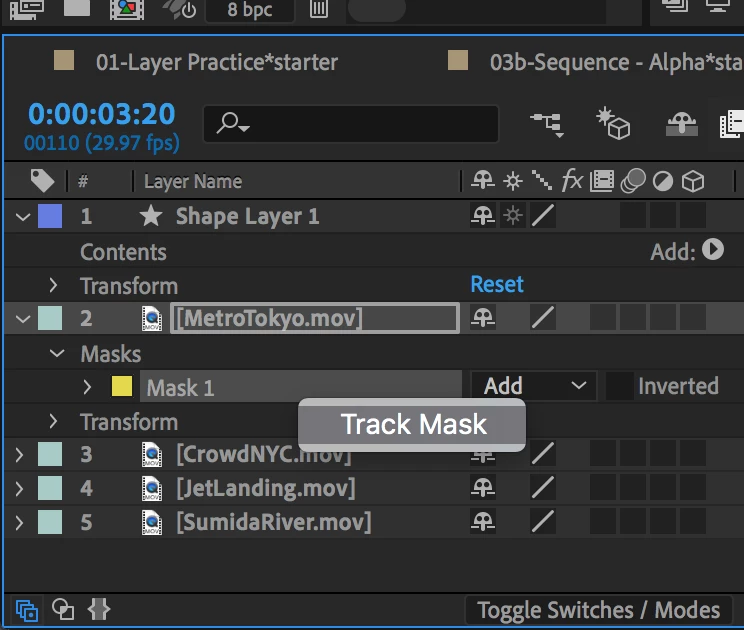
1) The first answer is yes, you can track a mask onto an object. Move to the first frame, add the mask to the object. Right click on the Mask and choose Track Mask.


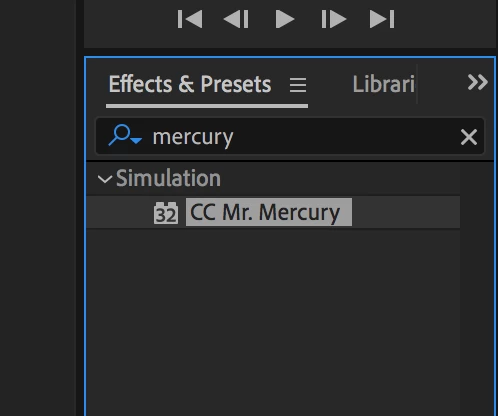
2) The effect used to do this is called Mr Mercury. You can find instructions on how to use this and all other effects in the User manual here;

https://helpx.adobe.com/after-effects/user-guide.html/after-effects/using/effect-list.ug.html


2 replies

P.M.B
Legend
February 15, 2021

If you have a solid circle bouncing on a solid background (in black and white, even better) you already have a matte. A matte does the same thing as a mask essentially in that it cuts out part of your footage.

You would apply by duplicating the footage and setting the lower layer TrkMat to LumaInverted


But if you need a mask for some other reason like an effect or something then forget the matte and use Auto-trace.

Select the footage got Layer>Auto-trace

Set the channel to luminance and hit OK and boom, you've got an animated mask.

Depending on the length of your footage it make take a minute to calculate.

Basically the stronger the contrast of your footage the better Auto-trace will work.


~Gutterfish
angie_taylor
Legend
February 15, 2021

Good call on suggesting the matte. It didn't occur to me that that may only want to create transparency. I assumed they specifically wanted a tracked mask.


Automask is OK but not perfect and harder to adjust if you need to. No need to use automask if the built-in Mask Tracking works. It's an unnecessary extra step that creates way too many keyframes to be really practical.

P.M.B
Legend
February 15, 2021

True too.  I kinda all depends on what the actual end goal is,

~Gutterfish
angie_taylor
angie_taylorCorrect answer
Legend
February 10, 2021

1) The first answer is yes, you can track a mask onto an object. Move to the first frame, add the mask to the object. Right click on the Mask and choose Track Mask.


2) The effect used to do this is called Mr Mercury. You can find instructions on how to use this and all other effects in the User manual here;

https://helpx.adobe.com/after-effects/user-guide.html/after-effects/using/effect-list.ug.html


ZvonSEAuthor
Participant
February 12, 2021

Thank you. I will check this out next week. I'm a bit astonished that simliar effects are not used more often but maybe Ill understand why when I get going with it!