
Participating Frequently
January 29, 2024
解決済み

How to move 5 dots (that appear one after another) on a path and then disappear the same way at end?

  • January 29, 2024
  • 返信数 2.
  • 753 ビュー

I made a stroke with round cap dashes and used start property of trim paths to move the doted line and I used end property make the path short and I had to put a keyframe of end excatly in the center time of 2 keyframes of the start property and I had to use keyframe hold for some keyframes.
One of the problems is that the dots don't remain 5 but keep increasing from the first dot up ahead and another problem is that the whole path with all the dots appear at the end of the keyframes.


Thanks 🙂
このトピックへの返信は締め切られました。
解決に役立った回答 Rick Gerard

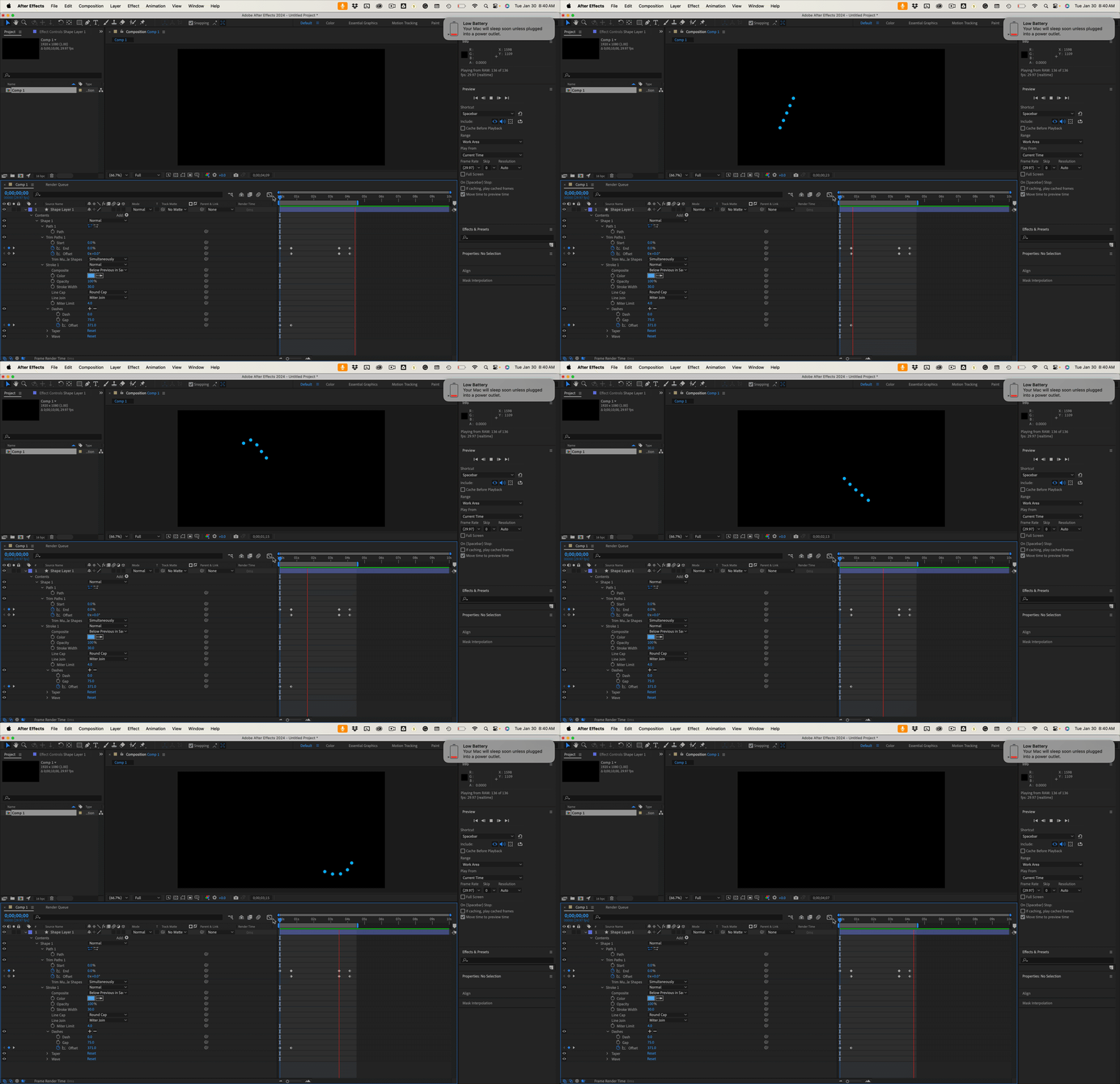
Start by setting up your dashes and gaps to get a dotted line. Then, set a Dashes/Offset keyframe at zero and another a few frames later, moving the dots to exactly five spaces. Then add trim paths, set the first Trim Paths/End keyframe at zero,  then move down the timeline, and set a second keyframe for the end to a value that reveals the five dots you want to move and the Trim Paths/Offset keyframe to zero. Move down the timeline to where you want the first dot to reach the end of the line and just the Trim Paths/Offset value to move the first dot to just before the end of the line. 


The last steps are to duplicate the Trim Paths/End keyframe, move down the timeline the same amount of time between the first two keyframes, and set the Trim Paths/Offset to 360º and the Trim Paths/End value to zero.


That should give you something like this:

It's a slightly more convoluted solution than Mylenium's text on a path solution, but it will give you the option to make the dashed like look any way you want it to look.

返信数 2

Rick GerardCommunity Expert解決!
Community Expert
January 30, 2024

Start by setting up your dashes and gaps to get a dotted line. Then, set a Dashes/Offset keyframe at zero and another a few frames later, moving the dots to exactly five spaces. Then add trim paths, set the first Trim Paths/End keyframe at zero,  then move down the timeline, and set a second keyframe for the end to a value that reveals the five dots you want to move and the Trim Paths/Offset keyframe to zero. Move down the timeline to where you want the first dot to reach the end of the line and just the Trim Paths/Offset value to move the first dot to just before the end of the line. 


The last steps are to duplicate the Trim Paths/End keyframe, move down the timeline the same amount of time between the first two keyframes, and set the Trim Paths/Offset to 360º and the Trim Paths/End value to zero.


That should give you something like this:

It's a slightly more convoluted solution than Mylenium's text on a path solution, but it will give you the option to make the dashed like look any way you want it to look.

waqas-shah作成者
Participating Frequently
January 31, 2024

Thanks Rick, you rock!
It worked. Could you please also explain a little logic behind it to understand the technique and apply without needing to follow the steps.
Thanks again!

Mylenium
Legend
January 30, 2024

Use text on mask paths.


Mylenium

waqas-shah作成者
Participating Frequently
February 2, 2024

This was a LOT simpler.
Need it for for a loop path all full of dots. A problem is that linking first margin to last margin makes 2 dots connected to each other!
Any solution? 
Thanks Mylenium!