Known Participant
November 2, 2022
Answered

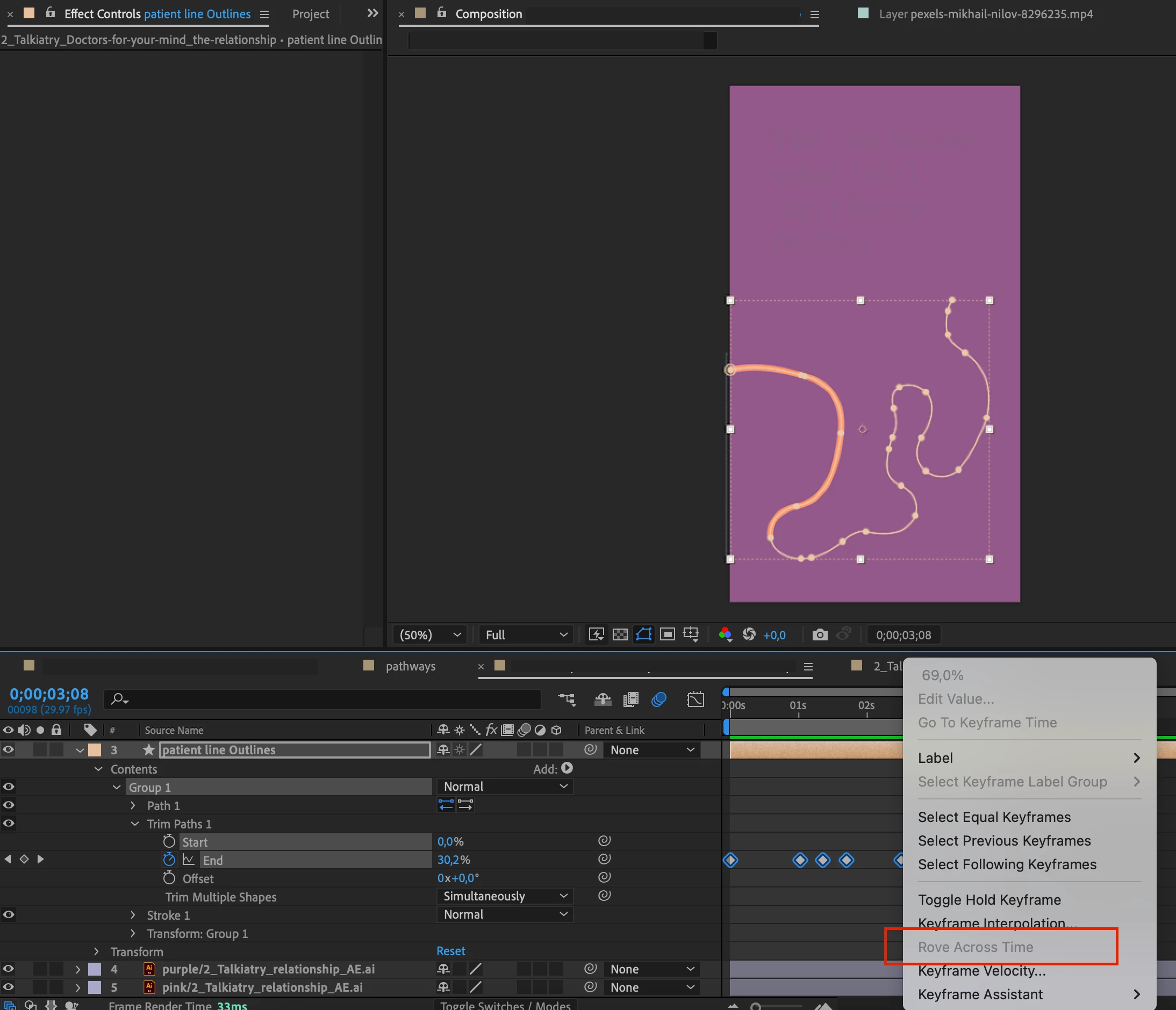
How to "rove across time" with trim path

  • November 2, 2022
  • 3 replies
  • 3232 views

I'm trying to animate a complex line's end going back and forward. I need it to have a logical, constant speed, but the "rove accross time" function is greyed out...

Does anybody know how to do this?


This topic has been closed for replies.
Correct answer Dan Ebberts

I still don't undersand how I can trim a path from 200 to 0 then 200 then 400 then 200 then 900 adjusting the keyframes in the timeline so there is constant speed (I cannot use just two keyframe for this)


I think this expression for the End property will level out the speed:

val = value;
if (numKeys > 2){
  if (time < key(1).time){
    val = key(1).value;
  }else if (time > key(numKeys).time){
    val = key(numKeys).value;
  }else{
    dTot = 0;
    for (i = 2; i <= numKeys; i++){
      dTot += Math.abs(key(i).value - key(i-1).value);
    }
    tTot = key(numKeys).time - key(1).time;
    tCur = key(1).time;
    i = 2;
    while(tCur <= time && i <= numKeys){
      tPrev = tCur;
      tCur += (Math.abs(key(i).value - key(i-1).value)/dTot)*tTot;
      i++;
    }
    i--;
    val = linear(time,tPrev,tCur,key(i-1).value,key(i).value);
  } 
}
val

3 replies

Community Expert
November 3, 2022

Rove Across Time makes the speed between keyframes equal. You get the same thing with Trim Paths if you only have two keyframes. That should be all there is to it. 

lume360Author
Known Participant
November 3, 2022

But you cannot rove across time with trim paths, that's my problem

Community Expert
November 3, 2022

I don't think you understand Rove Over Time's basic function.


If you select multiple keyframes for Position and enable Rove Over Time, the timing of the keyframes will be adjusted so that the speed between the starting and ending keyframes will be constant.


The speed will be constant if you have only two keyframes in any other property, like Trim Paths/End. If you want a constant speed between changing values, there is no reason to have more than two keyframes. If you set any additional keyframes and change the timing, the speed will no longer be constant.


Let me explain that in another way. If you need Trim Paths to be at 0% at 10 frames, 30% at 10 frames, and 100% at 40 frames, then you need three keyframes, and the speed between keyframes will be different. To make the speed between keyframes to be constant, you will need to move the middle keyframe or just delete it. It is easier to delete the keyframe to get the constant speed than to move it forward or backward in the timeline. 


If you have the position to be at 200, 0 on frame 0, then go to 200, 400 at frame 10, then go to 200, 900 at frame 25, then the speed between keyframes will be 20 pixels per frame for the first 10 frames and 33.333 pixels per frame for the next 15 frames. Enable Rove Over Time the position of the keyframes will change so that the movement will be 900 pixels in 25 frames or 36 pixels per frame. If the movement is only along one axis, then you don't need 3 keyframes, but if you are moving in a curved path, you need more than two keyframes, and Rove Over Time will make the speed of movement the same over the entire length of the path.


Rove Over Time is an easy way to maintain a constant speed between position values. The way to get a constant speed in any other property is only to use two keyframes. 

Mylenium
Legend
November 2, 2022

My mistake. Rove only works for 2D and 3D properties as otherwise there's no way to calculate a speed vector. Refer to this:


https://helpx.adobe.com/after-effects/using/speed.html


That said, there's most definitely some script to even out keyframes and adjust the values, so check AEScripts.com. 


Mylenium 


Mylenium
Legend
November 2, 2022

Select only the inner keyframes, not the start and end.


Mylenium 

lume360Author
Known Participant
November 2, 2022

Still not working... 😞
