Raster Effects turn vectors into pixels so CR will not help that layer from AI. Simple as that.
Try this:
- Open the AI file in Illustrator
- Set the document settings to pixels or points (they are the same when it comes to AE)
- Check the artboard size and make sure it is at least the same size as your comp frame like 1920 X 1080
- Position the logo in its hero position in AI and scale it up so that it looks the way you want it to in AE
- Go to the View menu and turn on Pixel Preview
- Set the AI Magnification to 100% and check, then 200% and check
- If all is OK then save the file and import it into AE
You won't see much difference in the Raster settings from 300 to 72, especially when the view is set to 400% or more but you will see the aliased edges of the vector paths, and that's what they will look like in AE. All artwork prepared for video in AI should have Snap to pixel turned on and you should always test it with Pixel Preview turned on at 100% and 200%.
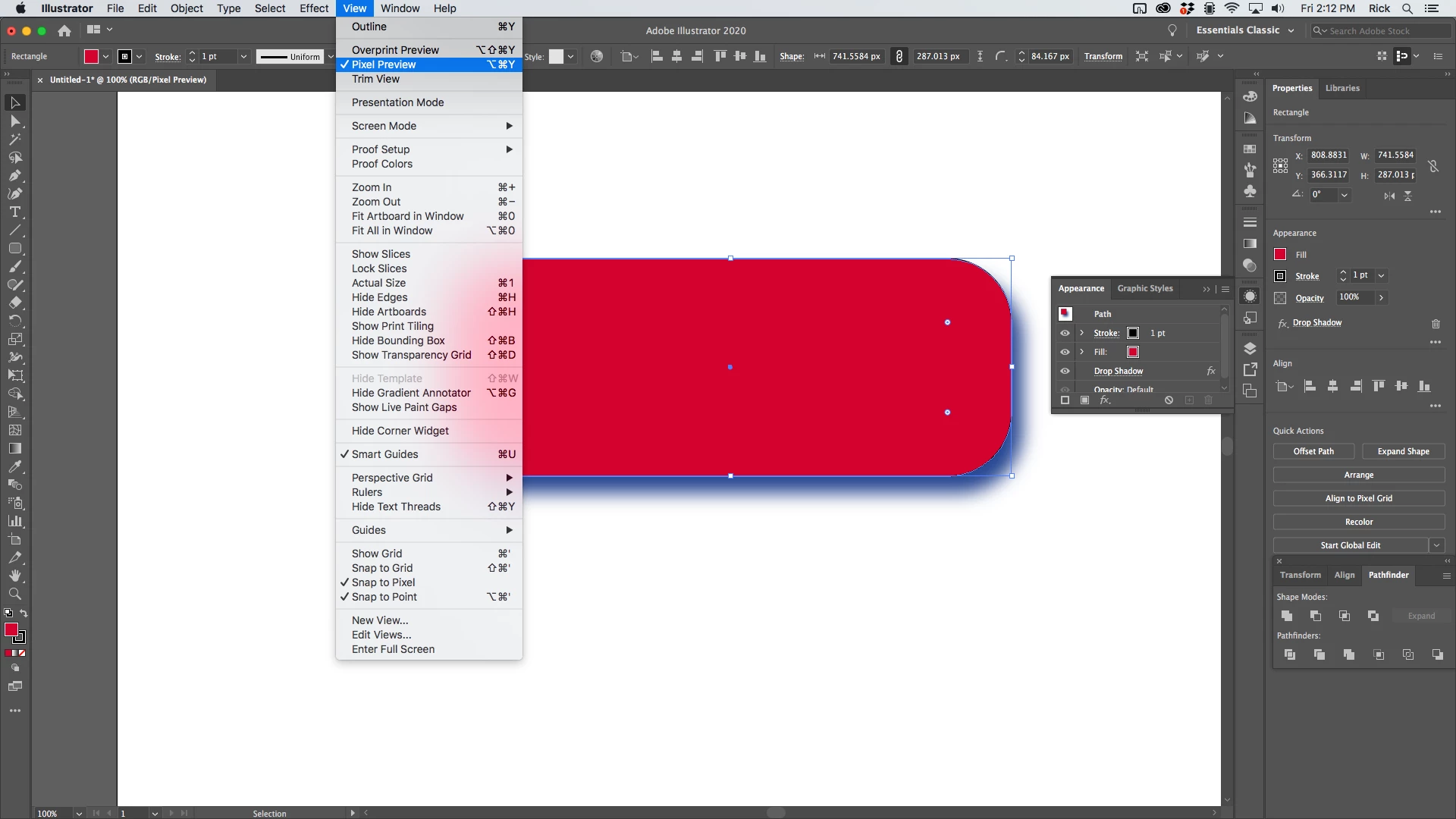

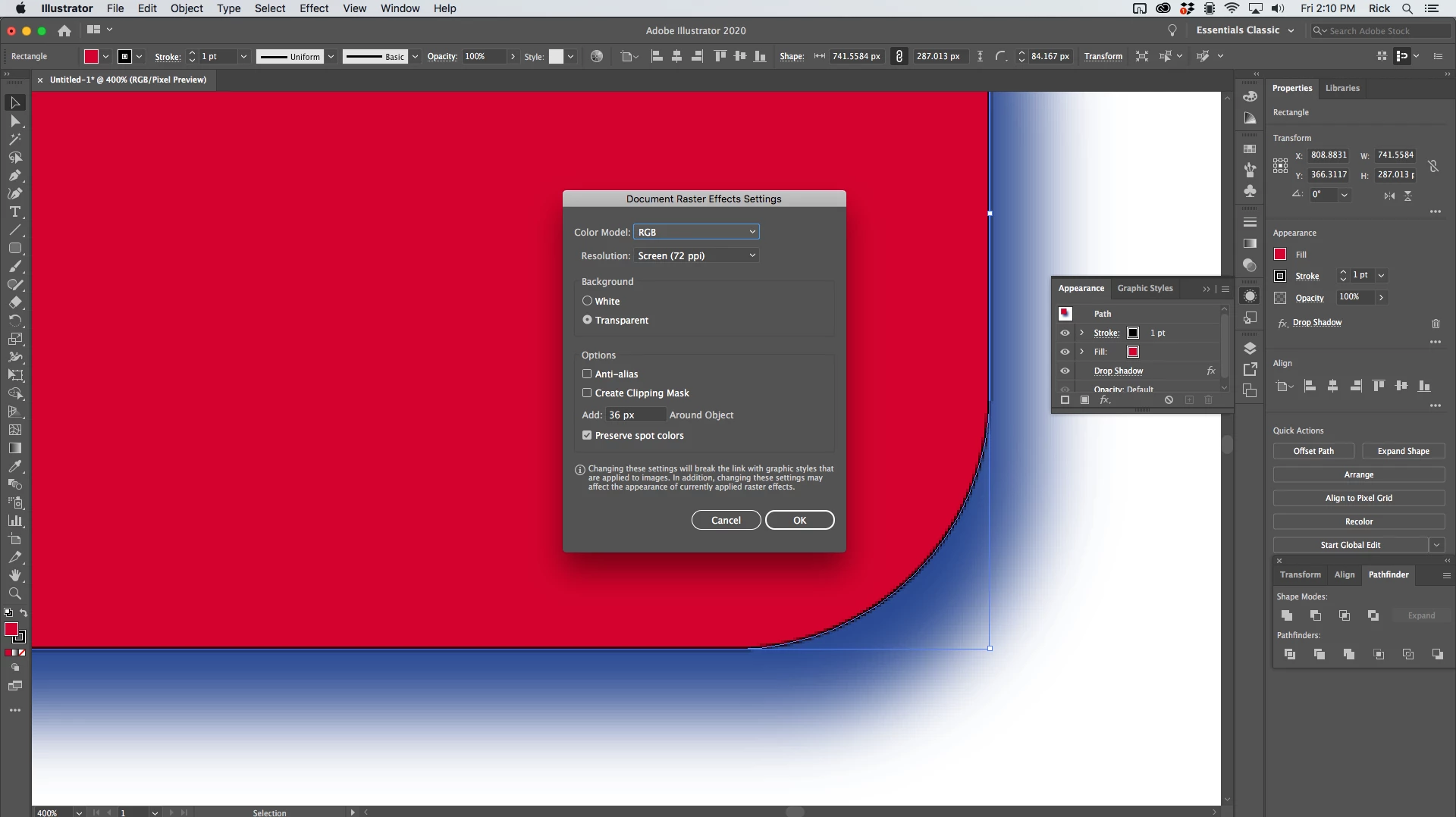
If this were my project I would make the artboard at least fit the comp, make the logo bigger than it needs to be, and if possible, duplicate every layer with A raster effect, put it on a separate layer above the original, and delete the raster effects, then import as a comp and see if you can't do a better job of creating drop shadows or other raster effects in AE.


 AdChoices