
Participant
November 3, 2017
Answered

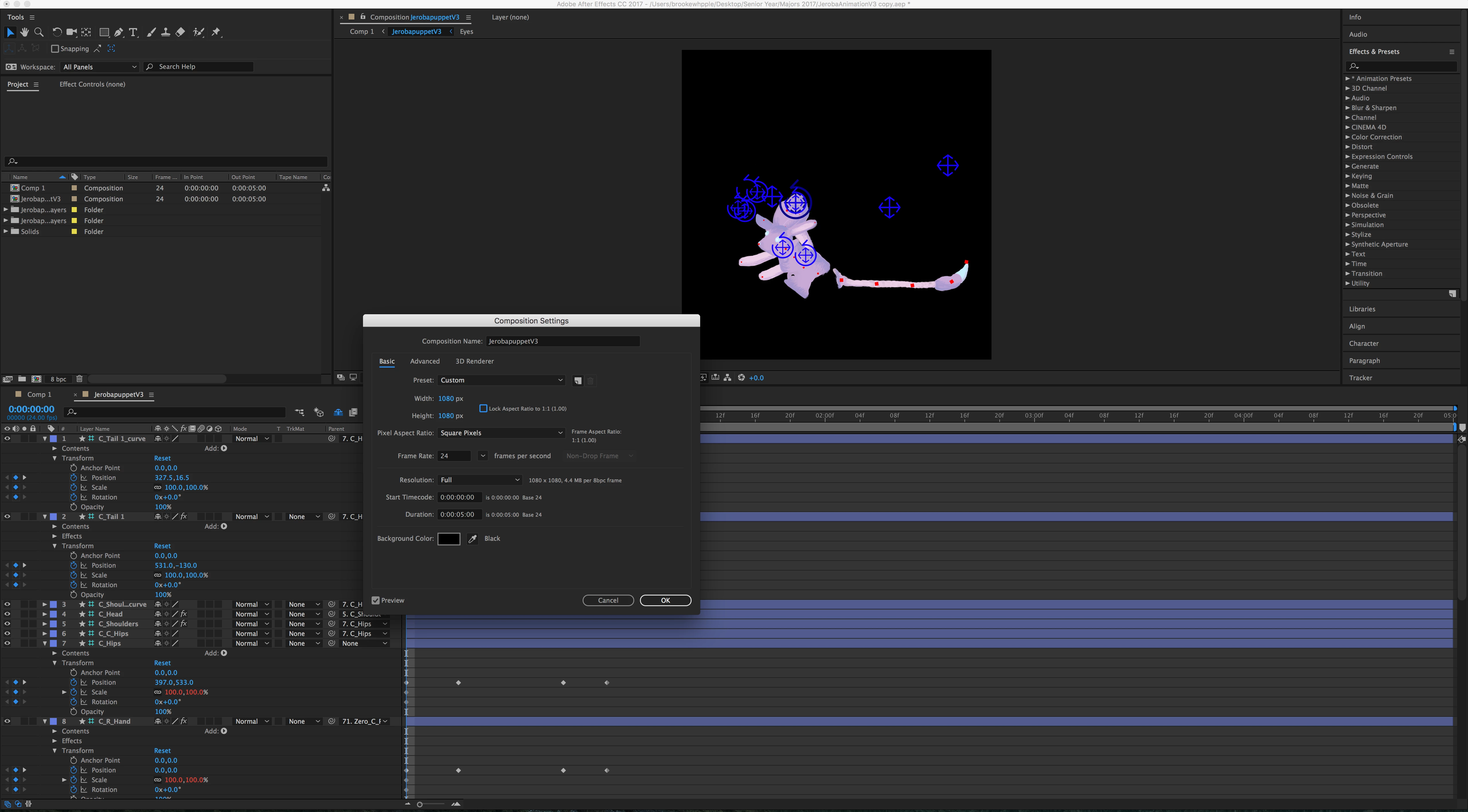
Im trying to increase my comp size without effecting my duik rigged puppet and animation but it keeps breaking my rig? Is there away to only effect the size of the comp and not the stuff in it?

  • November 3, 2017
  • 6 replies
  • 11954 views

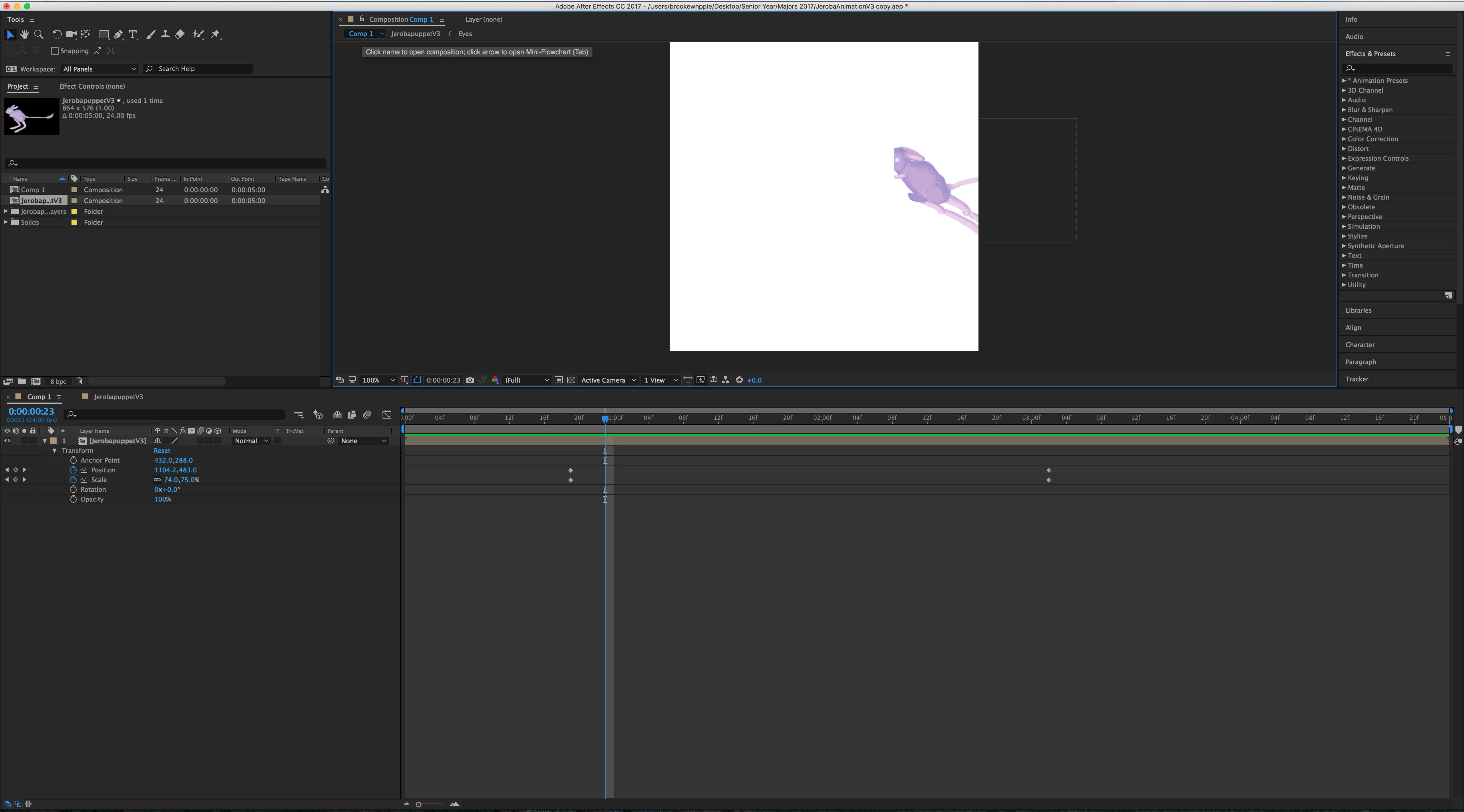
I rigged my character in duik and started animating. At one point during the animation the character goes past the frame of the comp and when I leave that comp to go to the main comp (Which is bigger the part of the character cut off in the animating comp is still cut off) I tried increasing the comp size but it keeps breaking my puppet. It normally shouldn't effect the puppet I don't think so I'm not sure what to do? Do I have to rerig my entire puppet or is there an easier solution?
[Moved from the non-technical Lounge Forum to the Program forum... Mod]

[Here is the list of all Adobe forums... https://forums.adobe.com/welcome]

Correct answer Mylenium

That's a limitation of DUIK's crappy expression code. It doesn't account for changes after the fact and applies hardwired values during setup. You will have to start over or work with what you have.

Mylenium

6 replies

Morgan Twiston Davies
Participant
February 1, 2023

None of the previous suggestions were working for me,tranformation/continually rasterize was messing up the 3D workspace, so here was my fix if anyone wants it:


1) Make sure tranformation/continually rasterize is turned off on the layer your puppet is on and pre-comp it.

2) Collapse tranformation/continually rasterize the puppet layer inside the pre-comp.

3) Resize the pre-comp and adjust accordingly in your main comp.


Hope that helps someone!


Morgan Twiston Davies
Participant
February 1, 2023

*collapse transformation/continually rasterize

Participant
January 19, 2020

I found  a really easy fix for this problem.

step 1: open composition settings (ctrl+k), select the top left corner as anchor in the advanced tab and resize the comp to your needs


step 2: create a new adjustment layer and place on top of everything


step 3: add the "transform" effect to the adjustment layer. There you can change position, scale, etc and your rig stays intact.


Hope this helps someone. Cheers!!

Jantine_hm
Participant
May 16, 2020

Thanks, that was very helpful!

Participant
September 21, 2018

you'll need to go to the Advanced tab in the comp settings

And check the upper left corner as the pivot for resizing

Participant
May 11, 2022

Just one more thing to add to this amazing solution. Parent all father layers and none parented layers to a new null in order to move/scale it in the newly scaled composition.

en11
Participant
September 2, 2022

Hi, thanks for the solution, unfortunately it didn't work in my case as I had to crop the animation differently, thought I'd share the solution that did in case someone finds it useful.
Took the entire animation and made a pre-composition. Then I used the "region of interest" tool to crop the composition as wanted and selected Composition > Crop Comp to Region of Interest.
Finally I executed the Scale Composition script that comes with AE (File>Scripts>Scale Composition.jsx)

riay7994882
Participant
September 11, 2018

same problem. I use "file/ scripts/ scale composition.jsx". my comp size increase, but my rigged puppet remain at the corner, not middle...

Mylenium
MyleniumCorrect answer
Legend
November 3, 2017

That's a limitation of DUIK's crappy expression code. It doesn't account for changes after the fact and applies hardwired values during setup. You will have to start over or work with what you have.

Mylenium

Participating Frequently
April 22, 2019

I've found an easy way that might work for you guys
Posting it down here

Community Expert
November 3, 2017

Try simply collapsing transformations in your nested comp. Changing the comp size is going to foul up a bunch of stuff unless you use a script. Collapsing transformations is the right way to solve your problem.