
Participant
May 2, 2019
Question

Image Buffer Issue: Eyes bigger than stomach?

  • May 2, 2019
  • 1 reply
  • 1609 views

Call me silly. Call me a fool. Call me S.O.L. but for SOME REASON I thought this would be a good idea:

I wanted to use After Effects 3D environment to create a 3D scene of basically wall of screenshots rotated a camera and rendered as 1 STILL IMAGE. I wanted to use the output as part of a 20 foot tradeshow booth graphic. Doing this in Photoshop's "3D environment" would have been painful (to say the least — am I wrong here?)

My AE Comp was set up as a ONE FRAME comp at 29360px by 9660px so that I can render out an image that has adequate resolution to print. I KNOW that this is HUGE and not designed for video! Again, call me a fool for thinking this would be a good idea.

I have changed the Project Settings to use only 8 bpc (although you see the error refers to 32 bpc). I have tried hiding all layers and then adding them one at a time. It seems as soon as I enable a 3D layer it chokes.

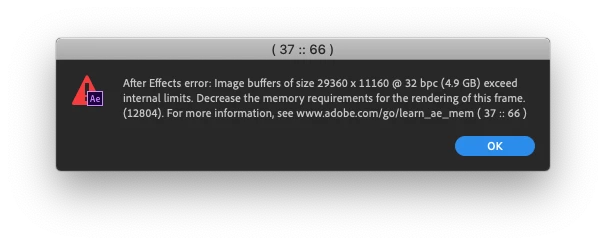
I am getting the error you see below.

"After Effects error: Image buffer size 29360x11160 @ 32 bpc (4.9 GB) exceed internal limits. Decrease memory requirements of this frame (12804). For more information, see www.adobe.com/go/learn_ae_mem (37 :: 66)"

For the record that webpage link is broken, Adobe.

Specs of my Mac environment are:

After Effects 16.1.1 (build 4)

MacBook Pro 15" 2014

2.2 GHz i7

16 GB RAM

macOS Mojave 10.14.3

So, I'm looking at the stark reality that I might need to rebuild this thing some other way and scrap days of work to do this.

Any words of advice or helpful thoughts from the experts?

Thanks so much!

J - The Fool
This topic has been closed for replies.

1 reply

Legend
May 2, 2019

I tried creating a project and composition in AE CC 2018 with those dimensions with 8 bit  per colour channel and it worked (no error). It only gave an error when I tried changing the project from 8 bit per channel to 16.

You could try exiting After Effects and then restarting AE and setting the project to 8 bit per channel (or checking it is) before then creating the composition.

If it still doesn't work could there be RAM in the GPU could be limiting it - or possibly it could need more standard RAM than 16 GB if there's not much free?

If it's a bug in the latest AE, you could try one of the other versions.

JFlyPQAuthor
Participant
May 2, 2019

Hey, thanks for testing that!

Did you have any 3D layers and cameras in the scene? It seems that as soon as you add "Z-depth" to a scene it makes the pixel size of the comp go up dramatically. Let me know!

Per your suggestion, I restarted and checked the 8-bit Project Settings, and they are set to 8-bit.

If you can try adding some 3D items to your comp and try that I'd be interested in seeing if that works for you.

Jeff

Legend
May 2, 2019

I've added 2 solids in 3d space and a camera with the composition at 29360x11160 pixels with 8 bit pcc (didn't work in 16 bit).

This is in After Effects CC 2018. Though I've got 128 GB RAM (and also using Windows). That might be something to do with it.

edit: I've just tried it in After Effects CC 2019 too and that worked (same machine) and that also worked with 8 bit pcc. So this was with the 29360x11160 pixels composition and after adding 3  solids in 3d space (1 the size of the comp), and a duplicated image in 3d space (1600x1600 pixel image), with a camera and a light. This was also with GPU acceleration. Maybe it makes a difference whether GPU acceleration or software is used. But maybe all this adds to the RAM and it gets used up quickly or there might be an issue with the Mac version of CC2019.

edit: You could also check your 3D settings in the composition settings panel and see if altering those may make it work (eg. are you using classic 3D?).