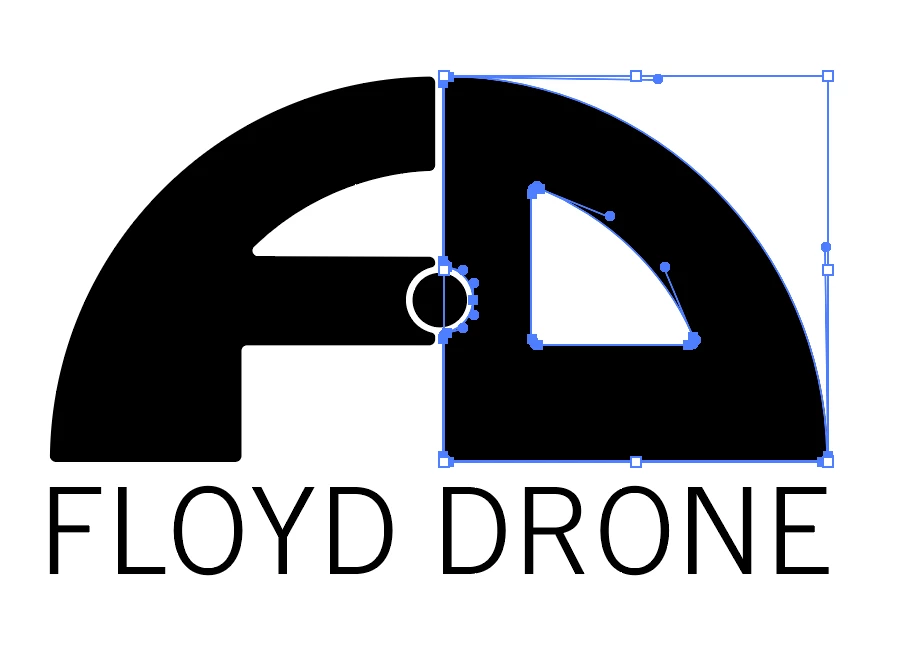
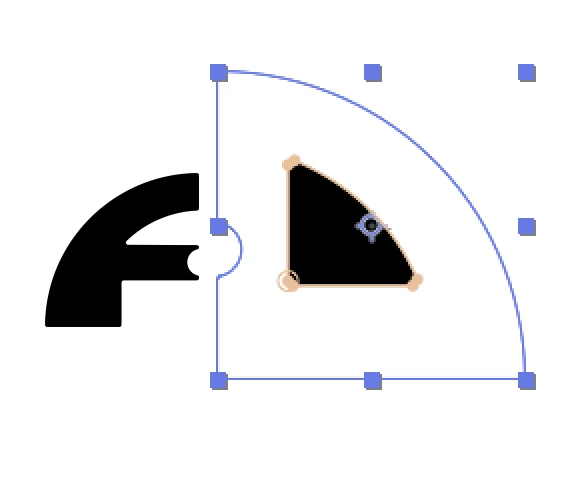
| I want to copy and paste a shape from illustrator to after affects to use as a path. It is a graphic based on the letter D, and when I do it, it fills the hole in the D rather than the outside "line." |
you could go that route and copy paste paths from illustrator, but maybe you will be better served by using shapes (later in this post).
if you are copying a path from illustrator it will be pasted as masks in Ae. if you copy more than one path (like a compound path or a clip group) then Ae will recreate the setup using a set of masks.
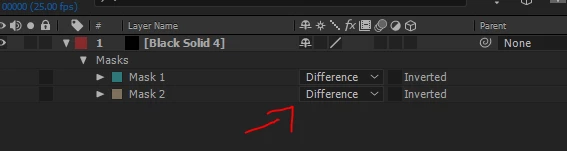
it will set it's mask mode to difference which works in most cases. if it's not you can always change it (add, subtract, intersect) until you get the desired outcome.
more about copying a path to Ae here:
https://helpx.adobe.com/after-effects/using/creating-shapes-masks.html#copy_a_path_from_illustrator_photoshop_or_fireworks
I recommend you use shapes:
1. simplify your Ai artwork. for example you might want to use a compound path instead of different path layers - this can be important later when you convert your artwork to shapes and get a group for each path which can be messy.
2. separate your art into different layers so it will be more managable. think of how you want to animate it and separate it accordingly (for exampe the F - layer 1, the circle in the middle - layer 2, the D - layer 3)
2. in Ae, right click on the Ai layers and choose "create shapes from vector layer" - no you have a duplicate of these layers as a shape layer where you can manipulate the path.
more about importing and preparing illustrator files to Ae here:
https://helpx.adobe.com/after-effects/using/preparing-importing-still-images.html#preparing_and_importing_illustrator_files
Create shape layers from vector layers for easy animation | Adobe After Effects CC tutorials
Create and customize shapes and masks in After Effects

 AdChoices