
Known Participant
April 20, 2021
Answered

Importing large PSD file into AE: how to scale down without losing quality?

  • April 20, 2021
  • 2 replies
  • 5256 views

Hello,


I am importing PSD files that are 5000 x 2755 into AE and creating a 1920 x 1080 video from these files. I am simply resizing the PSD layers down to fit the 1920 x 1080 composition frame by manually dragging them down to size using Selection tool.


How much quality am I losing by doing this for each PSD file? Is there any automatic method that will re-scale the PSDs to fit the video size in AE?


Apologies in advance for the beginner nature of my questions I am trying to create my first animated video.
This topic has been closed for replies.
Correct answer Ali Jaber

As Warren said, usually you won't loose quality by scaling down layers, but scaling down is not the best workflow if you are going to apply effects to those huge layers as it would take much more time to render, so it's better to scale files down as needed before importing into after effects.

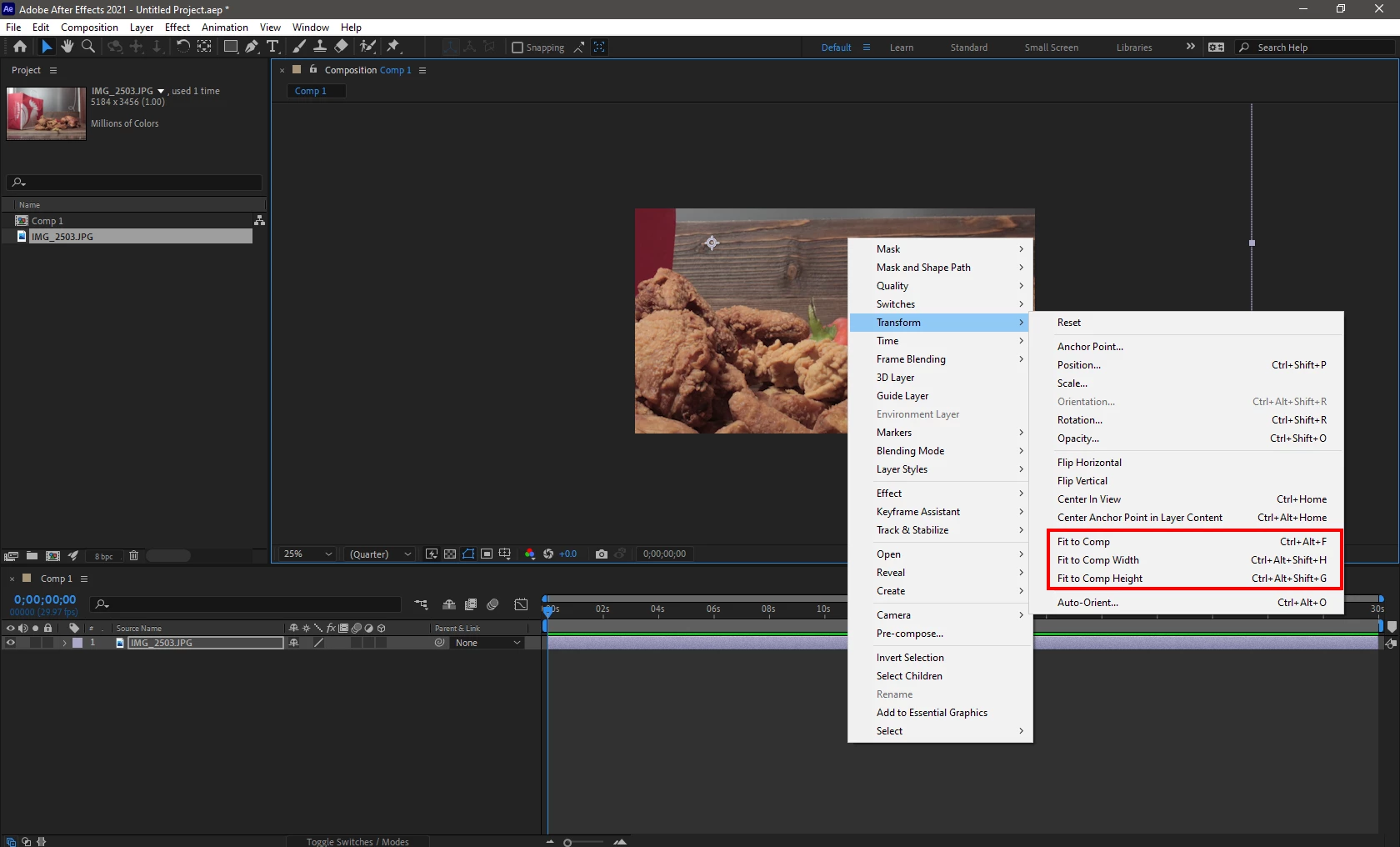
As for scaling down layers to fit the comp, just right click on the layer in the composition view and choose one of those commands (or use it's shortcut):

2 replies

Ali JaberCommunity ExpertCorrect answer
Community Expert
April 21, 2021

As Warren said, usually you won't loose quality by scaling down layers, but scaling down is not the best workflow if you are going to apply effects to those huge layers as it would take much more time to render, so it's better to scale files down as needed before importing into after effects.

As for scaling down layers to fit the comp, just right click on the layer in the composition view and choose one of those commands (or use it's shortcut):

Known Participant
April 21, 2021

Thanks Warren and Ali.


I create slightly animated videos from realistic Photoshop illustrations of historical characters, backgrounds etc. I'm an illustrator first and foremost and have been using Photoshop for ages and I'm naturally finding the transition to AE a little bumpy. It's just better to create illustrations that are large in PS for better brush strokes etc. But then when finished I could change the image size to the same 1920 x 1080 as the video output.


Rendering a preview after every change when animating the PSD layers, after manually scaling them down, is taking minutes at a time. You're saying by scaling the PSD file down first then importing it into AE will reduce this render time? Any good workflows for animating PSD files specifically? 


Community Expert
April 21, 2021

If I have a high res image in Ae, and I want so scale it down as needed, I will look at it's scale in Ae, e.g: 35%, then I would open it in Ps and scale it down using Image size command into 35%, save the file and go into AE and set the scale to 100%.

Setting the size in Ps into 1920 x 1080 in advance will save you some headache but you may loose quality if you want to scale some layers up in Ae. So set the document size in Ps depending on your needs.

For example, set the size to 2880 x 1620 (50% larger than full HD), this way it will be much faster than working with 5K res files and also you will have some room to scale layers up if needed without loosing quality.

To be able to work with that 2880 x 1620 file in Ae, import it as a composition, set the composition size to 1920 x 1080, create a new null, link all layers to it, set the scale of that null to 66.667%, and you are ready to start animating layers (you can animate that null to give your design a global animation, like moving all layers together while some individual layers are scaling down).

Warren Heaton
Community Expert
Community Expert
April 20, 2021

Scaling an image to less than 100% usually looks good in After Effects.


If you find that the source footage is going too soft, apply Unsharp Mask (Effects > Blur and Sharpen > Unsharp Mask).  Although, I've found that this usually isn't needed unless you're scaling down to 20% or less.


When scaling above 100%, you can choose between Bilinear (the default), Bicubic (almost always better than Bilinear), or Detail-Preserving Upscale (almost always better than Bicubic).


You'll find Bilinear and Bicubic under Layer > Transform > Bilinear/Bicubic.


You'll find Detail-preserving Upscale under Effects > Distort > Detail-preserving Upscale.


Again, those are for scaling above 100%, not scaling below.


Known Participant
April 21, 2021

Thanks for the advice. I was putting off having duplicate PS files optimized for AE for all my files for space reasons. Currently I have PS native files, back-up duplicates of those files, and now I'll have to bite the bullet and have a folder with PS AE-ready files. I think I'm going to need another external hard drive!