
Known Participant
December 22, 2022
Answered

inflated 3d shapes each individually rotating side to side

  • December 22, 2022
  • 4 replies
  • 1946 views

hey guys,


Any help would be greatly appreicated.


Made these shapes in illustrator - there meant to be sigma bonds - i need the balls to come over the top of the larger shapes and join on - basically making a cone like shape - then each 4 of the big points need to rotate side to side on its axis - any advice on how to do this im tearing my hair out 😞 


I can get the circles to join up with the shapes but then the lines are there / if you move around the shape there not joined on but just over the shape. And i cant get it to then be one shape that rotates side to side. Would welcome any advice please.
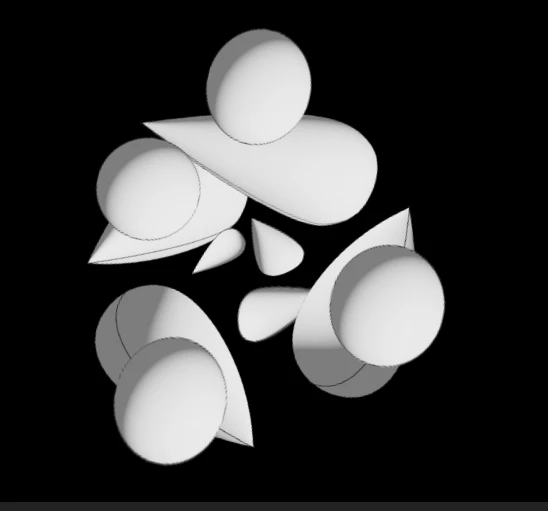


Can only manage the mto rotate and do this.


Thanks


This topic has been closed for replies.
Correct answer Rick Gerard

I thought of another technique. This one morphs two shapes together on the same shape layer.


Create two shapes on the same Shape layer, one Circle, the other, your Pointy Thing. Next, add Merge Paths. Then add Offset Paths. You can delete the Stroke and Fill under the first two shapes, then set the Fill and Stroke below Offset Paths to the same color.


Now it's time to set Offset Paths to something like -40, make sure Merge Paths is set to Add, select the Stroke to Round Cap and Round Join, and animate the position of the two shapes using their Content/Shape/Position property, so they move together. 


You'll get something like this:

I have attached a 2022 project file for you to fiddle with. The screenshot shows all modified properties of the shape layer. 

4 replies

Mylenium
Legend
December 23, 2022

I see. So you're looking for something simpler, after all. Seems like Rick has nailed it then. Just download his project and work away. 😉


Mylenium

Rick GerardCommunity ExpertCorrect answer
Community Expert
December 23, 2022

I thought of another technique. This one morphs two shapes together on the same shape layer.


Create two shapes on the same Shape layer, one Circle, the other, your Pointy Thing. Next, add Merge Paths. Then add Offset Paths. You can delete the Stroke and Fill under the first two shapes, then set the Fill and Stroke below Offset Paths to the same color.


Now it's time to set Offset Paths to something like -40, make sure Merge Paths is set to Add, select the Stroke to Round Cap and Round Join, and animate the position of the two shapes using their Content/Shape/Position property, so they move together. 


You'll get something like this:

I have attached a 2022 project file for you to fiddle with. The screenshot shows all modified properties of the shape layer. 

Known Participant
December 23, 2022

That is the kind of shape i exactly want! Did you make these shapes in After effects i tried to do this but couldnt get the right lines.

Community Expert
December 23, 2022

I just created two round ellipses, converted one to a bezier path, selected the leftmost point on the converted shape, and moved it to the right to get the pointy thing object. 


You could create two simple shapes on a single Illustrator layer; make as many different shape pairs on as many layers as you need. If the shape pairs are all the same, you will only need one layer. You import as a composition retaining layer size, open the new comp that AE Creates on import, select the layer with the shape pairs and convert the Vector Path to a Shape Layer using the Layer/Create menu.


Then all you need to do is set up the parameters as I did in the sample project.  If you need gradient fills, you will have leave off the stroke and add one or more gradient fills to the  It will be more complicated, but it can be done. 

Your sample video was made with a 3D app. An exact duplicate would be difficult to create in After Effects, but you could put a little dimensionality to the animation with a little more layering.

Community Expert
December 22, 2022

Animate a pair of shapes, so they seamlessly join together as 2D layers. Pre-compose the two layers; create a solid below the Pre-comp. Use the Pre-comp as a Track Matte for the solid.


You can then Pre-compose the pair, make the layer 3D, set it to auto-orient to the camera, and move the morphing shape around the comp space.


If you need the layers to look 3D and act 3D with lighting and shading, you'll need a 3D app. 


Your screenshots don't really tell me what the starting and ending shape of a pair of layers should look like.

Known Participant
December 23, 2022

(11) Sigma and Pi Bond Animation for understanding edited by Prof Dur muhammad - YouTube


From 1.02 - 1.15 is what im trying to create somehow. I thought after effects was made for the 3d shapes but the "inflate" like shape seesm to complicate things. Would this be why do you think?


Thanks for your help though big time!

Mylenium
Legend
December 22, 2022

The joining would be "metaball" animation (implicit surfaces based on restricted input volumes/ surfaces/ force fields) and is only doable in a 3D program since it requires dynamic remeshing. For the other stuff it might be a better idea to actually import your shapes into Cinema 4D Lite (or for that matter re-create them in a clean fashion there), adjust the transforms an pivot points and import them into AE with Cineware for animation. The latter would also apply for adjusting the anchor points and orientation in AE, but it seems that you have exported everything as a single object and you would need to redo them separately.


Mylenium 

Known Participant
December 23, 2022

Hi, yes i made the shapes on seperate layers in illustrator and moved them over - did try to make them in after effects but couldnt seem to get the right shapes.