Pistol2019
Inspiring
March 16, 2021
Answered

Keylight 1.2: how to get rid of white halo?

  • March 16, 2021
  • 7 replies
  • 5912 views

I'm using Keylight 1.2 to remove the green background from a hand shot. Works really well. But when I apply a drop shaddow to the hand, I see a thin white halo around it, as shown on the image. Any idea how to remove this?

This topic has been closed for replies.
Correct answer Rick Gerard

Here's what I got:

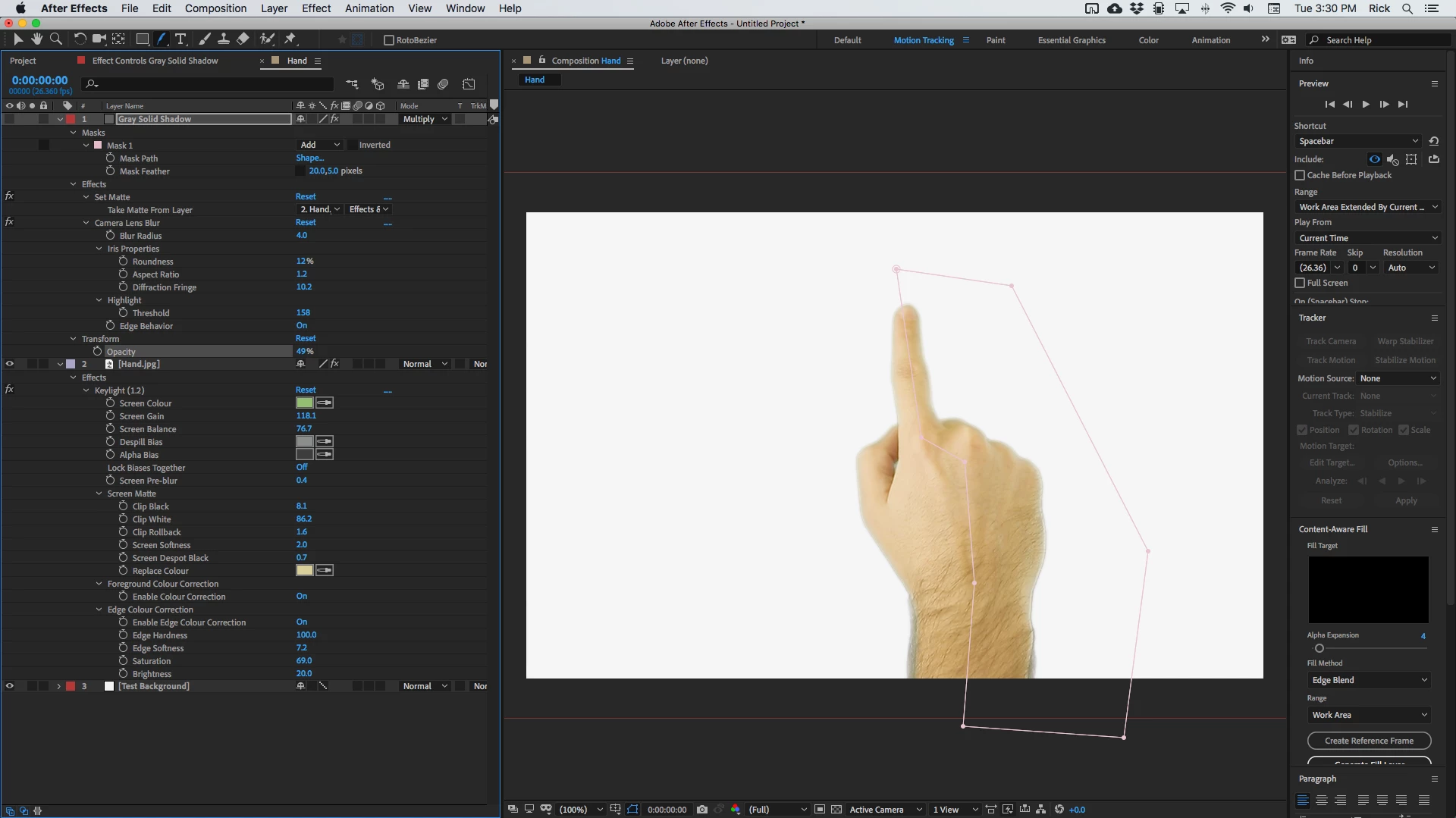
The edges are clean, there is no edge contamination, the hair on the actor's arm shows through the background. Yes there still is a bright edge on the right side of the hand, but that is because there is a light source on the right side of the hand and that contradicts the shadow on your background image. The fix for that is to fake the shadow. You'll have to animate the mask, but this improves it a bit. The shadow layer is now turned on. 
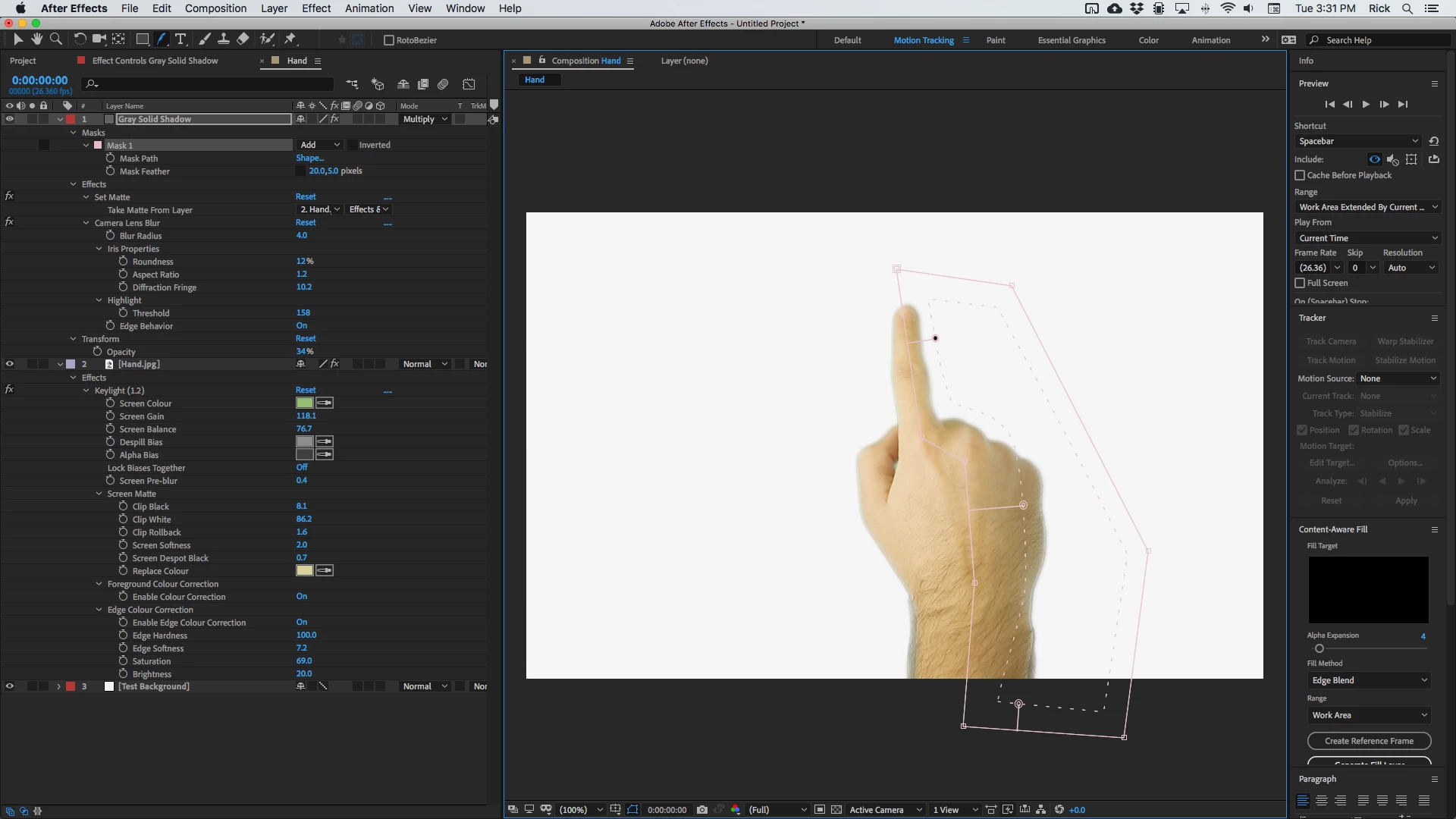
If you can control the shadow on the background image and make it come from another direction you can move the shadow layer below the hand and move it to the left.  Feel free to play with the sample project.


I hope this helps. 

7 replies

Participant
August 4, 2023

 I am using keylight since 5-6 days, why these white halo have appeared on my face and how will they go away

Participant
August 4, 2023

I am using keylight since 5-6 days, why these white halo have appeared on my face and how will they go away

 I am using keylight since 5-6 days, why these white halo have appeared on my face and how will they go away

Rick GerardCommunity ExpertCorrect answer
Community Expert
March 16, 2021

Here's what I got:

The edges are clean, there is no edge contamination, the hair on the actor's arm shows through the background. Yes there still is a bright edge on the right side of the hand, but that is because there is a light source on the right side of the hand and that contradicts the shadow on your background image. The fix for that is to fake the shadow. You'll have to animate the mask, but this improves it a bit. The shadow layer is now turned on. 

If you can control the shadow on the background image and make it come from another direction you can move the shadow layer below the hand and move it to the left.  Feel free to play with the sample project.


I hope this helps. 

Pistol2019
Inspiring
March 18, 2021

Thanks Rick.

Community Expert
March 16, 2021

If you can post a frame of the original footage I will show you how I would set it up later today.

Pistol2019
Inspiring
March 16, 2021

It's a hand on a simple green screen. If the hand seems to be a bit blurry, it's because it's moving rapidly. 

Warren Heaton
Community Expert
Community Expert
March 19, 2021

Is this from a stock art library?  What file formats are offered for download?  


When having to pull a clean  key with non-4444 formats, some times Matte Chocker had helped, some times something in the Key Correct Pro suite by Red Giant has come to the rescue (I think this was discontinued), but most of the time DE:Noise from RE:Vision Effects prior to Keylight has done the trick.  There's a trial var sion that you can download to see if it'll help here.

Community Expert
March 16, 2021

Your screenshot of the Keylight Effects Panel does not tell us much. Even the most basic key that I pull with keylight has adjustments to the following:

  • Screen color
  • Screen Gain
  • Screen Balance
  • Despill Bias
  • Alpha Bias
  • Screen Pre-blur
  • Screen Matte/
    • Clip Black
    • Clip White
    • Clip Rollback
    • Screen Shrink/Grow
  • Foreground Color Correction
    • Saturation
    • Contrast
    • Brightness
  • Color Balancing
  • Edge Correction


I would expect a near-perfect key with none of the problems you describe unless I made some small adjustments to most if not all of the properties that I listed. Your screenshot only shows color and screen balance adjustments. You must have made a few more adjustments than that or the shot was nearly perfect. Even if it was nearly perfect I would need to do some edge control and edge color adjustments to eliminate the problems that happen with any greenscreen shot.

Pistol2019
Inspiring
March 16, 2021

Rick,


I haven't made any other ajustments. I have tried, but none worked.


Thanks

Mylenium
Legend
March 16, 2021

Well, you need to work on the settings. The key looks extremely blurry and that being the case you simply see unclean Alpha getting more opaque once additional "density" is added. without knowing your exact keying settings nobody can advise specifically, but start by adjusting the Alpha rollback and reduce the smoothing radius, then have a look at the edge cleanup stuff.


Mylenium

Pistol2019
Inspiring
March 16, 2021

Here are my settings. I don't see the Alpha Rollback setting. 

Pistol2019
Inspiring
March 16, 2021

Here's the final sequence. Almost there!

Pistol2019
Inspiring
March 16, 2021

Here's the image.