Participant
August 31, 2024
Answered

Mask shape to shape

  • August 31, 2024
  • 1 reply
  • 565 views

Hello people.


I´m having a hard time trying to solve my problem, that I think it´s easy to do so.


I created a mask over a video that I want to crop, but now I want this mask as a shape to add some shadings.


Does anybody know how to do that?


See the image attached.


Thanks 

This topic has been closed for replies.
Correct answer Rick Gerard
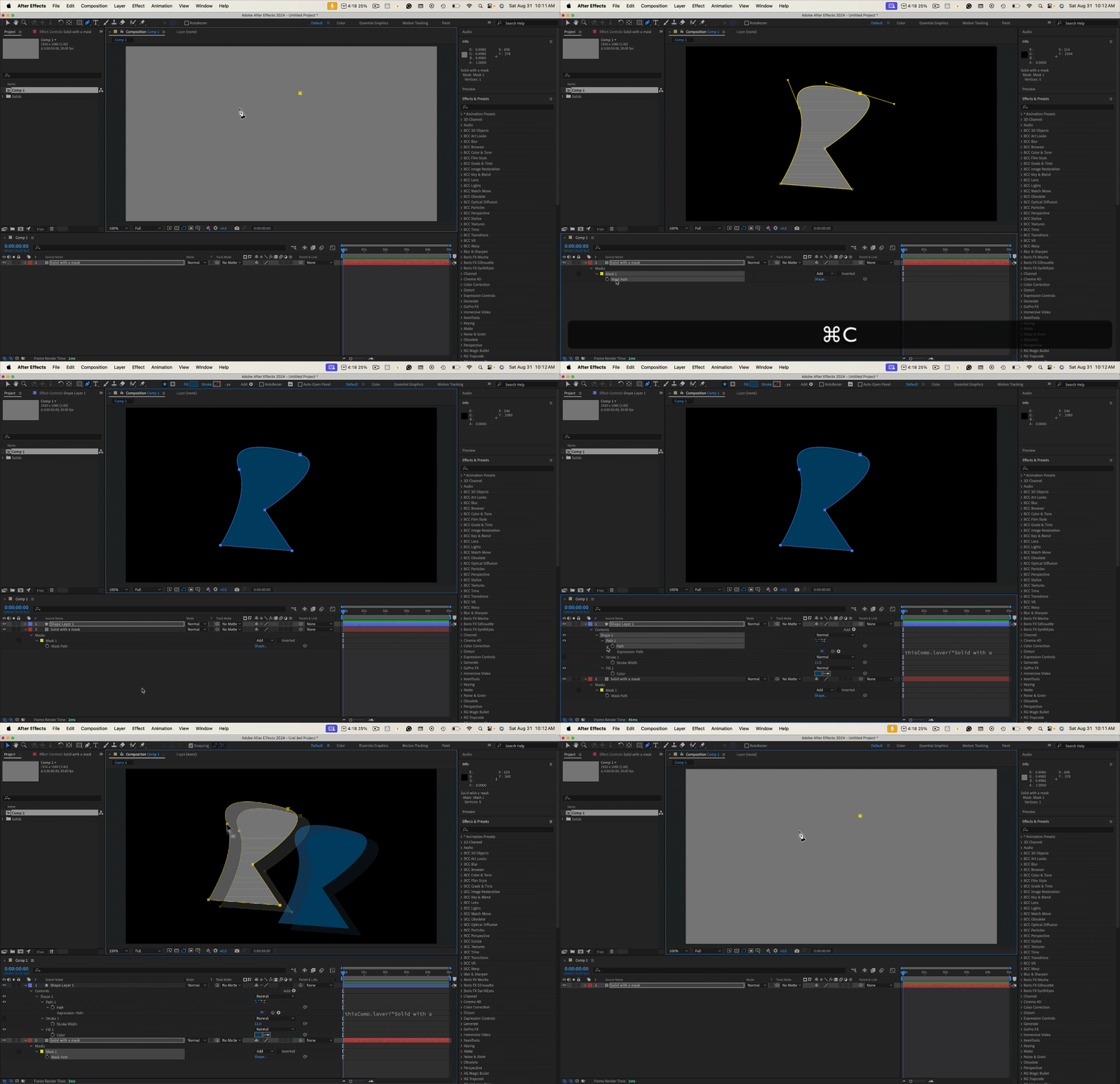
  1. Select the mask path in the timeline and copy (Ctrl/Cmnd + c)
  2. Select the pen tool
  3. Make sure no layers are selected and set the first mask point anywhere in the comp panel
  4. Paste (Ctrl/Cmnd + v)

If your mask is animated, or you may want to animate the mask later, you can also reveal the Parent/Link column (F4 or Function F4 on a laptop) and drag the pickwhip from the shape layer's mask to the original mask path. The shape layer's path will now always follow the original path shape. The trick also works the other way around. You can easily tie any vector path to any other path with a pickwhip expression.


Sometimes, copying a simple path does not work. If you have problems, just set a mask keyframe (Alt/Option + m), then cut it (Ctrl/Cmnd + x), then select the pen tool and press Ctrl/Cmnd + v to paste the path to the new layer or shape layer path.
 

1 reply

Rick GerardCommunity ExpertCorrect answer
Community Expert
August 31, 2024
  1. Select the mask path in the timeline and copy (Ctrl/Cmnd + c)
  2. Select the pen tool
  3. Make sure no layers are selected and set the first mask point anywhere in the comp panel
  4. Paste (Ctrl/Cmnd + v)

If your mask is animated, or you may want to animate the mask later, you can also reveal the Parent/Link column (F4 or Function F4 on a laptop) and drag the pickwhip from the shape layer's mask to the original mask path. The shape layer's path will now always follow the original path shape. The trick also works the other way around. You can easily tie any vector path to any other path with a pickwhip expression.


Sometimes, copying a simple path does not work. If you have problems, just set a mask keyframe (Alt/Option + m), then cut it (Ctrl/Cmnd + x), then select the pen tool and press Ctrl/Cmnd + v to paste the path to the new layer or shape layer path.


Participant
September 1, 2024

Wow man! Much obliged!!!
