
ryanc74789902
Participant
March 15, 2017
Answered

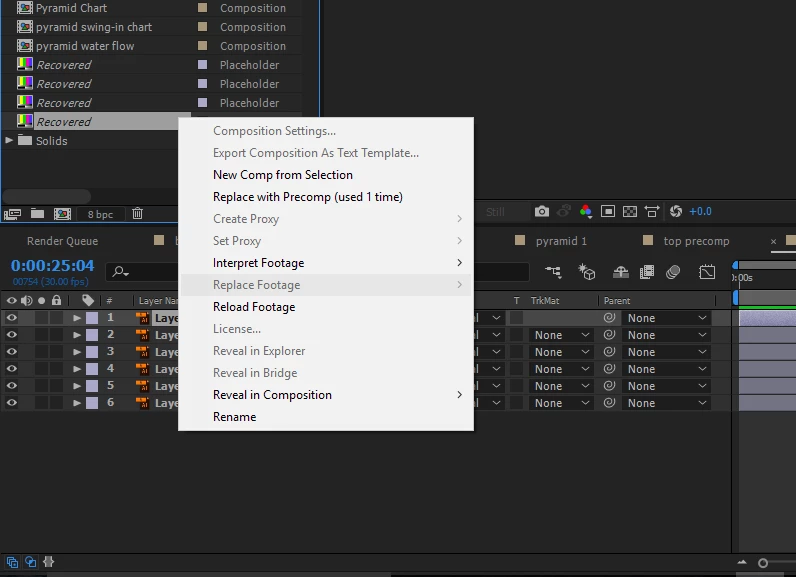
Missing/Recovered footage (.ai file image). Cannot 'replace footage' (greyed out)

  • March 15, 2017
  • 1 reply
  • 5269 views

Okay what on Earth is going on here.

I loaded up AE and it said: "After Effects warning: can not find source item for layer ID=1056; will replace with a placeholder. (26 :: 143)"

So now 4 out of 6 of the source Illustrator files for one of my compositions are missing, but they're not 'missing' they're 'recovered' which means I can't Replace Footage?  I have tried googling and reviewing this forum extensively but I cannot find any information about this "Recovered" status which seems to lock me out of doing anything useful.

I am only using 1 Illustrator file, so why the heck is AE able to find 2 out of the 6 layers within that 1 file?  How the heck is it able to see and locate the 1 .ai file, yet only 'see' 2 out of the 6 layers???  Does this make sense to anyone else?  Am I just missing something?  (I am obviously missing my files, but you get the idea).

I have a copy of the .ai file sitting here, yet I am not able to tell AE to 'see' it to fix my 2/3rds broken composition.

Well that's not entirely accurate, I am able to import the .ai file into AE and see the layers like I expect them to be, but there is no way that I can discern to tell AE to replace the placeholders with the imported .ai layers.

This is very irritating.

The composition is otherwise intact and my animations, keyframes, etc, are intact; it's just the image layers that are MIA.

I am using After Effects 2017 CC
    This topic has been closed for replies.
    Correct answer ryanc74789902

    Okay despite having a bit of a struggle for a while I DID find a solution, which I'm posting here for those with the problem in the future.

    Why the solution is so limited to this one specific method I do not know, but here we go:

    1. Navigate to the composition that is missing Layers

    2. In the Project View, locate the source files that you want to use to replace the placeholders with.  (I did eventually find them, they were not were I expected them to be but that's my bad)

    3. In the composition view Make SURE to left click and select/highlight the placeholder layer that you would like to replace

    4. Then left click and hold, then drag the source file/image/footage whatever from the Project view into the composition timeline area and hover it over timeline area, specifically over the timeline bar of that (HIGHLIGHTED!) layer.  (If you didn't select the layer in step #3 this is not gonna work)

    5. While still holding left click and hovering, then hold the ALT key

    6. Release the left mouse button.

    7. This should force your source file into the layer, and if it's the same source file as what was there previously, it should fit in perfectly and go back to the way you want it.

    I don't pretend to understand After Effects, I just use it.

    1 reply

    ryanc74789902
    ryanc74789902AuthorCorrect answer
    Participant
    March 15, 2017

    Okay despite having a bit of a struggle for a while I DID find a solution, which I'm posting here for those with the problem in the future.

    Why the solution is so limited to this one specific method I do not know, but here we go:

    1. Navigate to the composition that is missing Layers

    2. In the Project View, locate the source files that you want to use to replace the placeholders with.  (I did eventually find them, they were not were I expected them to be but that's my bad)

    3. In the composition view Make SURE to left click and select/highlight the placeholder layer that you would like to replace

    4. Then left click and hold, then drag the source file/image/footage whatever from the Project view into the composition timeline area and hover it over timeline area, specifically over the timeline bar of that (HIGHLIGHTED!) layer.  (If you didn't select the layer in step #3 this is not gonna work)

    5. While still holding left click and hovering, then hold the ALT key

    6. Release the left mouse button.

    7. This should force your source file into the layer, and if it's the same source file as what was there previously, it should fit in perfectly and go back to the way you want it.

    I don't pretend to understand After Effects, I just use it.

    Kevin-Monahan
    Community Manager
    Community Manager
    May 18, 2017

    We appreciate you dropping back by with your solution RyanC. Thanks!

    Kevin

    Kevin Monahan - Sr. Community and Engagement Strategist – Adobe Pro Video and Audio