
thevisualianick
Inspiring
May 8, 2018
Answered

Mp4 files suddenly turned black in Adobe After Effects CC 2018

  • May 8, 2018
  • 2 replies
  • 8419 views

Hi!

I opened up AE today to do some quick editing in a project I've been working on for the past month or so. I am currently at the point where I've exported most of my work to mp4s with AME to allow me to juggle the clips around without having to load all the FXs every single time- so my project is basically just mp4-clips with light FXs added.

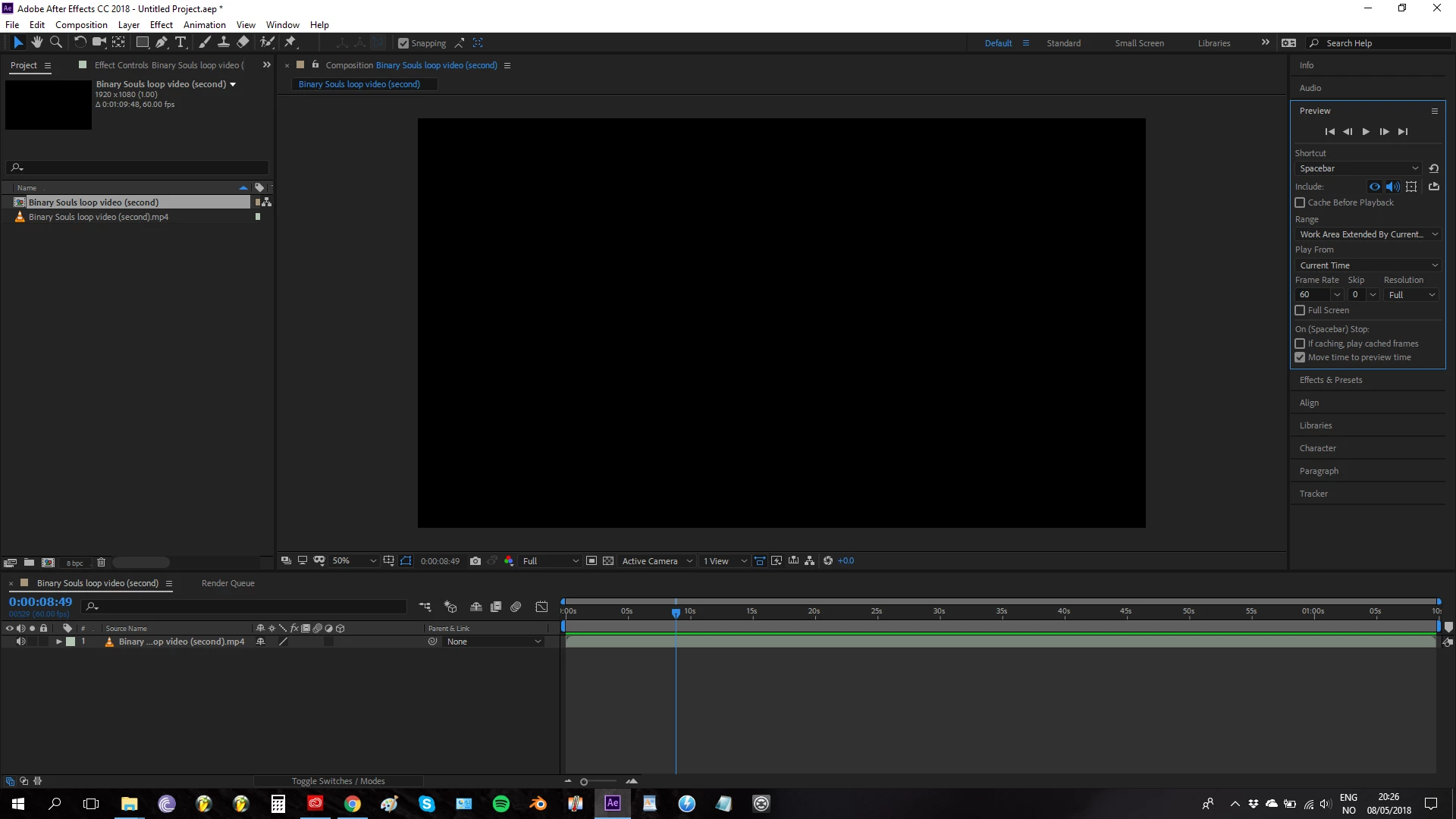
Then, today, when I added the clip I wanted to work with, it had suddenly stopped working. AE doesn't preview the clip in the top left corner, and it only shows black in the previewer. In the composition, it also looks like it hasn't loaded any video at all, only audio.

I have tried opening old projects, with mp4 files that used to work, only to discover that these clips also now only show black screens - identical to the one in the picture below. I also tried emptying disc cache and database, and I tried updating AE after I saw there was an update available- none of this helped with the issue. I also updated my graphics card driver to the latest one.

Other stuff shows up just fine in the previewer, like Trapcode Mir, for example.

I do see that I could transcode the clips to a format that would work, as I'm fairly certain it's an mp4-issue, but that would be a lot of clips to transcode, and I would very much like to keep using the mp4s I render from AME.

Anyone got any ideas?

Best regards

Jahn C Gran
This topic has been closed for replies.
Correct answer thevisualianick

thevisualianick  wrote

I accidentally deleted my "Public" folder (for Windows) on my C disk. I just tried opening Premiere Pro and it gives me an error message reading: "Could not find the shared documents directory".

Yah, that's probably not good.  I guess asking if it might still be in trash would a dumb question.

My super sleuth Spidey senses are nagging me though.....If you didn't notice doing it when you did it...which would have let you simply restore it...how did you become aware that you deleted it?

Because obviously you emptied your trash BEFORE you realized you deleted it.

Which makes me wonder if you have deleted other important folders and not noticed?

There is a sub folder in that directory for installed codecs so that could be something.  However mine is empty so maybe not.

But then Premier is throwing you an error that seems to be related to it, so.

It is an odd problem.


It was, in fact, not good.

What happened was that I deleted it, and then emptied the recycling bin about 10 minutes later. Not immediate problems ensued, because the errors it would cause were somewhat hidden - like AE suddenly not playing mp4s, and Premiere Pro not opening. I did not delete any other important folders, though. I just really did not know - until now - that the Public folder contains a lot of important information that several apps use to communicate.

I did solve the problem yesterday! I run Windows 10, so I ran a repair install of windows by downloading the latest .iso file for Windows from the Microsoft website.

Last ned Windows 10  (it might pop up in Norwegian - it just says "Download Windows 10".

Just download the media creation tool and create an .iso file. Run it, and keep personal data and files. It will install the latest Windows 10 over your current one, while keeping all data (including app information) intact. That reinstated the Public folder with all information needed.

Now AE plays the mp4-files again, without issue, and Premiere Pro is opening up without an error message!

Thanks for the help, people. Much appreciated.

2 replies

Community Expert
May 8, 2018

Hi

Select the .mp4 file and show us the info like the screenshot please.

Byron.
thevisualianick
Inspiring
May 8, 2018

Here's a screenshot of the clip info.

Dave_LaRonde
Inspiring
May 8, 2018

AE can't see that clip AT ALL.  Notice that the eyeball icon is missing on the clip in the timeline.

I'd use something like Handbrake to transcode it.  Sure, it'll result in a huge file size, but what's preferable -- a big file that's visible, or a small file that's invisible?

P.M.B
Legend
May 8, 2018

Do the mp4s work in other applications?  Media players?

~Gutterfish
thevisualianick
Inspiring
May 8, 2018

Yes, they play fine in VLC. They all worked in After Effects also up until today.

P.M.B
Legend
May 8, 2018

thevisualianick  wrote

They all worked in After Effects also up until today.

If you've made no changes plugins/scripts/updates to AE then it makes no sense.

The mp4s are not corrupted because they work elsewhere.

You have no visibility checkbox in AE which means AE is not recognizing that there is any visual information in the file.

But why/how could after effects suddenly change so drastically all on it's own?

Maybe your preferences file has become corrupted?

Have you installed/uninstalled/updated anything?

This maybe a case for one of Adobes' remote taker-overers

~Gutterfish