Participating Frequently
January 5, 2021
Answered

No motion blur on 3D layers

  • January 5, 2021
  • 5 replies
  • 14897 views

Motion blur is toggled on a layer as well as 3d. These layers are connected through a null & a camera layer, I even tried it with a layer without the camera and still no luck. I have it on classic 3d render and have motion blur toggled in the main bar. 

Correct answer Rick Gerard

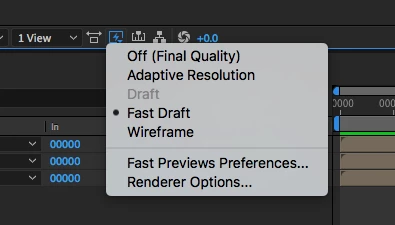
Check the preview options. In both screenshots the Fast Previews icon is blue. That means that Fast Previews could be set to Fast Draft and that gives you no motion blur visible on 3D layers with the Classic 3D rendering option selected. Motion blur is not available for 3D layers with the C4D rendering option. You have to use an adjustment layer with Pixel Motion Blur or CC Force Motion Blur turned on if you use the C4D rendering option.

5 replies

Participant
September 16, 2025

The reason for missing motion blur for me was the renderer was set to Cinema 4D but changing it to Classic 3D brought back the motion blur.

Rick GerardCommunity ExpertCorrect answer
Community Expert
January 8, 2021

Check the preview options. In both screenshots the Fast Previews icon is blue. That means that Fast Previews could be set to Fast Draft and that gives you no motion blur visible on 3D layers with the Classic 3D rendering option selected. Motion blur is not available for 3D layers with the C4D rendering option. You have to use an adjustment layer with Pixel Motion Blur or CC Force Motion Blur turned on if you use the C4D rendering option.

Participating Frequently
January 8, 2021

It worked! Thank you so so much I would have NEVER figured that out!!

Community Expert
January 7, 2021

There is no way to tell how much motion blur should be expected from your screenshot. We need to know how fast the layer is rotating and how many pixels per frame the edges move. We also need to know the shutter angle. You can zoom into the frame level in the timeline, show us the speed graph and give us an idea of what is going on. I'm showing you everything in this screenshot and explaining why motion blur is working on the edges but not in the center of the image. If your footage is only moving about 10 pixels per frame on the edge then you are not going to see very much motion blur on the edges when it is rotating. If you are only rotating on the Y-axis there is not going to be much motion blur in the center of the image because the details do not change position very much between frames. I hope this clears things up:

Participating Frequently
January 7, 2021

Thank you for the help! Here is an updated screen shot. What I am confused about is any clip that is not 3D is just fine and has normal motion blur, but if it is 3D then ther is none. This is a new issues that started on Sunday even though I did not change any settings. I've installed different versions of After Effects and even uninstalled + reinstalled the entire program but still not luck.

Roland Kahlenberg
Legend
January 6, 2021

You've cropped of important parts of your timeline - it's not clear what's missing.
Did you enable Motion Blur for the layer?

Very Advanced After Effects Training | Adaptive & Responsive Toolkits | Intelligent Design Assets (IDAs) | MoGraph Design System DEV
Participating Frequently
January 6, 2021


Here is a full print screen, motion blur is enabled for the layer.

Participating Frequently
January 7, 2021

I uninstalled After Effects and reinstalled it and STILL have this issue.

Mylenium
Legend
January 5, 2021

Check the advanced composition settings.


Mylenium

Participating Frequently
January 5, 2021

 I've been using these settings for a while & have never had any problems.. Any setting suggestions that could fix this issue?