Known Participant
December 12, 2020
Question

null layers

  • December 12, 2020
  • 3 replies
  • 295 views

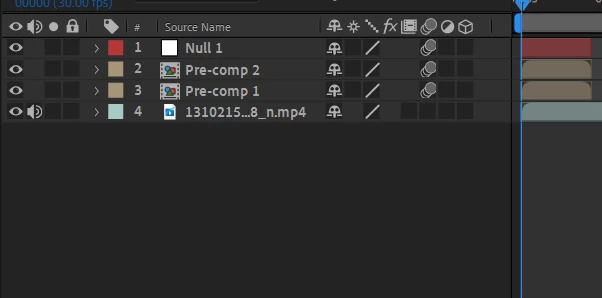
it has always been like picture one and I went on after effects today and its just gone does anyone know how to get it back?

This topic has been closed for replies.

3 replies

Community Expert
December 14, 2020

The first switch at the bottom left corner of the timeline opens the Switches column (pane), the second opens the Modes column, the Third icon {} opens the In/Out/Duration/Stretch column, Shift + F4 opens and closes the Parent/Link column. All of the panes or columns in the Timeline can be opened or closed by right-clicking on the at the top right of the Timeline on the small words Layer Name/Source Name and selecting the columns you want to see. You can also click and drag on a column and arrange the order of the columns any way you like.


If the rest of the layout gets fouled up you can always double click on any workspace name at the top of the UI to the right of the Tool Bar and before the Search Help field to have to option to reset the workspace to the last saved version of that workspace. You can rearrange the visible workspaces by clicking on the >> at the end of the workspace labels and select Edit Workspace. I customize mine so that I always have quick access to Default, Motion Tracking, Paint, Essential Graphics, Color, and Animation available at a single click. Using the right workspace saves you a lot of time. The Workspaces do not save the Timeline layouts. I wish they did.

Community Expert
December 13, 2020

I'm not sure what exactly you need, but try deleting Ae's preferences so everything goes back to its place.


To restore default preference settings:

  • Press Ctrl+Alt+Shift (Windows) or Command+Option+Shift (Mac OS) while the application is starting.
  • A dialog box launches asking you if you want to delete your preferences file. Click OK.
  • To also restore default keyboard shortcuts, Alt-click (Windows) or Option-click (Mac OS) the OK button.


Byron.
Community Expert
December 12, 2020

Use these buttons.


Byron.
Known Participant
December 12, 2020

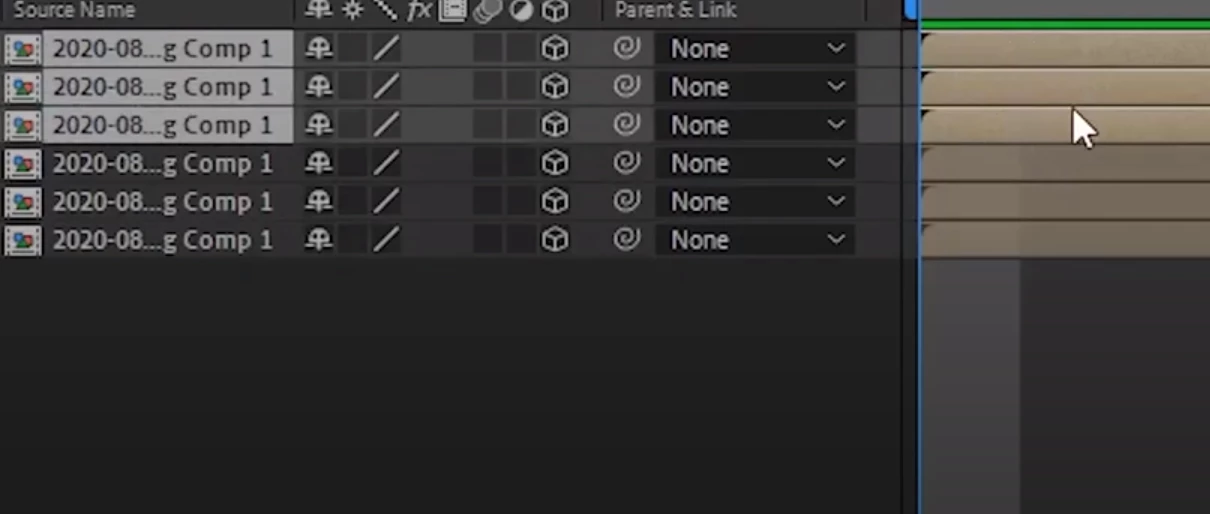
I've also tried that, they do not work it looks like this