MahaB82A
Legend
September 17, 2022
Question

Orientation & Coordinates

  • September 17, 2022
  • 1 reply
  • 236 views

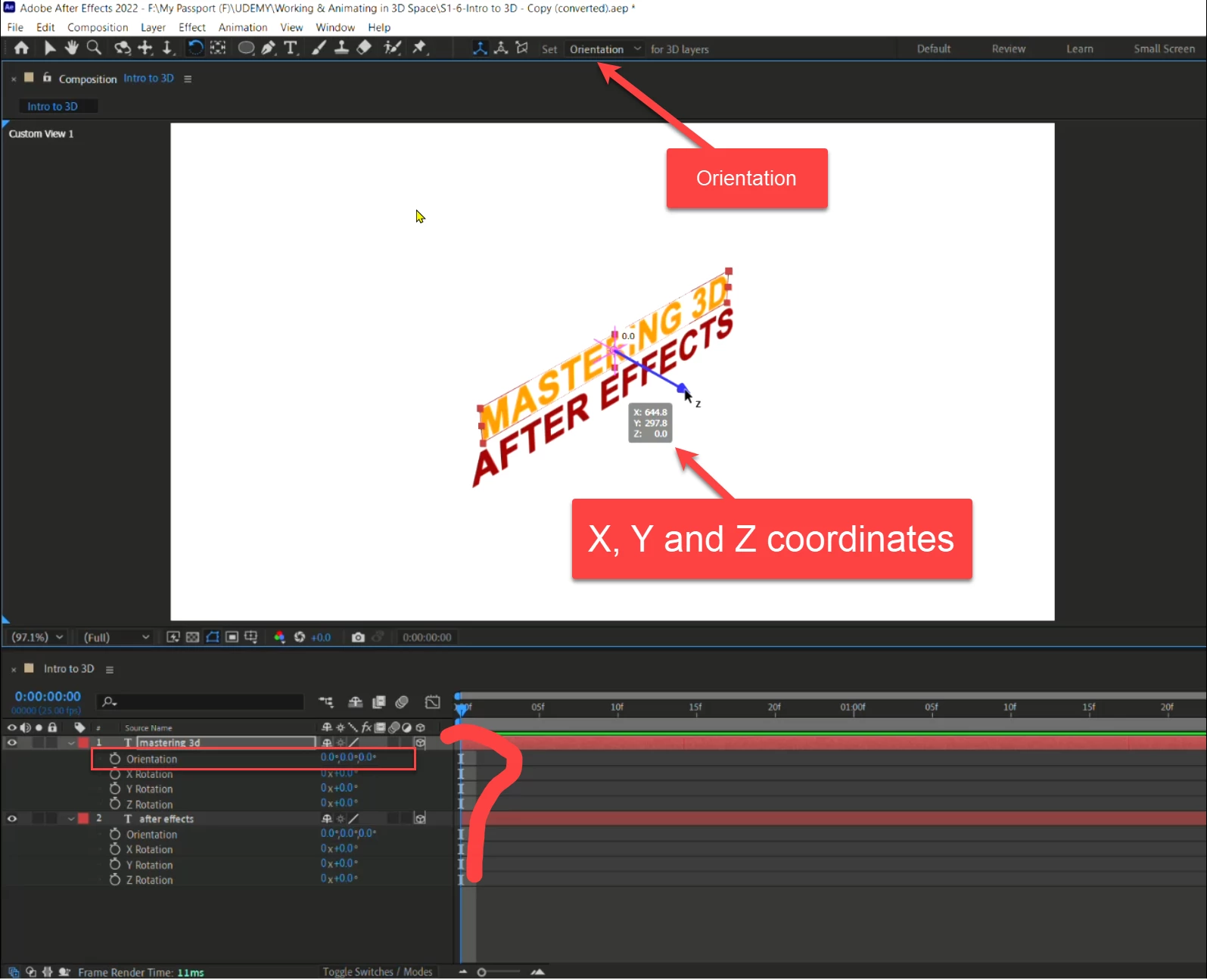
It is set to orientation & X: 644.8, Y: 297.8 & Z: 0.0 (shows popup in the composition panel). Why is in the timeline orientation X=0, Y=0 ? 
 

This topic has been closed for replies.

1 reply

Community Expert
September 17, 2022

If you grab the X, Y, or Z axis, you get a display of how far you move on that axis and a representation of the other Position properties. That's normal and useful. If you grab one of the rotators, the little balls, you get a representation of how you have rotated that axis. This is also very useful. If you click anywhere else with any of the rotation or the camera tools, you can move the layer in 3D space, but you get no value change pop-up.


The Orbit Tool (w) and the Selection Tool (v) are the only ones with that behavior. I rarely use any of the rotation tools. Almost all of the work I need to do in the Composition Panel is done with the selection tool. With the new widgets, you don't really need anything but the camera tool and the selection tool.

MahaB82A
MahaB82AAuthor
Legend
September 17, 2022

X Rotation means: Rotation about X axis on YZ plane.

Y Rotation means: Rotation about Y axis on XZ plane.

Z Rotation means: Rotation about Z axis on XY plane.


Therefore no problem in defining the angle of an item that rotated.


How can be defined an angle in orientation? Because rotation takes place in all direction. Video is attached.

Community Expert
September 18, 2022

Orientation is the local axis of the layer. The X, Y, and Z rotation around the layer's anchor point. 


Rotation is based on World Axis. The X, Y, and Z values represent the layer's rotation after the orientation is set. 


There is a third axis, which is the camera axis. There are three different switches to change the relationship of the widget to conform to the Orientation of the layer, the Rotation of the layer, and finally, the Camera axis, which always squares up the widget to the camera with X pointing to the right, Y pointing up, and z pointing away from the camera. Each of the tool views has a purpose. The Camera Axis tool, just to the left of the Set Orientation/Rotation dropdown, is very useful for moving the layer straight away from the camera's view. It is useless to try to judge rotation because it always is orientated directly toward the camera. The other two views are useful for judging orientation and moving the layer in space. 


It just takes a while to figure out what the three different widget orientations are telling you and which are useful for which workflow. I'm changing the modes all the time, but for most layout work, I find the Local Axis Mode the most useful. It just depends on where you are trying to move the layer.
