
Participant
June 5, 2021
Answered

Parent Shape Within Shape Layer

  • June 5, 2021
  • 1 reply
  • 2218 views

Multiple shapes can be created within shape layers, as we all know. Is it possible to parent an individual shape within the shape layer to another layer without parenting the entire shape layer?


Here's what I'm trying to do (see screenshots):

I'm wanting to animate a line with an arrowhead at the end. To accomplish this, I've created a null object to trace the path of the line, and have subsquently pickwhipped a trim path on the line to this tracing null object (this creates the effect that the line is growing). I know I can create the arrowhead in its own shape layer, then parent that shape layer to the null object, but I need to avoid that, as I'm using an inner glow layer style on the line, and these effects clash with one another when the two are in different shape layers (I hope that makes sense).


Therefore, I've put the arrowhead in the same shape layer as the line. Is there any way I can parent the arrowhead alone from that shape layer to the trace path null object?
Correct answer Rick Gerard

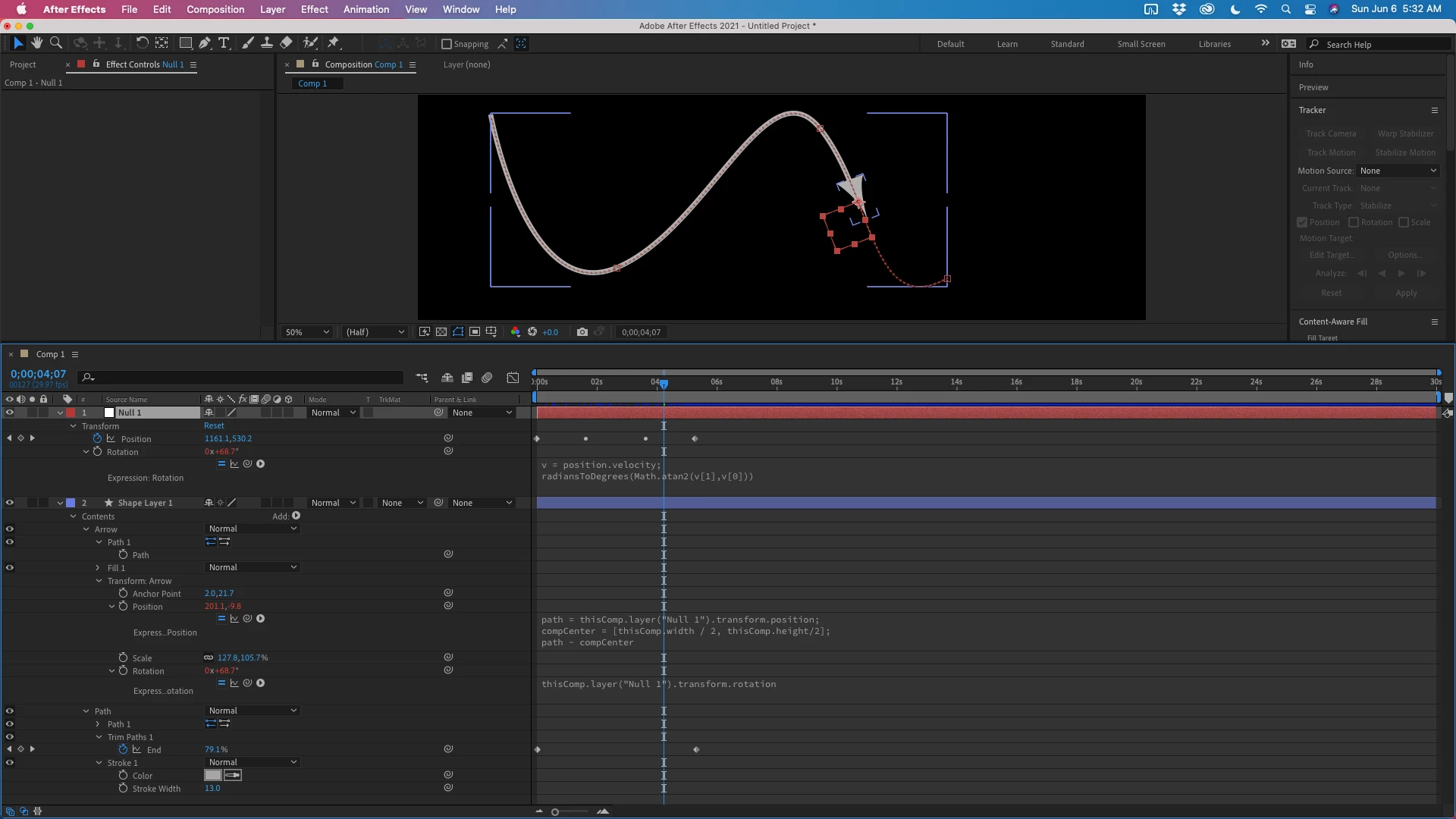
If you add a null, then copy the path you want the arrow to follow and paste that path to the Null's position property setting a keyframe for position and then paste, the null will follow the path. Then you need an expression to tie the rotation of the null to the path. 


The arrowhead in your shape layer needs to be at the comp center and pointing to the right. Then you tie the Arrow/Transform Arrow/Position property with an expression that subtracts the comp center from the position of the Null. The last part is really easy, tie the Arrow/Transform/Rotation property to the Null's rotation. 


All that is left to do is select the path you want the arrow to follow and add Trim paths to the path and then adjust the timing of the range selector to the timing of the null's position. 


Here are the expressions:

// Null/Transform/Rotation
v = position.velocity;
radiansToDegrees(Math.atan2(v[1],v[0]))

//Shape layer/Contents
//Arrow/Transform Arrow/Position
path = thisComp.layer("Null 1").transform.position;
compCenter = [thisComp.width / 2, thisComp.height/2];
path - compCenter

//Shape layer/Contents/
//Arrow/Transform Arrow/Rotation
thisComp.layer("Null 1").transform.rotation

The arrow is going to snap to horizontal before and after the null stops moving, but there is a workaround using valueAtTime. As long as the shape layer/Transform properties are all at the defaults the arrow will follow that path.


Trim paths and a couple of keyframes and you get this. I'm showing you all the modified properties for all layers.

1 reply

Rick GerardCommunity ExpertCorrect answer
Community Expert
June 6, 2021

If you add a null, then copy the path you want the arrow to follow and paste that path to the Null's position property setting a keyframe for position and then paste, the null will follow the path. Then you need an expression to tie the rotation of the null to the path. 


The arrowhead in your shape layer needs to be at the comp center and pointing to the right. Then you tie the Arrow/Transform Arrow/Position property with an expression that subtracts the comp center from the position of the Null. The last part is really easy, tie the Arrow/Transform/Rotation property to the Null's rotation. 


All that is left to do is select the path you want the arrow to follow and add Trim paths to the path and then adjust the timing of the range selector to the timing of the null's position. 


Here are the expressions:

// Null/Transform/Rotation
v = position.velocity;
radiansToDegrees(Math.atan2(v[1],v[0]))

//Shape layer/Contents
//Arrow/Transform Arrow/Position
path = thisComp.layer("Null 1").transform.position;
compCenter = [thisComp.width / 2, thisComp.height/2];
path - compCenter

//Shape layer/Contents/
//Arrow/Transform Arrow/Rotation
thisComp.layer("Null 1").transform.rotation

The arrow is going to snap to horizontal before and after the null stops moving, but there is a workaround using valueAtTime. As long as the shape layer/Transform properties are all at the defaults the arrow will follow that path.


Trim paths and a couple of keyframes and you get this. I'm showing you all the modified properties for all layers.

Participant
June 8, 2021

It works! Thanks so much! Definitely not something I would've figured out on my own this early in my Ae career. 😂