Known Participant
November 10, 2019
Answered

Particle World Custom Adjustment

  • November 10, 2019
  • 2 replies
  • 5797 views

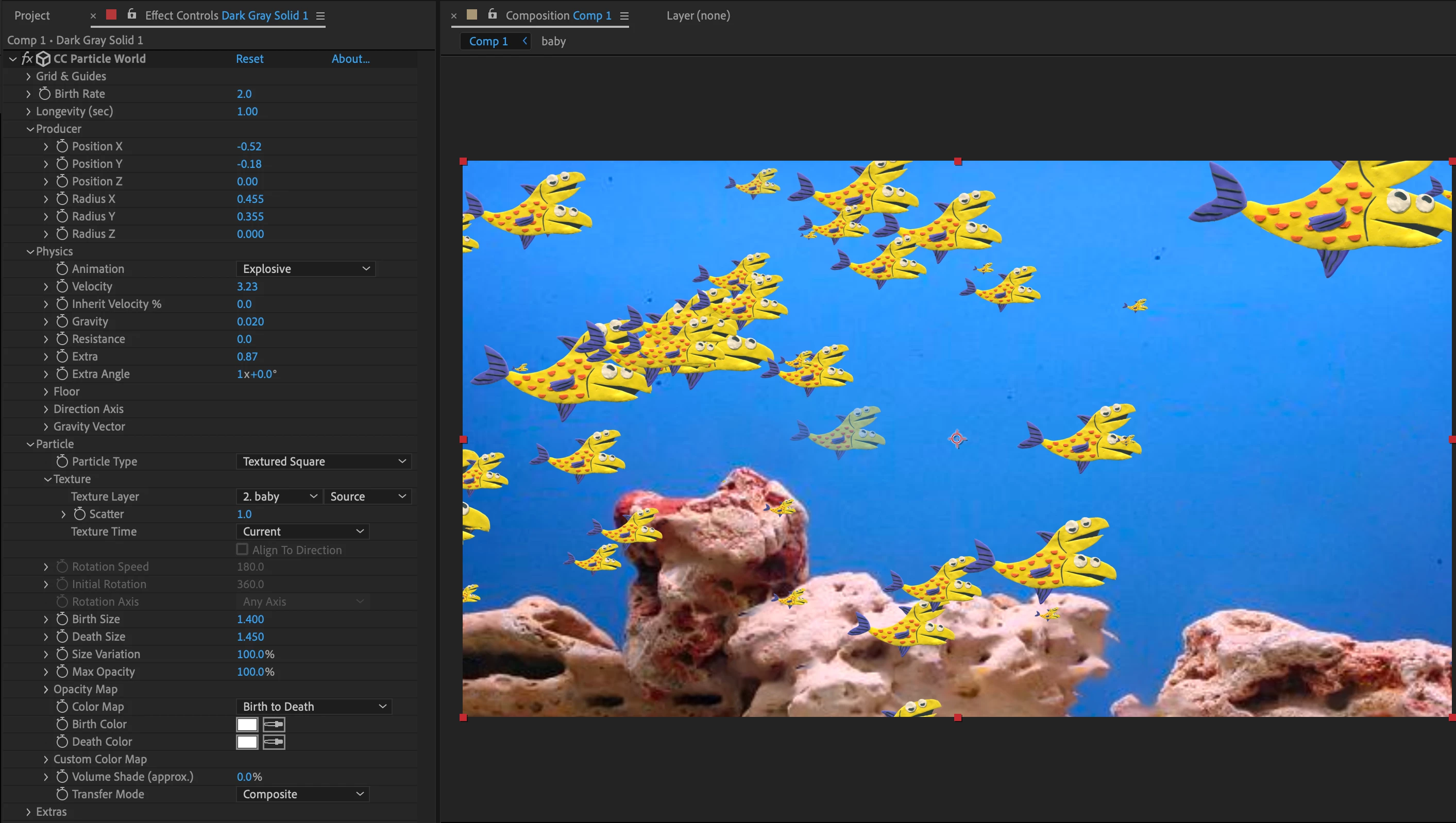
I am working on a Particle World shot with a bunch of fish in it. What can I do to ensure that all of the particles have 100% Opacity (no fading), and to make the ones in the foreground larger than the ones in the background?


(Or, if I have to, I could just make all of them the exact same size, birth to death.)
Correct answer Rick Gerard

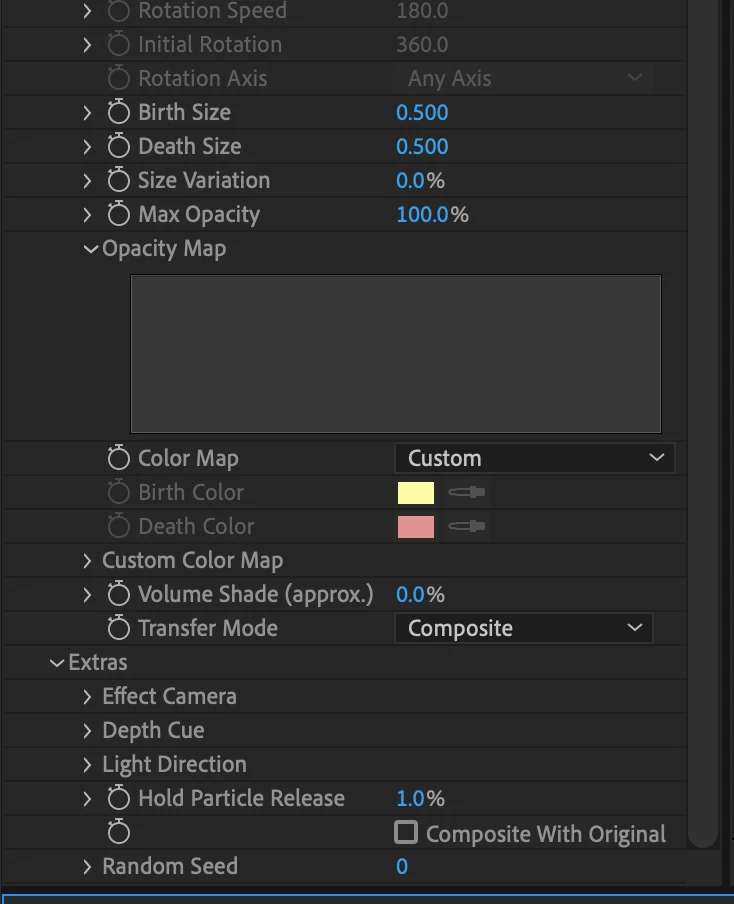
You just need a couple of tweaks. In the Particle Section spin down the Opacity map. When you hover over the graph you can draw a new one. Just scrub back and forth at the top until the opacity is always at 100%. Then, to keep the particles from fading in at birth set the Hole Particle release to 1%. Your particle section should look something like this:

2 replies

vikasc76444864
Participant
February 9, 2023

You need to do what is said by Rick as well as go to Extra>Depth Cue>Distance : Increase the value until you dont get desired result...

Rick GerardCommunity ExpertCorrect answer
Community Expert
November 10, 2019

You just need a couple of tweaks. In the Particle Section spin down the Opacity map. When you hover over the graph you can draw a new one. Just scrub back and forth at the top until the opacity is always at 100%. Then, to keep the particles from fading in at birth set the Hole Particle release to 1%. Your particle section should look something like this:

I_AM_LOTAN
Known Participant
August 24, 2021

I'm having the same problem as dylS E.
The Opacity Map doesn't respond to any clicks by mouse or wacom pen. 

Participant
October 29, 2021

SOLVED
SOLVED


Hold the V key while drawing in the Opacity Map curve area.


Feel free to buy me a coffee, my paypal ID is billpealer@yahoo.com.