


Copy link to clipboard
Copied
Hi everyone:
I am trying to create a video clip like this one:

When I try doing this in AE, my map pins do not stay in the same place. For example, if you look at the Tokyo pin (in red box) in the first few frames of the video, the pin points to Tokyo.
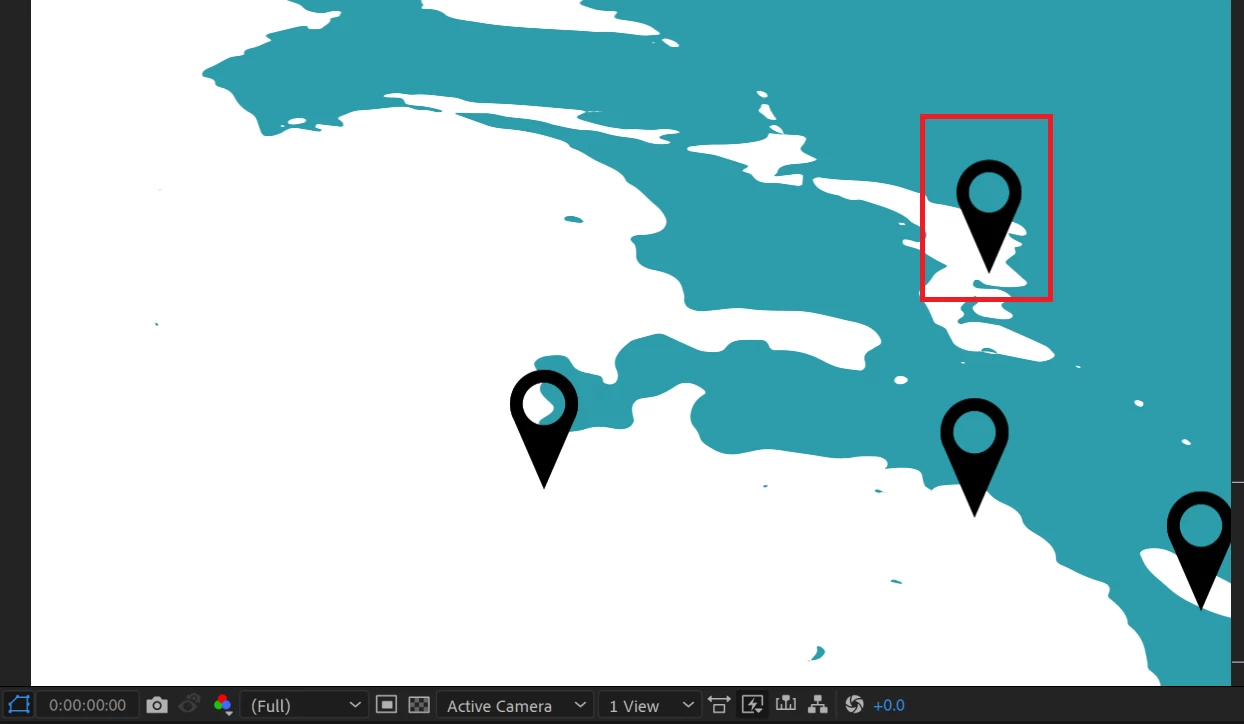
First few frames of the video: the pin is over Tokyo
A few frames later, the pin is no longer over Tokyo (see red box), it has shifted up.
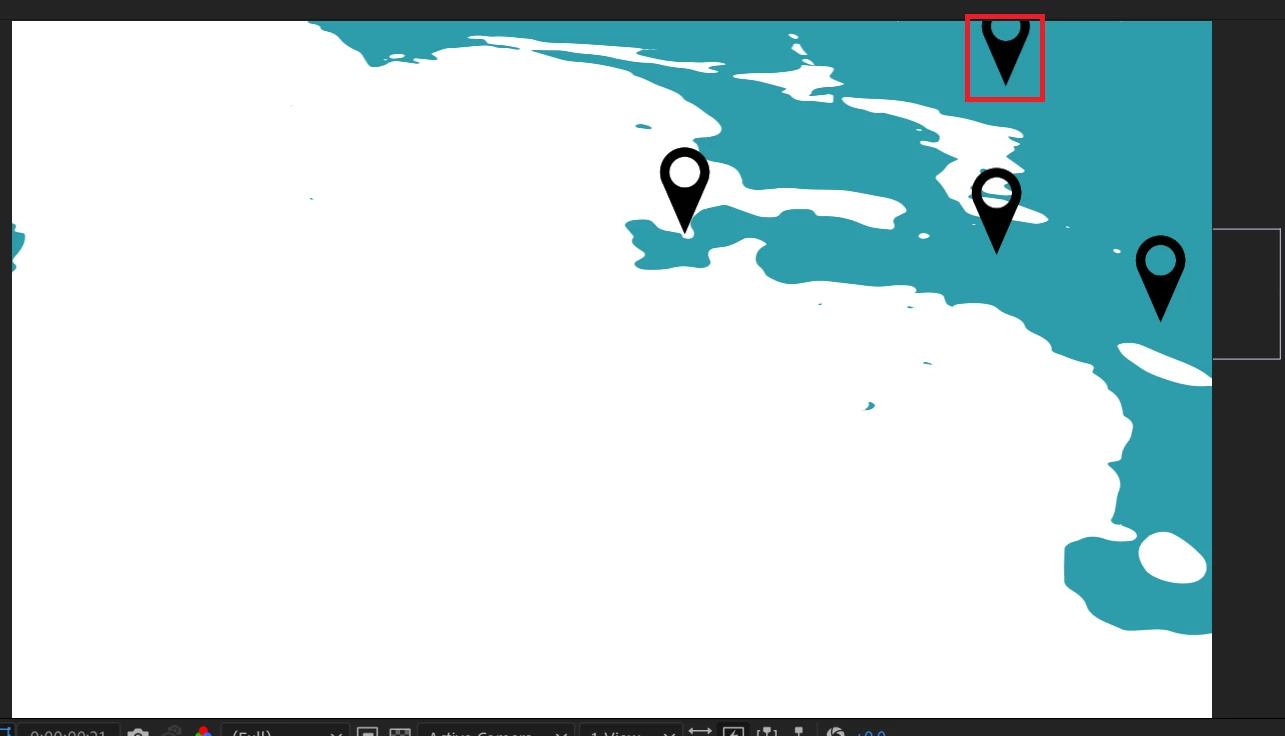
A few frames later, the pin is no longer over Tokyo.
Here is my configuration in AE. All the elements below are 3D objects.
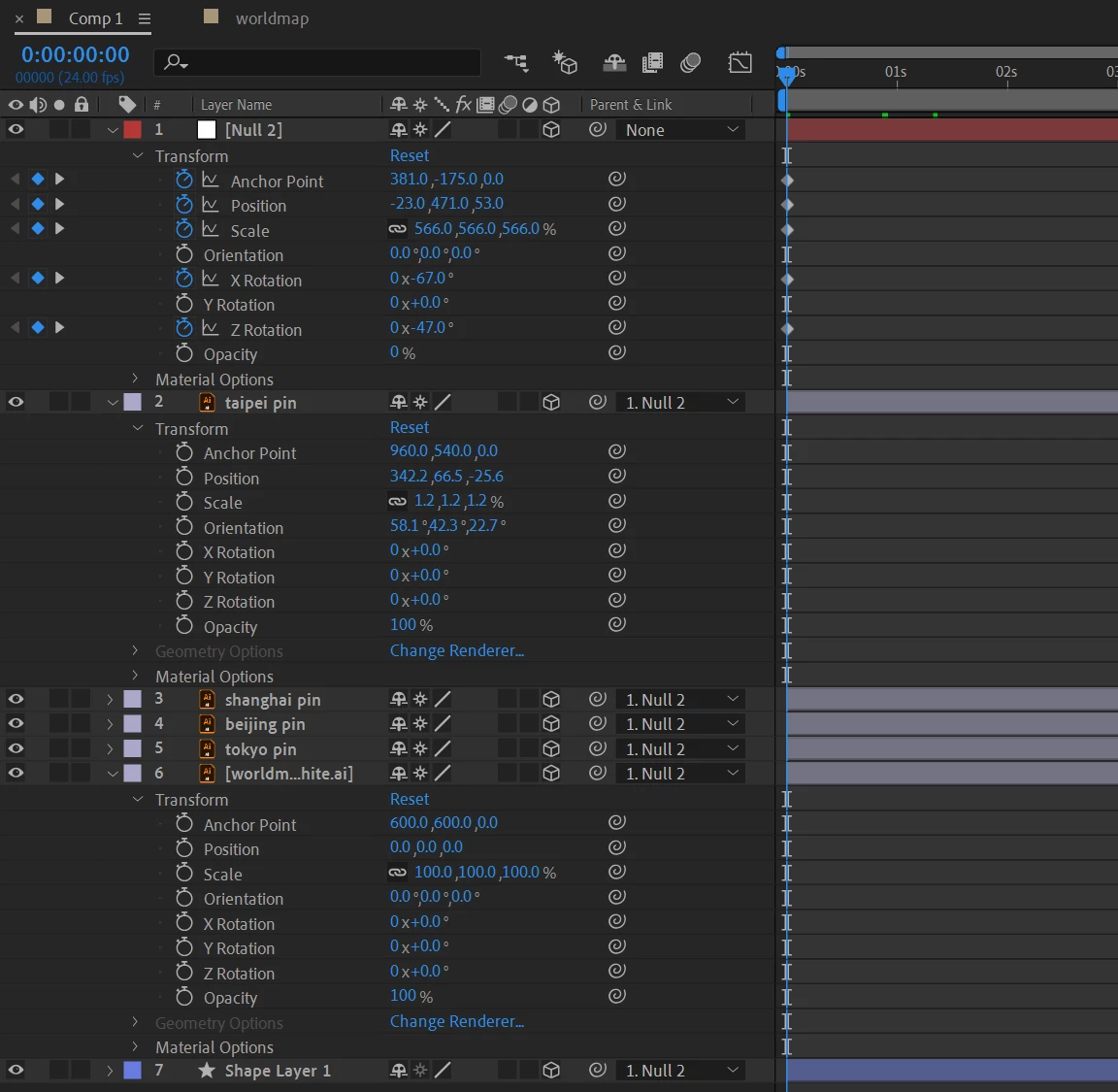
How can I make the pins stay in place? Thanks!!
Copy link to clipboard
Copied
Parent the pins to your map and the map to the null for easier handling.
Also pay attention to put the pins on the map-plane, don't let them float above it. Check the alignment in side view (left or right).
*Martin
Copy link to clipboard
Copied
Thanks for the response. I checked the left view and I think (?) my pin is not floating above the map-plane (I might be wrong though).
Left view - first frame - the pin is sitting on the map plane
A few frames later:
The map pins still don't stay in place though.... am I doing anything wrong? Thanks!!
Copy link to clipboard
Copied
The layers are not staying in place because the coordinates don't line up properly in 3D space. Hole your finger out in front of your face, then move your head around and look at how the finger floats over the background. The same thing is happening here. It's called parallax.
You have to make sure the pins are attached to the surface of the map, not floating above it. That will be easier to do if the Anchor Point for your pin graphic is right at the bottom point of the pin. You can then attach the pin to the map's anchor Point easily by holding down the Shift key and parenting the pin to the map. Then you remove the parent, stand the pin-up and face the camera using the rotation controls, then with the selection tool options set to Local Axis view you can drag the pin around on the map until it lines up with the right location.
This is even easier if your map layer is at comp center and you rotate the map layer -90º in X, then set up a comp camera and move it into position so you get a good view of the map. You can then add your pins with the anchor point at the point and just move them around in X and Z space. They will always be stuck to the surface of the map.
Get ready! An upgraded Adobe Community experience is coming in January.
Learn more