New Participant
July 28, 2023
Answered

Problem with low res precomp in After Effects Render

  • July 28, 2023
  • 2 replies
  • 3930 views

Hello,


I am running into some low res problem of precomp in final render. 

To give you context, this is how it is structured:


Master Comp (sequence)

This contains a precomp, that is causing the problem
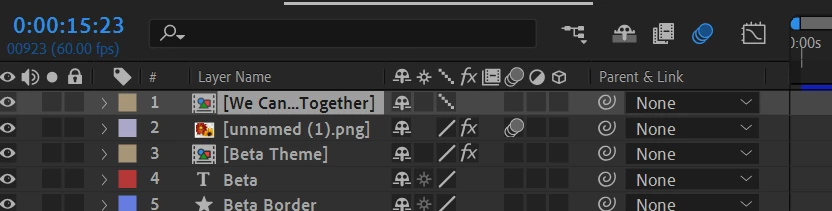
 

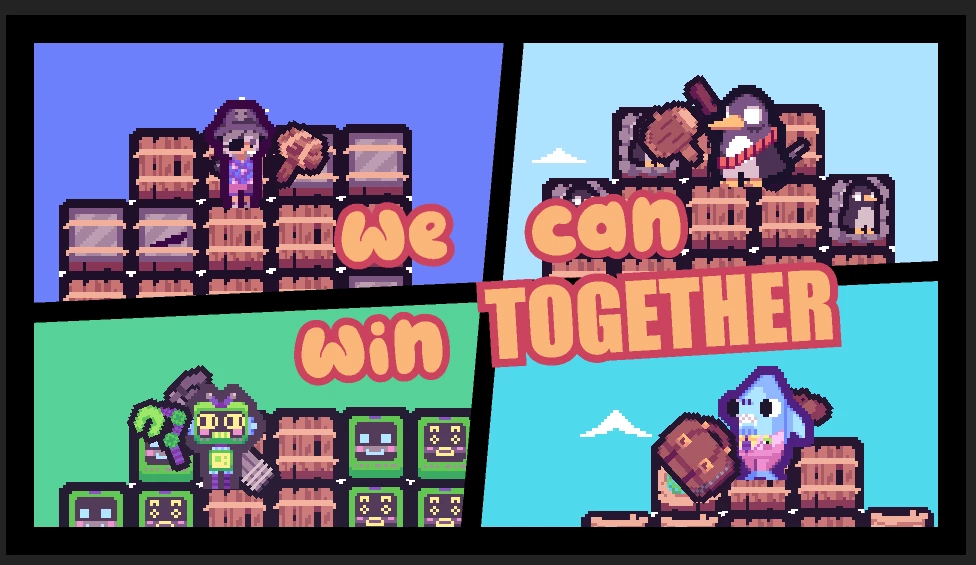
Thie final intended look is like this, with sharp pixelated edge around the characters and its background.

(I have turned off the scale sampling, as original pixel art was scaled up to 300%)
However, what I am getting is this. Blurred and low res quality. It is behaving asif scale sampling is turned on.

 

In side the problemetic precomp, everything looks like this. Note that its the 4 precomps that is causing the problem, as the texts are still clear.
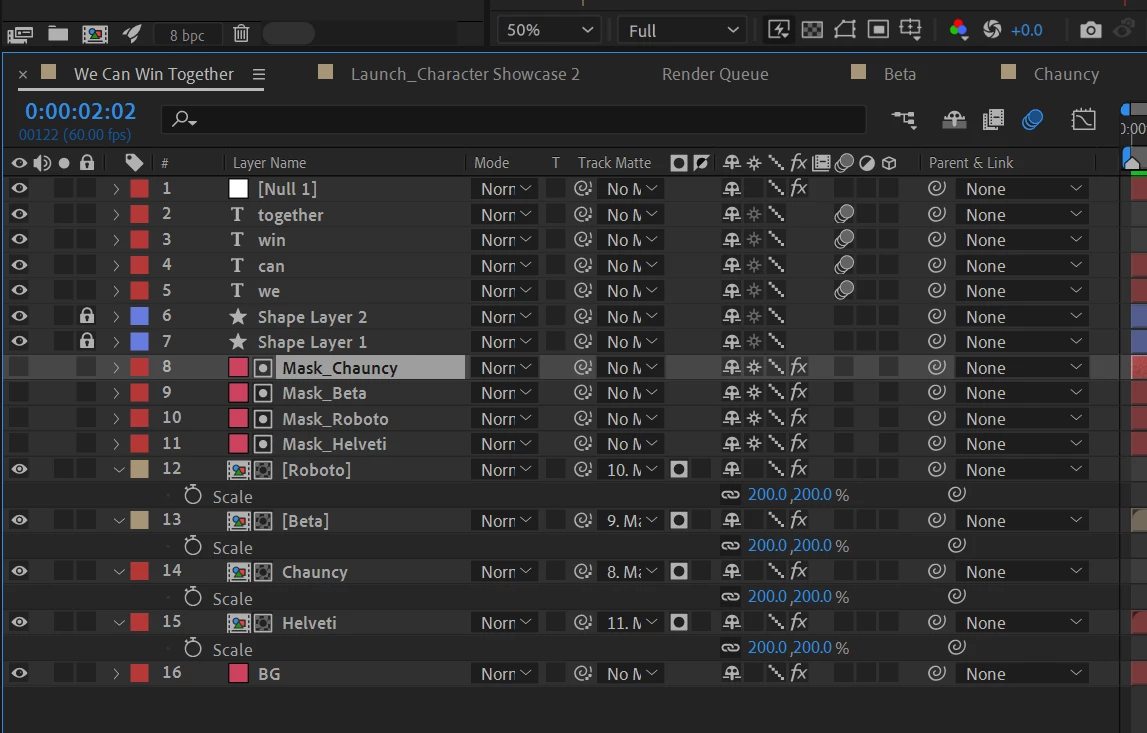
 

Inside each of these 4 precomps, looks like this. I think this is closer to the root of the problem, as everything from this comp gets blurred. (despite turning off the sampling, and turning on the "continuously rasterize").  The pngs and gifs are the pixel arts, scaled upto 300%. The other two precomps are the composite of other pixel arts, also scaled up to 300%. (following screenshot)
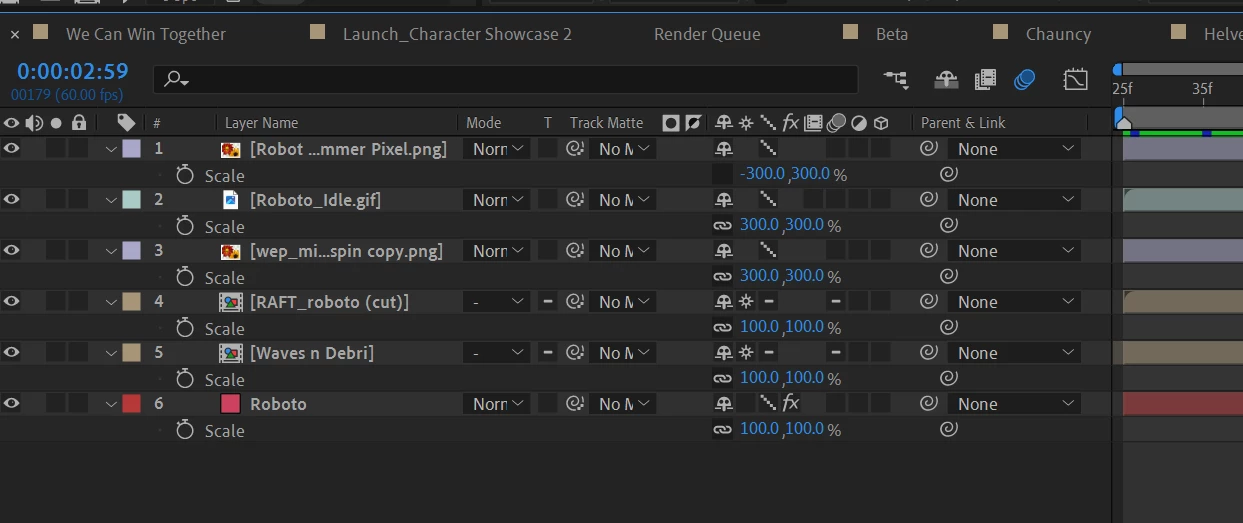
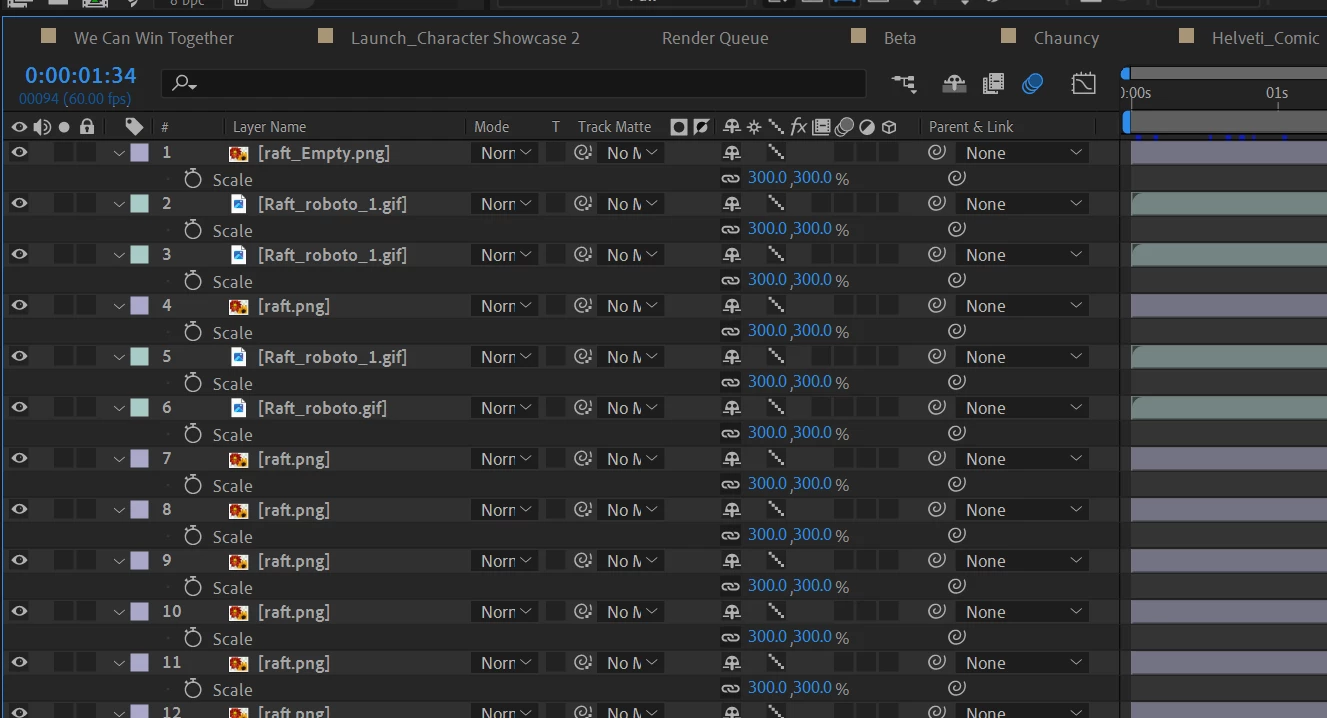
 

I have set all the scale sampling to draft to preserve the pixelated look. I think it has something to do with this. 


Now in preview, everything is clean & clear. If I use the dynamic link to bring the master comp into the premiere (the final video timeline) it still retains that sharp look.


However, I always try to render alpha prores clip (Prores 4444) out of AE comps once I am set, and this is where that problem comes up. 


Things I've tried

1. Turning on "continuous rasterize" to every precomp and the chain. DID NOT HELP.

2. I made sure all resoultions are set to full, both in render and preview.

3. When I try "Save Frame As" a PNG file, it is sharp. So I tried pre-rendering in PNG sequence. DID NOT HELP. 


What did "work" -> I skip rendering in prores and just using that dynamic link in PP to render the final output. It is sharp. So this "resolved" my issue for now for this particular project, but now I want to understand the problem and try to avoid this for future reference, as I try to avoid dynamic link embeded into PP timeline one the compositing is done. Logically it just doesn't make sense to me and I am not sure what is causing the issue, and how to resolve it.


If anyone has any insight in this, please help!


Thank you!
This topic has been closed for replies.
Correct answer RoyLee9066

SOLUTION: Quck follow up, and thanks to Andrew. 


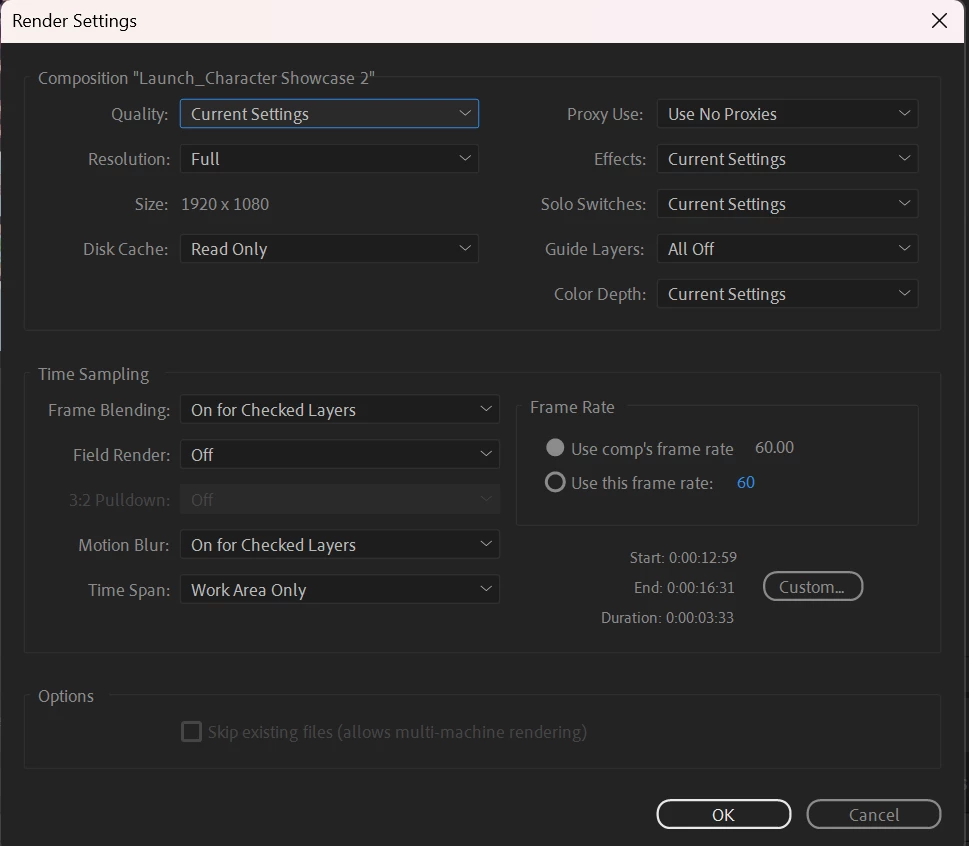
The correct setting seems to be setting the render quality to "Current' as oppose to "Best". It seems if set to "Best", it overwrites all layers' "Quality and Sampling" settings to bicubic or bilinear. 


Another workaround was found was when moving the render to Media Encoder using "Queue in AME", and not directly exporting from AE. 


2 replies

Andrew Yoole
Community Expert
July 28, 2023

The blurriness you're seeing is normal antialiasing when you scale elements above 100%.  In your case, you're scaling the background elements 300%, precomping and then another 200%, so thats equivalent to a scale level of 600%, which is huge.  


You've cropped all your screengrabs so it's not clear how you're previewing your work.  But my guess is that this may be as simple as the render quality setting. 


Try rendering from the Render Queue with the Render Settings > Quality set to "Draft" rather than "Best" quality.  This prevents any antialising, causing blocky hard edges.  Which in most cases is not desirable, but might be what you're after for your 8-bit-gamer style graphics.


If that's not what you're after, please post again with a bit more explanation and all your preview and render settings.


Here's a sample of precomped text scaled to 600% (and rotated 3 degrees to create more diagonal edges).  The upper is Best quality (antialiased) and the lower is Draft quality (not antialiased.). You can see the same thing in your samples - in the first version your text is aliasing, but in the rendered (blurry) version the text is clean and smooth.


Andrew Yoole
Community Expert
July 28, 2023

You can also fake a pixelized look using the Mosaic plugin, which has the added benefit of allowing some layers to antialias while others look blocky.  Here's a short tutorial:

https://www.youtube.com/watch?v=Px3fCmAi6KY


Ishan Y
Community Manager
Community Manager
July 28, 2023

Hey Roy,

I'm sorry to hear about this. Could you let us know what frame size is your composition and source files? Do you only see this problem in the exported file, or do you see it while previewing as well? Please also share your export settings. This will help us better understand the problem.


Thanks,

Ishan

New Participant
July 28, 2023

Hi Ian!

The frame size is 1920x1080 (60p). 
I am only seeing this in export, and the settings are:


As I mentioned above, I've also tried exporting in h.264 and PNG sequence, and the problem remains same. 

The source files are PNG sprites and animated GIFs, various in sizes (32x32, 48x48, etc). They are scaled up to 300%, and composited to create "in-game-like" scene. 


Thanks!