
Participant
April 13, 2022
Question

Puppet Pins Greyed Out

  • April 13, 2022
  • 4 replies
  • 3982 views

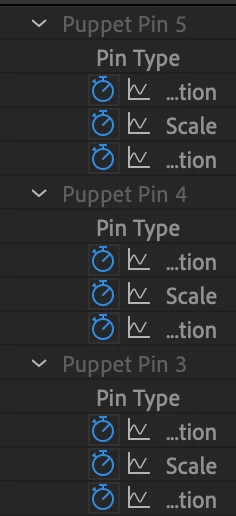
Hello! I'm not sure if I clicked a wrong button, but my puppet pins for just one layer is greyed out and the pins don't move, I assume because thye're greyed out? Puppet pins that I have in other layers do move, but those aren't greyed out, I'm not sure how to get my pins back to normal?

This is what I mean by greyed out, normally they're just in white, but it's like these are blocked. Any advice? Thank you.
4 replies

SimeonVeld
Participating Frequently
March 31, 2025

so annoying that in 2025 this issue is still not fixed....

Participant
April 28, 2025

Found a way around it: I just added another pin and those greyed out keyframes worked again. 
In my case, Continuously Rasterize wasn't even on. 

d-korolkov
Participating Frequently
April 17, 2024

Changing the Puppet tool to Legacy and increasing the Triangles also helps activated greyed out puppet pin ( include it into mesh)

___Lottie and Rive animation for your web or mobile project.
Known Participant
December 7, 2022

I can confirm; If you use the Puppet Pin tool, and switch Continously Rasterize from On to Off, or Off to On, it will break the Puppet effect and potentially cause other issues, like being unable to playback or preview the composition altogether. I stumbled on this post trying to see if Adobe was anywhere near fixing this.


It's a really weird and niche glitch that I feel like should've been tackled months ago when you posted this, or at least when they released After Effects 2023. I don't know all the backend details on why this happens, but I'd be curious to know. I know if you swap the asset on a layer with the puppet pin tool things can get a little weird. That makes me curious if when we hit Continously Rasterize if it's really creating a temporary rasterized file, and then when it is turned off it swaps it for the original. 


The only solution as of December 2022; Don't use Continously Rasterize with the Puppet Pin Position Tool.

Inspiring
April 13, 2022

Moved from the Premiere to the After Effects forum.


Can you post a screenshot of your entire UI? showing the layer expanded in your timeline, the Effects Control panel open with the Puppet effect selected, and your Comp panel visible. Also, make sure the "Show Mesh" box in the top toolbar is checked and that your layer controls are visible (Ctrl/Cmd+Shift+H).

Participant
April 13, 2022

Is this what you mean?

Inspiring
April 13, 2022

Yes, but it looks like you have a different layer selected in the Timeline, so the Effects Control panel isn't showing your butterfly layer. It's possible the auto-trace you did is causing an issue, but also, the Continuously Rasterize switch and Puppet effects don't work well together, you should disable that. 

If the pins are still grayed out, try switching the engine from Advanced to Legacy and back again. You might want to copy your keyframes first since the Advanced pin doesn't exist in the Legacy engine and they will get wiped out. I can't remember if they'll get restored when you switch engines back, but either way, you'll be able to hit Undo, if needed.