robertd43652856
Known Participant
December 24, 2019
Answered

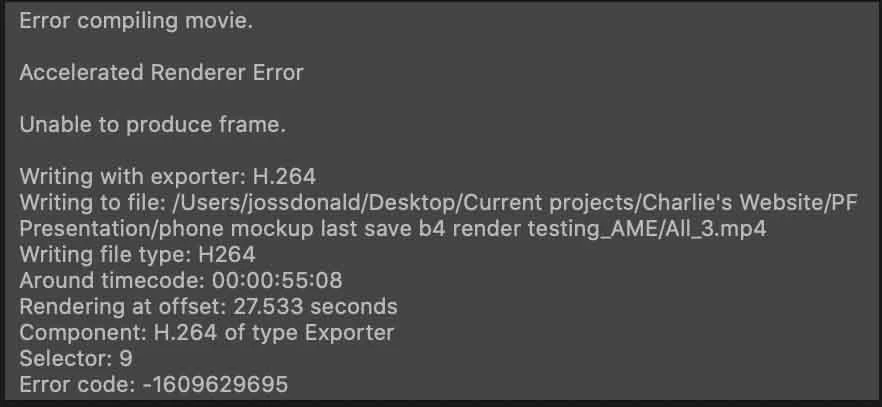
"Accelerated renderer error Unable to produce frame"

  • December 24, 2019
  • 7 replies
  • 61770 views

Hi,


I'm having this error message from media encoder when I'm working on AfterEffects (17.0.1) and it is coming up enough to make animating almost undoable at this point.
I know this has been raised before many times and Adobe seem rather keen on ignoring it but if anyone can direct me to or give any top tips on how to avoid this i'd appreciate it.

Sometimes I can pin down the exact layer or effect that is causing the error from the timecode in the error message but the other day I spent almost an hour workiing on it and still couldn't work out the source.

I have tried all 3 of the renderer settings (software only etc.) within Media Encoder and for me it doesn't make any difference.

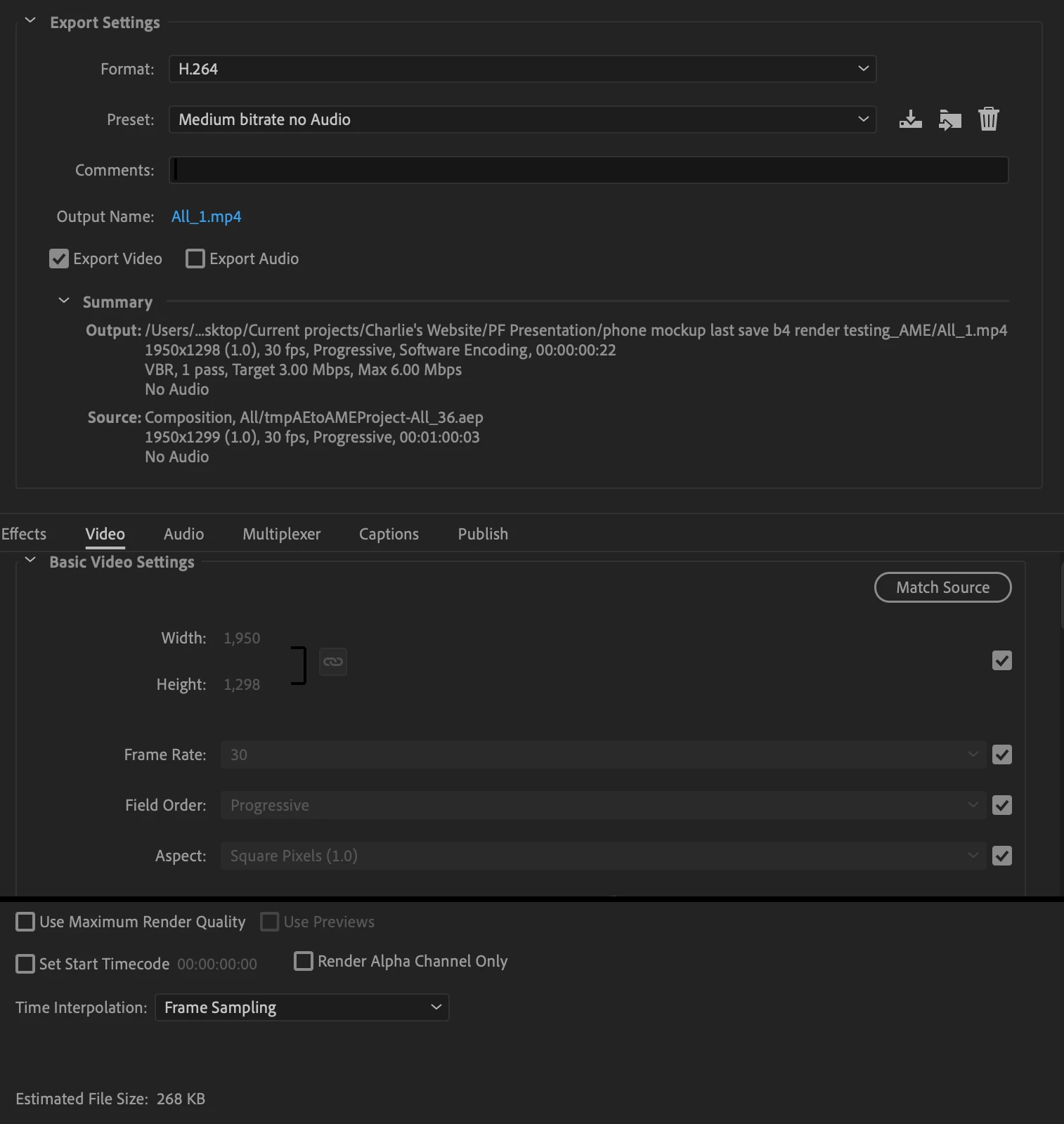
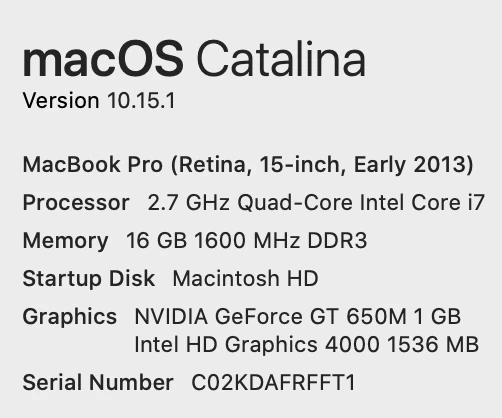
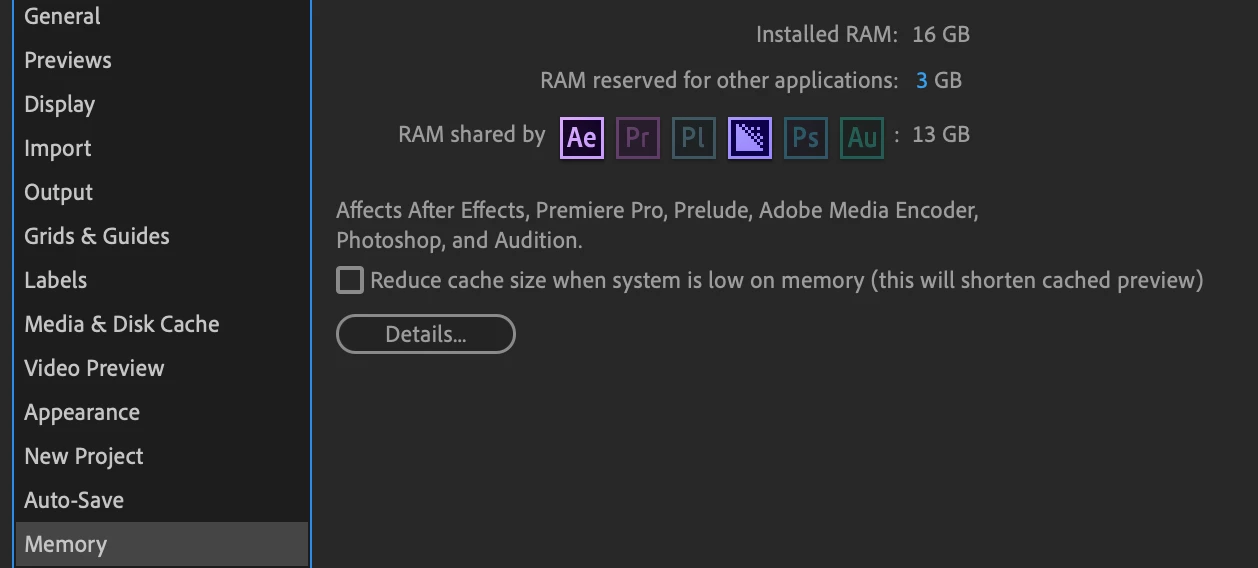
My mac specs, the error message, my render settings and ater effects settings are below


Thanks!

This topic has been closed for replies.
Correct answer Goster1

I was having the same issue with accelerated render error - for my situation, it turned out to be a push transition on the timeline at the troublesome spot - I removed it and it is now rendering fine (hope it lasts!)

7 replies

Participant
October 5, 2021

I ran into this issue, and I think the issue for me was that I had enabled the continuously rasterize button in an Illustrator file that which had a looping animation that I did with the puppet tool. I disabled that, then I cleared all memory and disk cache through the purge option under the Edit tab (Windows), then closed and restarted the program, and that resolved the issue for me. I spent about 3-4 hrs trying a bunch of things, and this is what worked for me, so I hope this helps someone if other solutions haven't worked.

Participant
September 20, 2021

i was have same problem with my asus rtx 2080ti ... i tried many solution but not worked... last thing i tried gpu tweak II (software for overclocking asus gpu) and i down gpu clock speed to (-80 mhz) and finaly premiere work fine without rendering error 
if ur graphic card msi  you can use msi afterburner and try to down gpu clock speed between 80 ~150 mhz..
other brands have same software u can search about it

Participant
July 10, 2020

***Another Solve***


I've had this problem for a few weeks now.

An animation file I've used for two years on a repeat job suddenly stopped exporting from AE through AME, it was giving me the error code -1609629695, unable to produce frame etc.


I spent a couple of hours scrubbing and exporting all the individual precomposed files and eventually found an element that wouldn't export.

The element used a 'loopOut()' expression, I deleted it and typed it back in and now it works fine. Worth exporting all different elements as a test and re-entering any expressions – not sure if this is update related but seemed to be around the time for me.

I hope this is useful, as it's saved me hours of exporting through AE and being unable to use it then using AME for the past couple of weeks before I had a chance to dig into the files.

Participant
July 11, 2020

Hey, Robert!

I'm getting the exact same error code but don't like how I can't pinpoint what is causing the "Unable to produce frame" error messages. Are you saying that you rendered sections of your project separately?

And how did you manage to know what to change, specifically? Any help is appreciated since I've been trying to export this project for 3 days now 😕😕  

robertd43652856
Known Participant
July 13, 2020

Hi Lee,


I never pinpointed what was causing my issue. Did you try the workaround I suggested in the post on Jan 05 2020?

thx

Participant
June 9, 2020

Nest the clips you want to export on the timeline then open a new project drag or copy the nested sequence to the new project timeline.

Goster1Correct answer
Inspiring
January 28, 2020

I was having the same issue with accelerated render error - for my situation, it turned out to be a push transition on the timeline at the troublesome spot - I removed it and it is now rendering fine (hope it lasts!)

Rameez_Khan
Legend
February 4, 2020

Thanks for sharing, Goster1


Best,

Rameez

Rameez_Khan
Legend
December 26, 2019

Hi robertd43652856,


I think Mylenium is talking about the resolution of your export. It's 1950x1298 which is slightly odd than the standard 1920x1080.

I'd suggest that you try exporting to an intermediate codec like QuickTime (Animation) and see if you're able to export it without any errors. You can then rename the extension of the .MOV file to .MP4.


Thanks,

Rameez

robertd43652856
Known Participant
December 26, 2019

Thanks for responding Rameez,


This issue has now resolved it's self but I'm not sure exactly what did the trick

Could be:
The new OS that I've just updated to (10.15.2)
My Desktop is now completely clean and the export location is nolonger Desktop

The irregular resolution is the same and it does work and the export settings are also the same.

Pretty sure something else will cause the error again and I'll post here if/when it does.

Rameez_Khan
Legend
December 30, 2019

Thanks for posting the update. I'm glad it's resolved for now.

Sure, you can come back later and post again. For now, I am marking your response as correct so that it helps the community.


Best,

Rameez

Mylenium
Legend
December 25, 2019

Your resolution is kinda wacky. Does it actually work with a correct standard HD res? Also since the issue appears quite a ways in, it stands to reason that there is a specific effect or feature kicking in that messes with hardware accel. And of course the usual applies: Don't render to desktop, don't use such a mess of tapeworm file and folder names, create a dedicated work folder/ volume on a separate partition/ drive. Keeping things simple often helps a lot.


Mylenium

robertd43652856
Known Participant
December 26, 2019

Hi Mylenium


Thanks for your response. Sorry I'm a bit new... When you say 'work with correct standard HD res' do you mean a setting in Media encoder, as in not H.264?
I know there are lots of reasons not to save to DT (I'm in the process of organising my file structure atm) but do you mean that saving to DT could have something to do with the error?