

Phi.Def
Inspiring
February 27, 2022
Answered

"This project contains expression errors" but no apparent error!

  • February 27, 2022
  • 3 replies
  • 6102 views

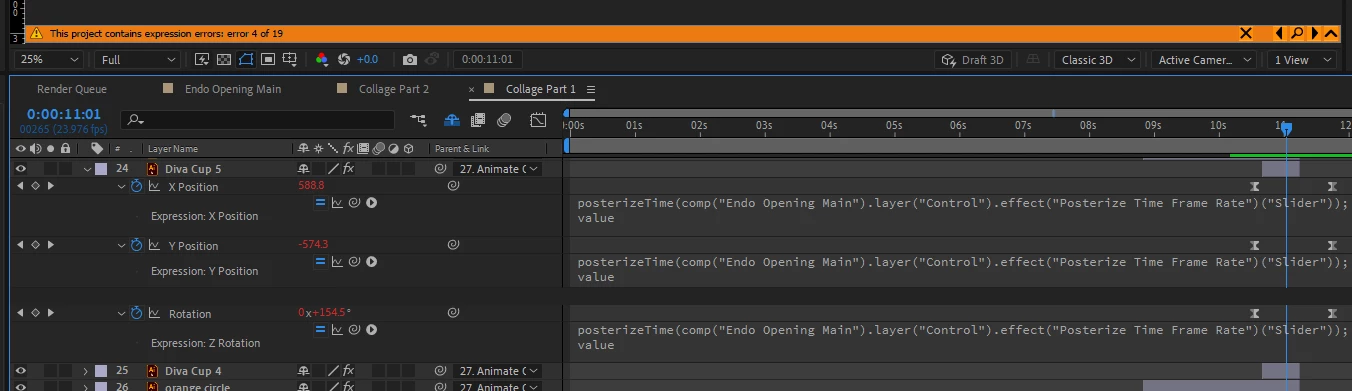
See photo: I made a change to my comp, and got the expression errors warning. But when I click on the magnifying glass for any of the 19 errors, the expressions that get revealed in the timeline panel seem fine. No yellow triangles with exclamation marks indicating an error, and the expressions seem to be working fine.


What's up with that?
 

This topic has been closed for replies.
Correct answer Rick Gerard

The expression error will not prevent the project from rendering. If you don't what to see it make the layer with the error 3D, delete the expression, then make it 2D again.


You just have an endless loop of errors created by removing the Z-axis when changing layers. It's more of an annoyance than a bug.

3 replies

Phi.Def
Phi.DefAuthor
Inspiring
February 28, 2022

This must be a bug.


As a test, I created a fresh new project and a new comp. In the comp I added two solids. I made the solids 3D layers, and pickwhipped the Z position of one solid to the Z position of the other solid (see screenshot 1).


Then I turned off the 3D layer switch for both layers and am now getting an expression error warning (see screenshot 2).


Phi.Def
Phi.DefAuthor
Inspiring
March 4, 2022

Does anyone have any input on this? I'm in the middle of  big project and I can't get the warning banner to go away and so I'm not getting legit warnings in the case of a real broken expression.

Attached is a project file (containing only two solids and a single comp) demonstrating this issue.

Rick GerardCommunity ExpertCorrect answer
Community Expert
March 4, 2022

The expression error will not prevent the project from rendering. If you don't what to see it make the layer with the error 3D, delete the expression, then make it 2D again.


You just have an endless loop of errors created by removing the Z-axis when changing layers. It's more of an annoyance than a bug.

Mylenium
Legend
February 28, 2022

That behavior would likely indicate that some of your stuff is generating odd values somewhere halfway through. Similarly it could be that there is a duplicate reference somewhere if you did not properly rename layers, comps and controls when duplicating stuff. Without any info about the exact setup of your project and the expressions usd nobody can give you a definitive answer, though, assuming there's more than the posterizeTime() stuff shown iun your clipped image.


Mylenium

Phi.Def
Phi.DefAuthor
Inspiring
March 1, 2022

Help? I've put a new post using a new project as an example for clarification. Not having a warning available to tell me if my expressions are actually broken is inconvenient.

Phi.Def
Phi.DefAuthor
Inspiring
March 3, 2022

I am not seeing anything new. Can you upload the AEP file using the Drag & drop here or browse files to attach Tool?


This expression does not do anything:


posterizeTime(comp(“Endo Opening Main”).layer(“Control”).effect(“Posterize Time Frame Rate”)(Slider);
value


You have not declared a variable, and "value" only returns the property's current value. To make a slider modify a property, you need to declare a variable and then add or subtract it from the property's " value. " 


For an Expression Control Slider on a layer in a nested composition (a Pre-comp) to control the Z Position of a layer in the Main comp and not break if the Layer is 2D, You should not separate dimensions, and the expression should look like this:


zPos = comp("Controller Comp 1").layer("Controller").effect("Slider Control")("Slider");
x = value[0];
y = value[1];
z = value[2];

if (thisLayer.position.value.length == 3){
	[x, y, z + zPos];
}
else{
	value;
}


I still don't know what you are trying to accomplish. You have not explained the design goals or described the workflow at all. 


Give us some details, and we can help. Without them, it isn't easy to know what to suggest.


I attached the project file. Do you need anything else? What do you think?

Community Expert
February 28, 2022

Select all layers and press the 'e' key twice. Somewhere you should see a yellow triangle next to the property with an expression. There must be more expressions somewhere.


You could also have expression errors in nested comps. Clicking on the ^ should expand the warning banner and reveal the name of the layer and problem property. Clicking the magnifying glass should take you to the problem expression.


This is all explained in the User Guide.

Phi.Def
Phi.DefAuthor
Inspiring
February 28, 2022

I've tried all that. There's no expression errors anywhere. And the number of expressions listed as having errors in the composition panel warning keeps changing. 19, 2, 6....