Exit
  • Global community
    • Language:
      • Deutsch
      • English
      • Español
      • Français
      • Português
  • 日本語コミュニティ
  • 한국 커뮤니티
1

Reconnecting missing AE assets located in a CC Library (NOT CC files)

Explorer ,
Mar 08, 2018 Mar 08, 2018

Hi all,

I have cross-posted this question as a reply in the assets/syncing forum but I'd very much love it if an AE user had any ideas.

I have an AE project that is unable to locate files that are stored within my Library. This is NOT to be confused with the Creative Cloud Library of the exact same name. "Files" kept in the CC Cloud are accessible for download (and even re connection in that secret location). CC Library files, not so.

My missing asset on left, my asset on right in the library panel, yet no way to re-connect them:
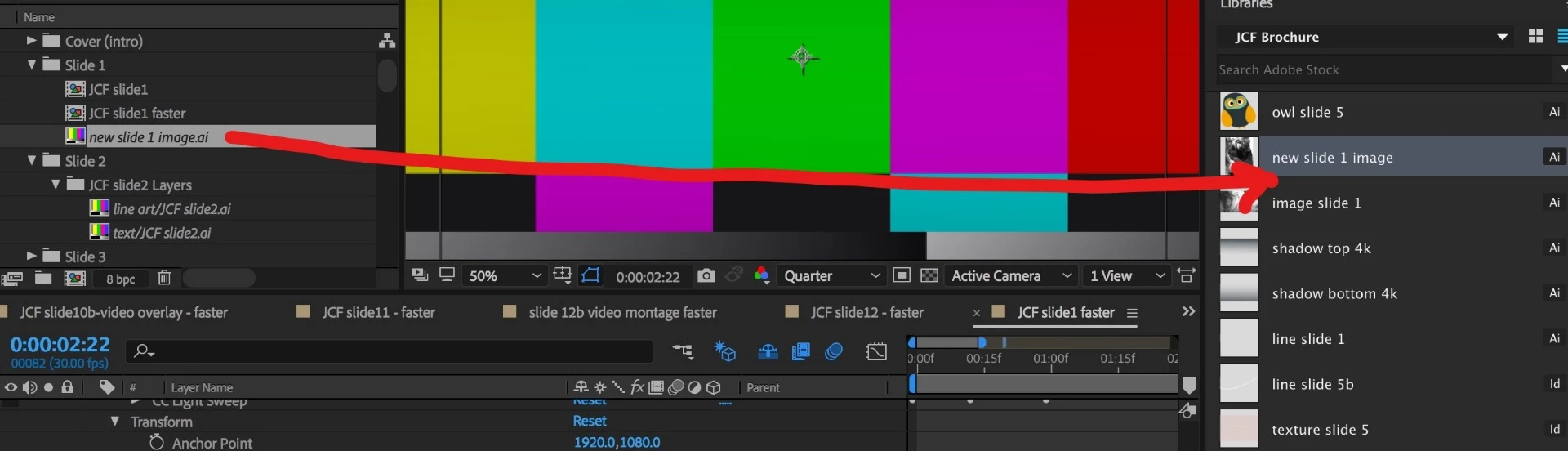
Inkedreconnection issue_LI.jpg

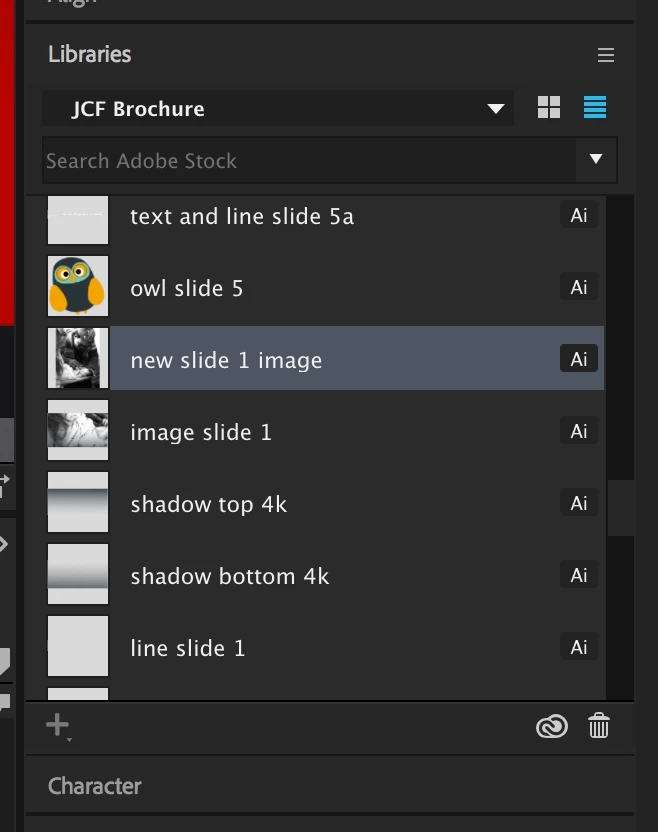
Here is the "Libraries" Project Panel in AE, from which I saved a bunch of AI assets when prompted by AI to try this great new feature. 😕

Library Panel.jpeg

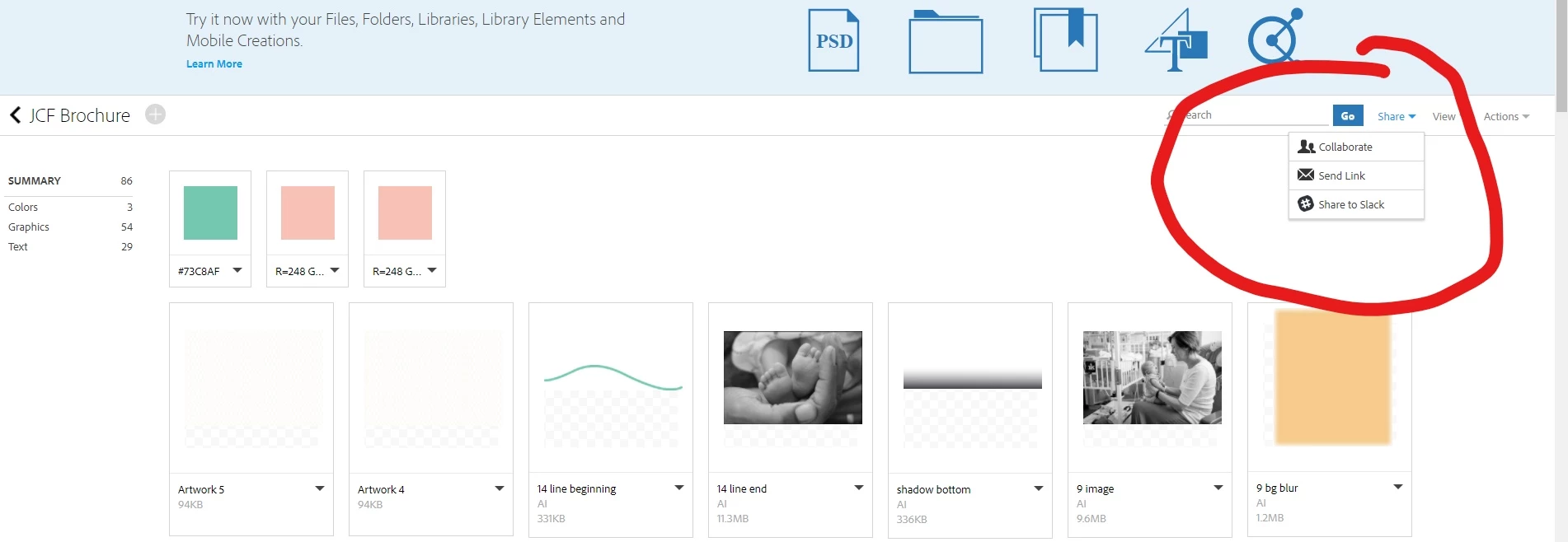
Here is the difference I am talking about between CC files and Library files:

Here is what happens when I attempt to download from the Library:

Single asset (no option to dl):
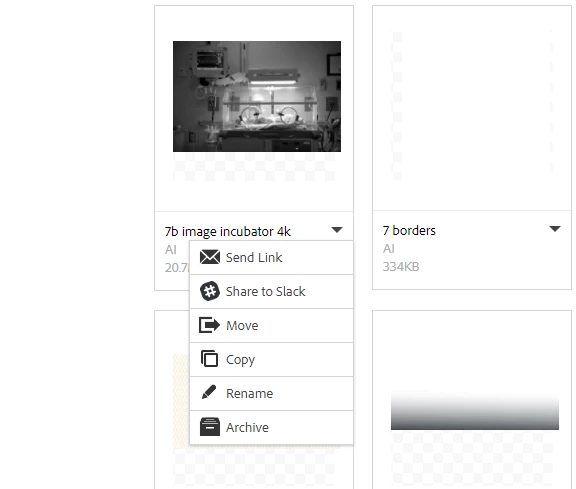
Screenshot 2018-03-08 12.07.25.png

Whole project folder (same):

InkedScreenshot 2018-03-08 12.07.51_LI.jpg

I am at a total loss here. I guess my next step is going into AI and seeing if the files also saved locally when I saved this into the abyss.(ETA: I forgot I actually tried that first -- there is no local location for these files).

Message was edited by: Alison Weiss

4.3K
Translate
Report
Community guidelines
Be kind and respectful, give credit to the original source of content, and search for duplicates before posting. Learn more
community guidelines

correct answers 1 Correct answer

Explorer , Mar 08, 2018 Mar 08, 2018

OK, well I found my workaround for now and will cross-post on the sync forum.

I'm doing this on a Mac.

- Inside AE, in Libraries panel, find the asset you need. Click Edit.

- This will open the associated app, in my case InDesign and AI for most of these assets.

- Within that app, right click on the doc name tab > Reveal in finder. There's the asset in a hidden, temporary folder.

- Now you have to save the file somewhere real and reconnect from AE.

And repeat for every single asset, by looking c

...
Translate
Explorer ,
Mar 08, 2018 Mar 08, 2018

OK, well I found my workaround for now and will cross-post on the sync forum.

I'm doing this on a Mac.

- Inside AE, in Libraries panel, find the asset you need. Click Edit.

- This will open the associated app, in my case InDesign and AI for most of these assets.

- Within that app, right click on the doc name tab > Reveal in finder. There's the asset in a hidden, temporary folder.

- Now you have to save the file somewhere real and reconnect from AE.

And repeat for every single asset, by looking carefully through AE Libraries panel for each one that is missing because there is no search function in the panel.

Whomever at Adobe rolled out this Library idea, please take note of this impracticality. It really does seem like "Libraries" are the same idea as "CC Files," and functionality should be the same. You have pop-ups asking us to save our assets in Libraries, and then this happens.

Also, why couldn't AE find any of the Library files it once had? My guess is they are only temporary files and when the cache is dumped the connections die.

Translate
Report
Community guidelines
Be kind and respectful, give credit to the original source of content, and search for duplicates before posting. Learn more
community guidelines
LEGEND ,
Mar 08, 2018 Mar 08, 2018

Well, you seem to be laboring under the perception that Adobe painstakingly thinks out every new feature all the way... which RARELY happens.

Thus, I choose to remain one version behind -- AE CC 2017's gotten all the bug fixes it's going to get.

Translate
Report
Community guidelines
Be kind and respectful, give credit to the original source of content, and search for duplicates before posting. Learn more
community guidelines
Explorer ,
Mar 08, 2018 Mar 08, 2018

Yeah, I am never trusting them to store my assets again. OK, breaks over, back to right-clicking and re-saving and relinking,,,

Translate
Report
Community guidelines
Be kind and respectful, give credit to the original source of content, and search for duplicates before posting. Learn more
community guidelines
LEGEND ,
Mar 08, 2018 Mar 08, 2018

Definite PITA.

Translate
Report
Community guidelines
Be kind and respectful, give credit to the original source of content, and search for duplicates before posting. Learn more
community guidelines
New Here ,
Nov 14, 2018 Nov 14, 2018
LATEST

I love the convenience that Adobe Cloud libraries give me for storing color swatches and logo files that I use frequently. But I'm experiencing a similar thing. Anything I've imported into the project from the libraries panel goes missing when I try to open the project on a different machine. It doesn't seem to matter if it's Windows or Mac based. I thought the point of cloud-based libraries is that the assets would be synced no matter what machine you were working on?

My workaround is to drag the same file back in from the libraries panel, at which point AE says one additional missing item found. Then there are two copies in the project. I look for the one that isn't used in any comp and delete it, leaving the correct file linked. There must be a more elegant solution to this, Adobe.

Translate
Report
Community guidelines
Be kind and respectful, give credit to the original source of content, and search for duplicates before posting. Learn more
community guidelines