
Participant
February 13, 2019
Answered

Rendering issue: choppy video

  • February 13, 2019
  • 3 replies
  • 41334 views

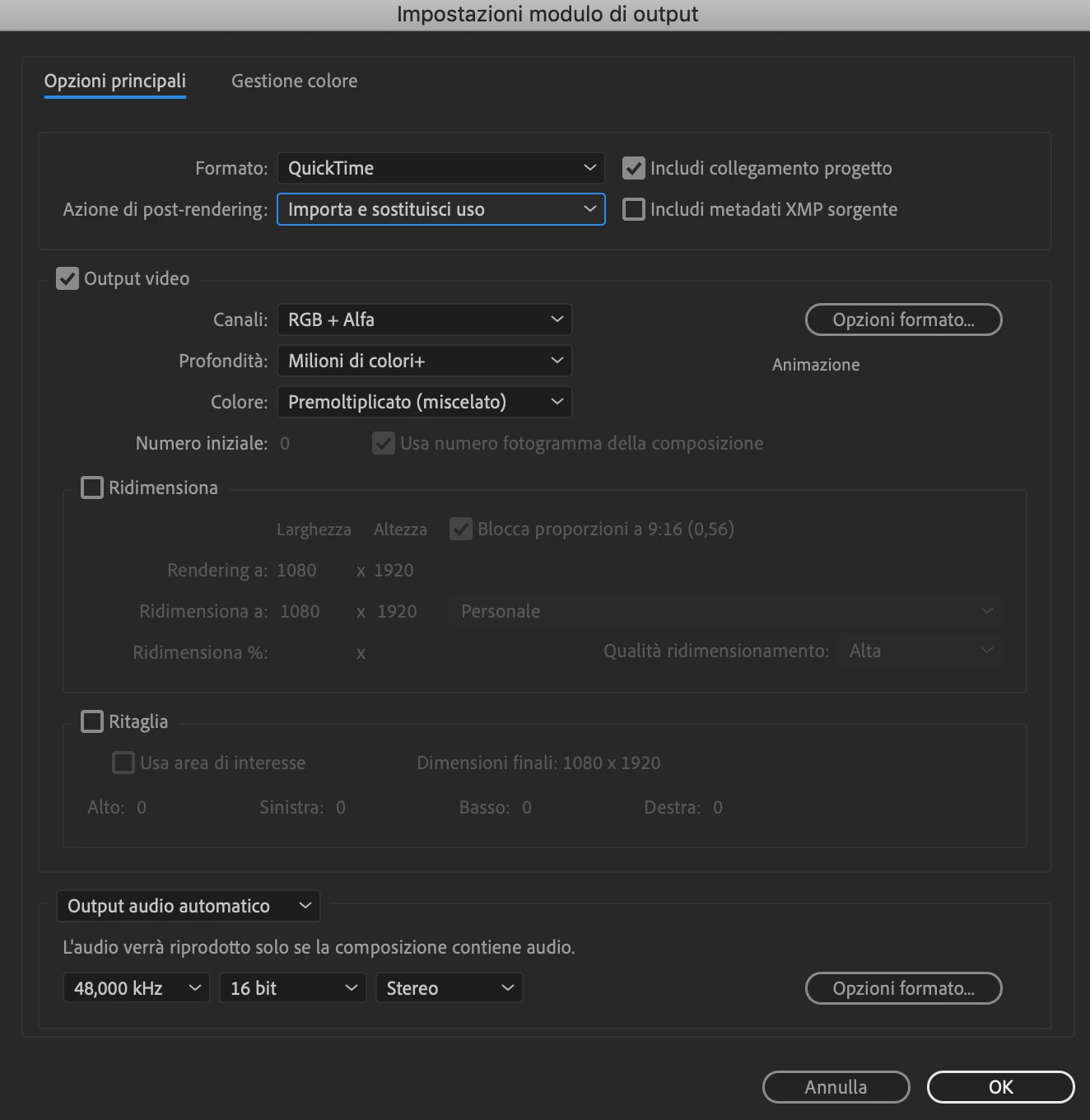
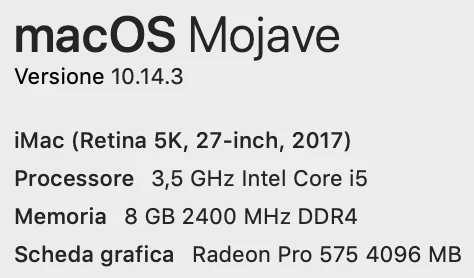
I have a simple video in which three images should slowly move from the right to the left, without any transition nor complicate elements (the most complicated thing is the opacity that goes to 0%). However, when I render the video, the images move in a choppy way, it's not smooth. I'm rendering with the default preferences (see image below), I have the latest version both on After Effects (16.0.1) and on my Mac (see image below). Does somebody have a solution?
Correct answer Carlos Ziade

Go to your composition settings and change the frame rate from there, if you really want RGB + Alpha - go to a higher frame rate around 50fps or 60fps.

As OussK​ mentioned you can get your export straight to Adobe Media Encoder, export to H.264 or any format where you have the option of changing frame rates, then up the frame rate to something like 50fps or 60fps. The higher the frame rate the smoother the motion. not all of Rick Gerard's suggestions here Avoiding Judder in Motion Graphics  will work out unfortunately, especially the motion blur which will try its best to fake the whole thing with added trouble, and the other solutions to go into speed calculations and rules... Only exporting to a higher frame rate will reduce the flickering choppy motion issue as far as I noticed from reproducing the many scenarios to this problem.

I reproduced the dynamic link issue taking forever, I just tried doing it more than once until it worked and media was sent to AME normally

3 replies

Inspiring
February 14, 2019

Pro-res 4444 might play better than animation codec. Assuming you do need alpha?

Participant
February 14, 2019

Carlos Ziade​ I'll try, thanks!

Joolsd​ Not necessarily!

Carlos ZiadeCommunity ExpertCorrect answer
Community Expert
February 14, 2019

Go to your composition settings and change the frame rate from there, if you really want RGB + Alpha - go to a higher frame rate around 50fps or 60fps.

As OussK​ mentioned you can get your export straight to Adobe Media Encoder, export to H.264 or any format where you have the option of changing frame rates, then up the frame rate to something like 50fps or 60fps. The higher the frame rate the smoother the motion. not all of Rick Gerard's suggestions here Avoiding Judder in Motion Graphics  will work out unfortunately, especially the motion blur which will try its best to fake the whole thing with added trouble, and the other solutions to go into speed calculations and rules... Only exporting to a higher frame rate will reduce the flickering choppy motion issue as far as I noticed from reproducing the many scenarios to this problem.

I reproduced the dynamic link issue taking forever, I just tried doing it more than once until it worked and media was sent to AME normally

Participant
February 14, 2019

Carlos Ziade​ Thank you so much, I solved my problem! I didn't check the fps, and when I created my composition, it was automatically at 25 fps, but putting 60 fps I solved everything! Thank you!

Community Expert
February 14, 2019

no problem! you are most welcome!

Mylenium
Legend
February 13, 2019

Does somebody have a solution?

Sure. Get a faster Mac or read up on what formats actually play smoothly - Animation is not amongst them, as even though it uses binary compression, the data rates can still exceed your harddrives' and data buses' capability in terms of memory bandwidth and data rates, plus possibly drawing and refresh of your graphics hardware on a 5k screen. Take a pick! anyway, you have some reading to do. Start by trying out H.264 and experiment with data rates.

Mylenium

Participant
February 13, 2019

Thanks for the answer! I don't have H.264 on After Effects, and I can't use Media Encoder because when I try to import the AE project, it takes forever to load the dynamic link, and it doesn't work. Are there any other formats that I should try on AE?

Participant
February 7, 2022

Spend some time studying video formats. You have to understand the difference between visually lossless, interframe, and intraframe compression if you are going to have any chance of a successful workflow. Video production is not really for amateurs.


Wow, what a needlessly backhanded response.

quote

Spend some time studying video formats. You have to understand the difference between visually lossless, interframe, and intraframe compression if you are going to have any chance of a successful workflow. Video production is not really for amateurs.


By @Rick Gerard
quote

Spend some time studying video formats. You have to understand the difference between visually lossless, interframe, and intraframe compression if you are going to have any chance of a successful workflow. Video production is not really for amateurs.


By @Rick Gerard