
Exit
  • Global community
    • Language:
      • Deutsch
      • English
      • Español
      • Français
      • Português
  • 日本語コミュニティ
  • 한국 커뮤니티
1

Replace with After Effects composition doesn't open MP4 files

Community Beginner ,
Jan 13, 2017 Jan 13, 2017

Ok so this may have already been answered somewhere out there but i cannot find the answer!!

Ive cut some clips on premier pro, when i highlight them ( 2 clips) and move them over to after effects with the 'render and replace with after effects composition,' it opens but with 2 compositions with the edits instead of mp4 files, not allowing me to toggle the motion blur effect i need. Any advice would be appreciated!!
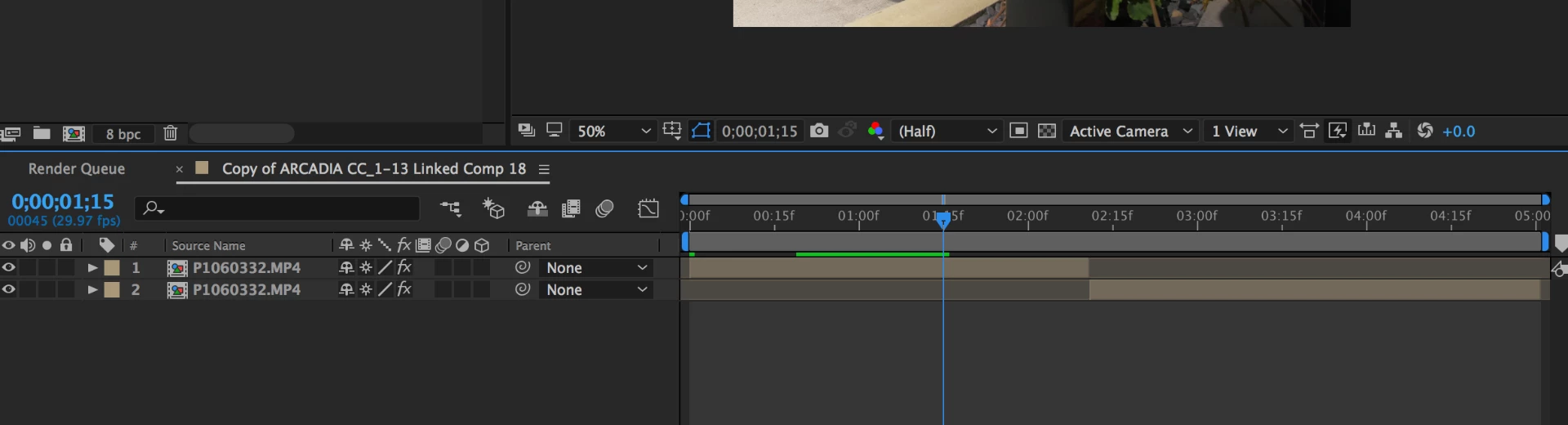
Screen Shot 2017-01-13 at 23.52.28.png

guy on youtube does the exactly the same steps as me but his opens like this:

Screen Shot 2017-01-13 at 23.53.16.png

1.8K
Translate
Report
Community guidelines
Be kind and respectful, give credit to the original source of content, and search for duplicates before posting. Learn more
community guidelines

correct answers 1 Correct answer

LEGEND , Jan 13, 2017 Jan 13, 2017
Ive cut some clips on premier pro, when i highlight them ( 2 clips) and move them over to after effects with the 'render and replace with after effects composition,' it opens but with 2 compositions with the edits instead of mp4 files

you probably mean "Replace with Ae Composition" which is for linking your clip to an Ae live composition and not "Render and Replace" which is for pre-rendering in Premiere to speed up performance on heavily processing clips. the reasons you are seeing precomps inst

...
Translate
LEGEND ,
Jan 13, 2017 Jan 13, 2017
Ive cut some clips on premier pro, when i highlight them ( 2 clips) and move them over to after effects with the 'render and replace with after effects composition,' it opens but with 2 compositions with the edits instead of mp4 files

you probably mean "Replace with Ae Composition" which is for linking your clip to an Ae live composition and not "Render and Replace" which is for pre-rendering in Premiere to speed up performance on heavily processing clips. the reasons you are seeing precomps instead of clips is probably because you toggled the "scale to frame size" in premiere: Re: Scale to frame size Premiere to AE behaviour?

if you want you can toggle it off and and instead use "set to frame size" in premiere instead.

not allowing me to toggle the motion blur effect i need.

do you mean you are using CC Force Motion blur? what exactly is the problem? I see both precomps and mp4 look the same with the effects.

Translate
Report
Community guidelines
Be kind and respectful, give credit to the original source of content, and search for duplicates before posting. Learn more
community guidelines
Community Beginner ,
Jan 14, 2017 Jan 14, 2017

Hey man, thanks for your quick response!! Was late over here when I posted hence my late rely.

Yess i meant 'replace with ae comp' not 'render and replace ae..' (you can tell i'd been sat at my station for way too long lol)

But your absolutely right its was the 'scale to frame size' that was making the files into a comp instead of mp4 file.

you've saved me so much time (and hair), thanks so much man!

sorry kinda new to ae, but after looking at it it wasn't 'motion blur' it was 'frame blending' on the toggle switches panel that wasn't allowing the box to be clicked but now all is ok and working

Thanks again!

Translate
Report
Community guidelines
Be kind and respectful, give credit to the original source of content, and search for duplicates before posting. Learn more
community guidelines
LEGEND ,
Jan 14, 2017 Jan 14, 2017
it was 'frame blending' on the toggle switches panel that wasn't allowing the box to be clicked

I see. just so you will know - frame blending is for video/sequences and that's why it's not enabled for precomps. you do have the collapse switch turned on for the precomp and this means that frame blending in the footage inside will be respected as long as it's set on for the layers inside

either way - precomps creates a mess in this case so using "set to frame size" instead of "scale to frame size" is probably a better idea. also make sure you know what you want in terms of workflow between Ae and Premiere. sometimes it's just better to not work "Live" between the two and instead simply copy paste the clips or sequence from one to the other.

here's a nice tutorial about workflow options when crossing these two apps: Adobe Premiere Pro to After Effects Workflow - Tutorial - YouTube

here's an extensive article about it:

Adobe Premiere Pro to After Effects Round-tripping Workflow (Part One) | Wolfcrow

Adobe Premiere Pro to After Effects Round-tripping Workflow (Part Two) | Wolfcrow

Translate
Report
Community guidelines
Be kind and respectful, give credit to the original source of content, and search for duplicates before posting. Learn more
community guidelines
Community Beginner ,
Jan 14, 2017 Jan 14, 2017

Thank you so much for your help, you really know your stuff and have helped me tremendously!

Cheers for the link to the articles, the video you sent is literally the same vid i was watching when trying the replace with ae comp!

thanks a bunch dude!

Translate
Report
Community guidelines
Be kind and respectful, give credit to the original source of content, and search for duplicates before posting. Learn more
community guidelines
LEGEND ,
Jan 14, 2017 Jan 14, 2017
LATEST

Great. you're welcome. I learn as I go and your questions helped me to get a grip on this issues as well. I recommend you exhaust the tutorials in the Ae and Premiere tutorial pages and then subscribe to a decent channel or platform (like Lynda) to educate yourself and learn more and more. first the basics, then techniques.

After Effects tutorials

Premiere Pro tutorials

Lynda: Online Courses, Class, Training, Tutorials

please mark the right response as "Correct" so this thread will be more noticable to others struggling with the same issues

Translate
Report
Community guidelines
Be kind and respectful, give credit to the original source of content, and search for duplicates before posting. Learn more
community guidelines