Participant
April 14, 2018
Answered

Resizing a Shape Layer's Bounding Box

  • April 14, 2018
  • 4 replies
  • 21155 views

Hi there,

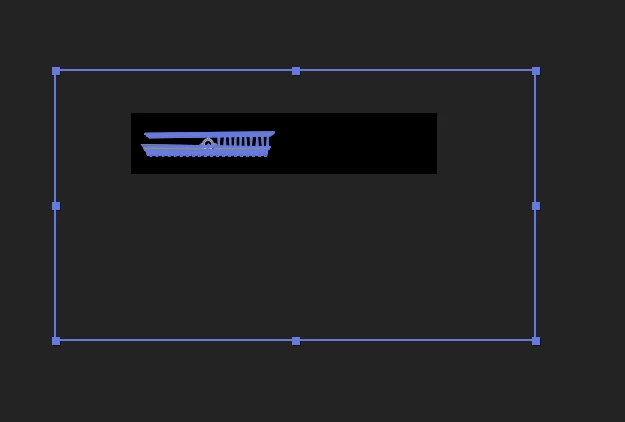
I converted an AI asset to a shape layer and can't figure out why the bounding box is so much larger than the layer itself. It's also not letting me select and edit individual assets within the layer. Any help/insight would be greatly appreciated. Thanks!

Correct answer Roei Tzoref

opacity or blend mode changes (and possibly some other variables) to any object in your illustrator file will cause the "create shapes from vector layer" feature to any of the layers to behave in the following manner: your shape layer will have an additional group in the shape hierarchy that will contain paths that constitute your Ai artboard and another merge paths operation. and it's very annoying

it could look like something like this if you work in an HD Preset.
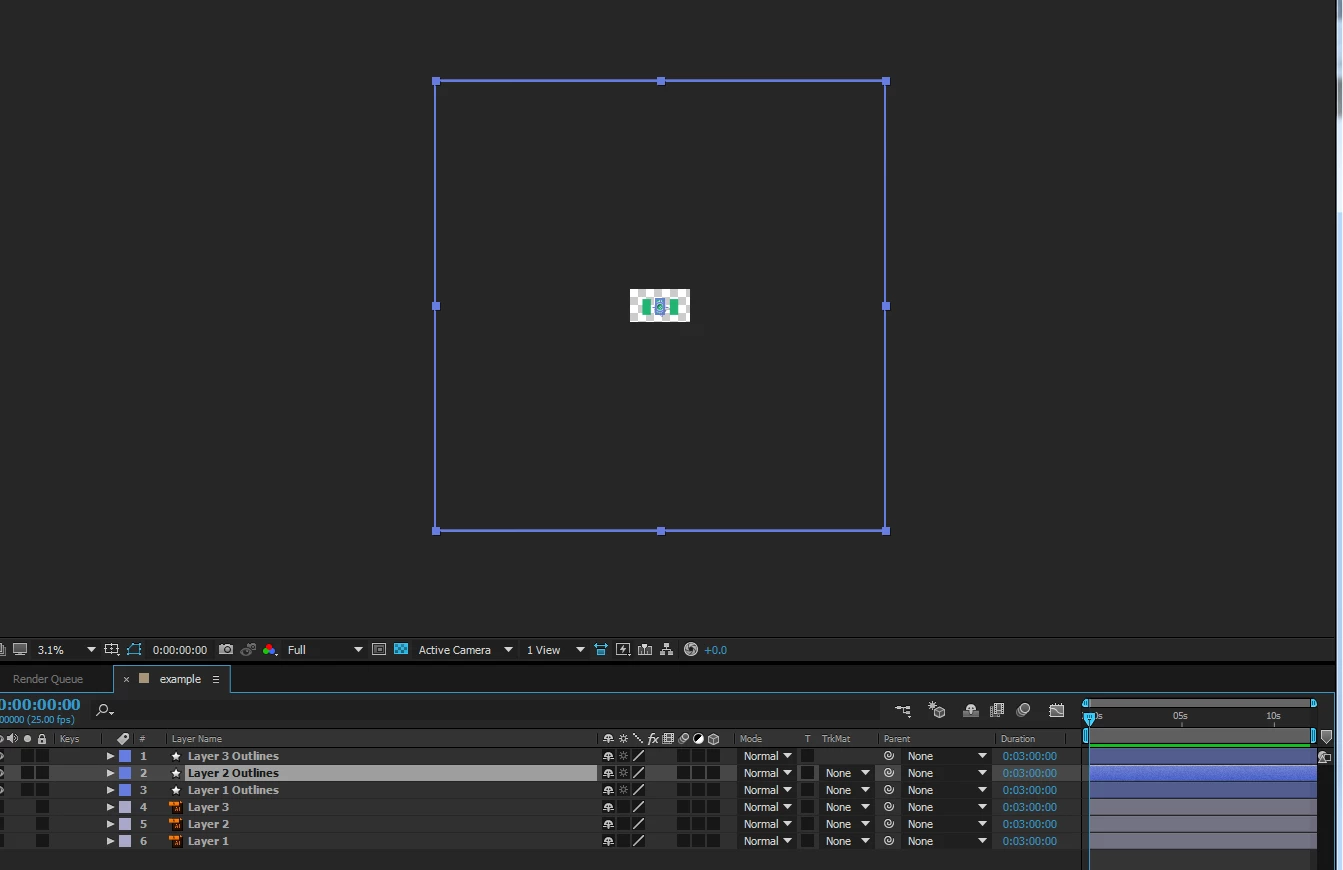
BTW HD preset gives you 2 artboards.. it's actually a good thing:Re: AI (illustrator) layers not showing up in AE (after effects) CC 2014 )

here is the shape hierarchy comparison of Layer 1 that is normal and Layer 2 that has 50% opacity:
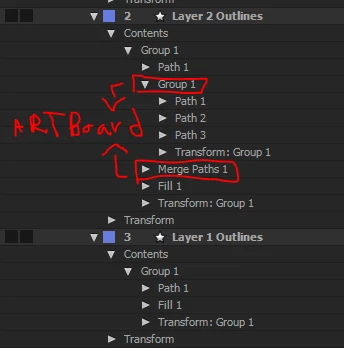
as you can see the artboard is here as a group with 3 paths and there is an additional merge path operation to the content of the shape.

What to do?

  1. if it's after the fact: you can just manually delete the group and the merge path from your shapes, or remove the blend mode / opacity from the layers in Ai (or set them to 100%/set them to normal) which is what Ae is going to do anyway, save the file again, and create shapes from vector layer again.
  2. before the fact - proper workflow:  it is already known that opacity and blend mode (and not only them) don't translate to a corresponding shape anyway, so this makes this an easy workflow decision: if you do plan to convert to shapes, prior to importing to Ae - set your blend modes to normal and opacity to 100% if it's not.
  3. there's also this script: Explode Shape Layers 3 - aescripts + aeplugins - aescripts.com that is very handy for dealing with the whole conversion of Ai to shapes and it has the "Remove Artboard" feature. this from the script description: If any of your Illustrator layers have non-100% opacity or go outside of the frame, you've probably noticed that converting brings in an empty artboard artifact that gets in the way. No more! Remove it with Remove Artboard.

4 replies

Roland Kahlenberg
Legend
April 15, 2018

Overlord from BattleAxe is supposed to be great for transferring Illustrator files into AE - Overlord — Battle Axe

Very Advanced After Effects Training | Adaptive & Responsive Toolkits | Intelligent Design Assets (IDAs) | MoGraph Design System DEV
Participant
April 15, 2018

Trying out overlord now and I'm already in love. Thanks for the tip!

Roei Tzoref
Roei TzorefCorrect answer
Legend
April 15, 2018

opacity or blend mode changes (and possibly some other variables) to any object in your illustrator file will cause the "create shapes from vector layer" feature to any of the layers to behave in the following manner: your shape layer will have an additional group in the shape hierarchy that will contain paths that constitute your Ai artboard and another merge paths operation. and it's very annoying

it could look like something like this if you work in an HD Preset.

BTW HD preset gives you 2 artboards.. it's actually a good thing:Re: AI (illustrator) layers not showing up in AE (after effects) CC 2014 )

here is the shape hierarchy comparison of Layer 1 that is normal and Layer 2 that has 50% opacity:

as you can see the artboard is here as a group with 3 paths and there is an additional merge path operation to the content of the shape.

What to do?

  1. if it's after the fact: you can just manually delete the group and the merge path from your shapes, or remove the blend mode / opacity from the layers in Ai (or set them to 100%/set them to normal) which is what Ae is going to do anyway, save the file again, and create shapes from vector layer again.
  2. before the fact - proper workflow:  it is already known that opacity and blend mode (and not only them) don't translate to a corresponding shape anyway, so this makes this an easy workflow decision: if you do plan to convert to shapes, prior to importing to Ae - set your blend modes to normal and opacity to 100% if it's not.
  3. there's also this script: Explode Shape Layers 3 - aescripts + aeplugins - aescripts.com that is very handy for dealing with the whole conversion of Ai to shapes and it has the "Remove Artboard" feature. this from the script description: If any of your Illustrator layers have non-100% opacity or go outside of the frame, you've probably noticed that converting brings in an empty artboard artifact that gets in the way. No more! Remove it with Remove Artboard.
Participant
April 15, 2018

Thank you so much for all the info! I'm glad I asked about this because I couldn't figure out how to search for a solution to this issue otherwise. I'm going to try out all these options and wrap my head around the conversion aspect of this so I can avoid it in the future. Thanks again!

Participant
February 25, 2024

i didn't understand his instructions. could you help me


Community Expert
April 15, 2018

Hi

In Illustrator, the groups in your Layer should look more or less like my screenshot. And when selecting your chart your Bounding Box should only select your chart. Something like my screenshot.

Regards!

Byron.
Participant
April 15, 2018

Thanks for the help! I appreciate you showing me a proper example.

Roland Kahlenberg
Legend
April 15, 2018

After converting a vector layer to a Shape Layer you may end up with additional image data which I believe is the Artboard info, from Adobe Illustrator. You'll need to jump into the Shape Layer's Content>Groups section, individually, to delete superfluous detail.

Very Advanced After Effects Training | Adaptive & Responsive Toolkits | Intelligent Design Assets (IDAs) | MoGraph Design System DEV