Participant
February 7, 2024
Answered

RGB+alpha video export of animated element rends with weird black/white shadow on resolve

  • February 7, 2024
  • 1 reply
  • 502 views

Hi, 


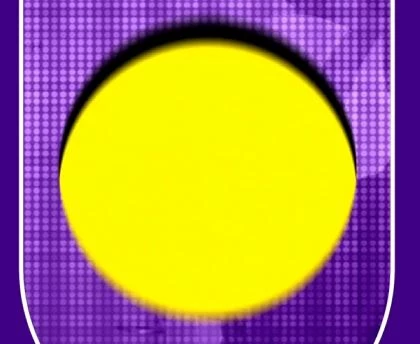
I exported some graphics with alpha channel to put on top of videos for an editor that edits on resolve. However when they export there weird shadow-like artefacts appear in the final video. I though it had something to do with the matte on export so in AE when I export the elements with a white BGND composition there is a white "shadow", when exporting with a black BGND composition there is a black "shadow". This much I figured.. The thing is that nothing changes if its matted or unmatted, the same artefacts appear ...

For the small graphics, even if it's bothering me, it's not that visible but one of the graphics is bigger so their shadow takes up a lot of space and is very visible.

I wonder if someone here has some advice as to how to remedy this ? 


Some screenshots for illustration:


Thanks !

This topic has been closed for replies.
Correct answer Mylenium

Without actual screenshots from within AE with timeline and properties and critical info like render settings, comp framerates and so on nobody can tell you much. If the big image is any indication, you are messing up the framerates most likely and in conjunction with motion blur this would of course produce fringes due to different temporal sampling. Could of course be anything else like botched time-remapping or an effect sampling another layer at the wrong time or even basic stuff liek footage interpretation. Impossible to tell based on post-stamp sized cropped screenshots.


Mylenium

1 reply

Mylenium
MyleniumCorrect answer
Legend
February 7, 2024

Without actual screenshots from within AE with timeline and properties and critical info like render settings, comp framerates and so on nobody can tell you much. If the big image is any indication, you are messing up the framerates most likely and in conjunction with motion blur this would of course produce fringes due to different temporal sampling. Could of course be anything else like botched time-remapping or an effect sampling another layer at the wrong time or even basic stuff liek footage interpretation. Impossible to tell based on post-stamp sized cropped screenshots.


Mylenium

north123Author
Participant
February 7, 2024

Thank you so much for replying so quickly! I'm sorry about the stamp sized photos ... since there's actually nothing exciting going on on the timeline, just 3 shapes one of which animates Y position I didn't think of adding it but I see how omitting the export and output settings was quite confusing. Actually you are totally right, they were editing in 25 and my animations were in 29.97 so of course it gave so many fringes ! I swore we checked yesterday but maybe we were too tired and didn't do a good check. Changing my videos in 25fps fixed it neatly.

Thanks for giving your advice even without seeing all the info on the exporting. Have a good day !