

user82573258
Inspiring
September 25, 2020
Answered

Set fill to transparent

  • September 25, 2020
  • 2 replies
  • 28862 views

How do I select 'transparent' for a fill on a shape or path without having to scroll through my layers and edit their properties?


I'm used to Illustrator, InDesign etc where I can simply select 'transparent' instead of selecting a colour.


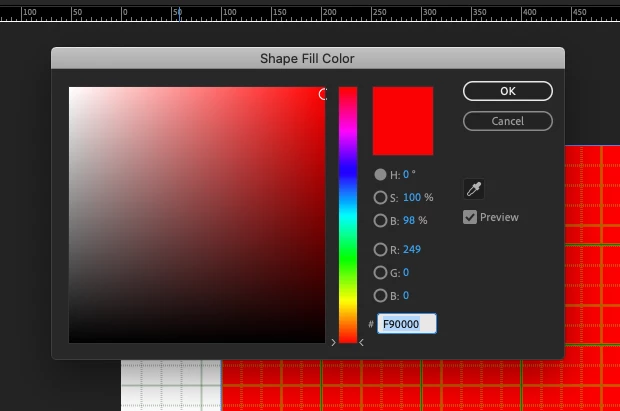
Yet whenever I click the 'fill' button in AE, all I see is this:
Correct answer Anna Lander

Do you mean "None" value for fill? To set it, click on "Fill" link (the word next to the sample rectangle). The fill type window will appear, you can choose "None", "Color" or "Gradient". And yes, you can select several layers and change them together.

2 replies

Anna Lander
Anna LanderCorrect answer
Inspiring
September 25, 2020

Do you mean "None" value for fill? To set it, click on "Fill" link (the word next to the sample rectangle). The fill type window will appear, you can choose "None", "Color" or "Gradient". And yes, you can select several layers and change them together.

Mylenium
Legend
September 25, 2020

Double-click on the fill sample in the top toolbar to set default options for newly created shape layers. Otherwise there is no quick swatch for this.


Mylenium