
Participating Frequently
October 31, 2017
Answered

Set Matte Not working! Need help plz !

  • October 31, 2017
  • 2 replies
  • 4453 views

Hi All !

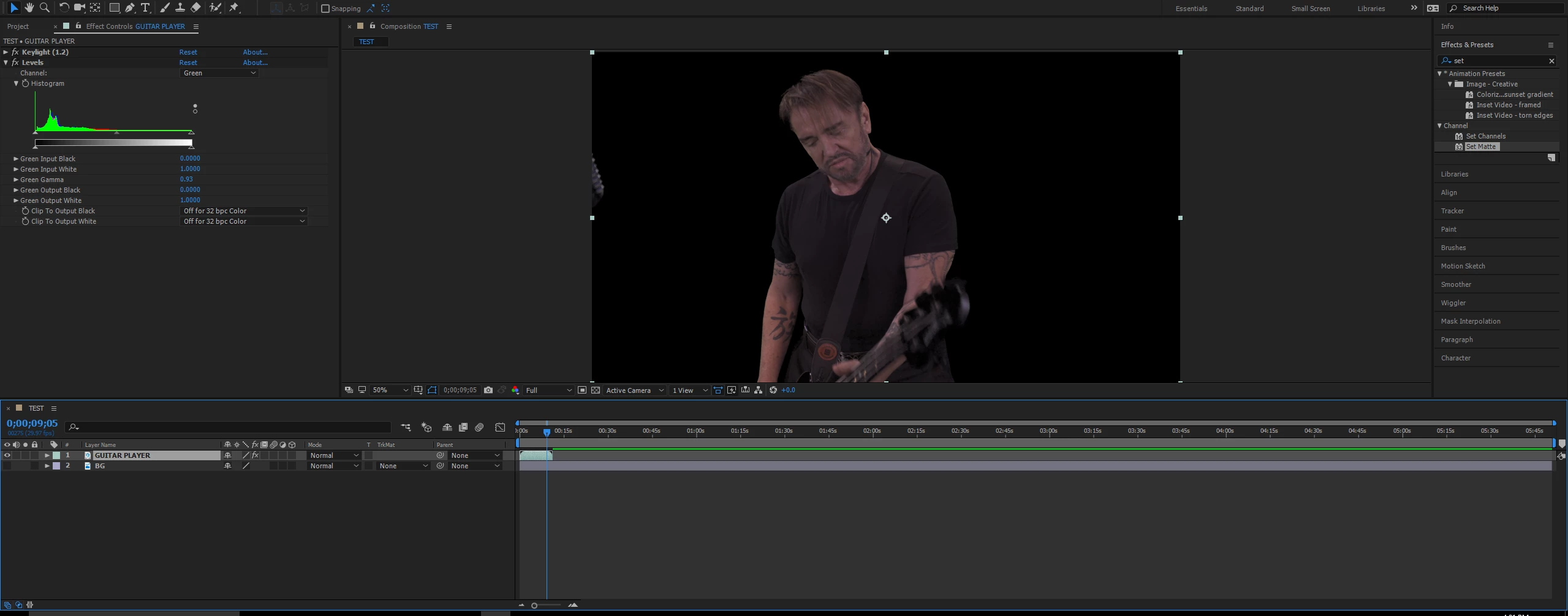
I am about to start on a project very soon and I am trying the "set Matte" effect since I would have to make the foreground match the background after keying. so I have a guy playing guitar on a green screen. I ve cleaned the plate using key light. (all good). Set my foreground and background to comp size cause i know set matte doesn't like the layers that are larger that the comp in use.
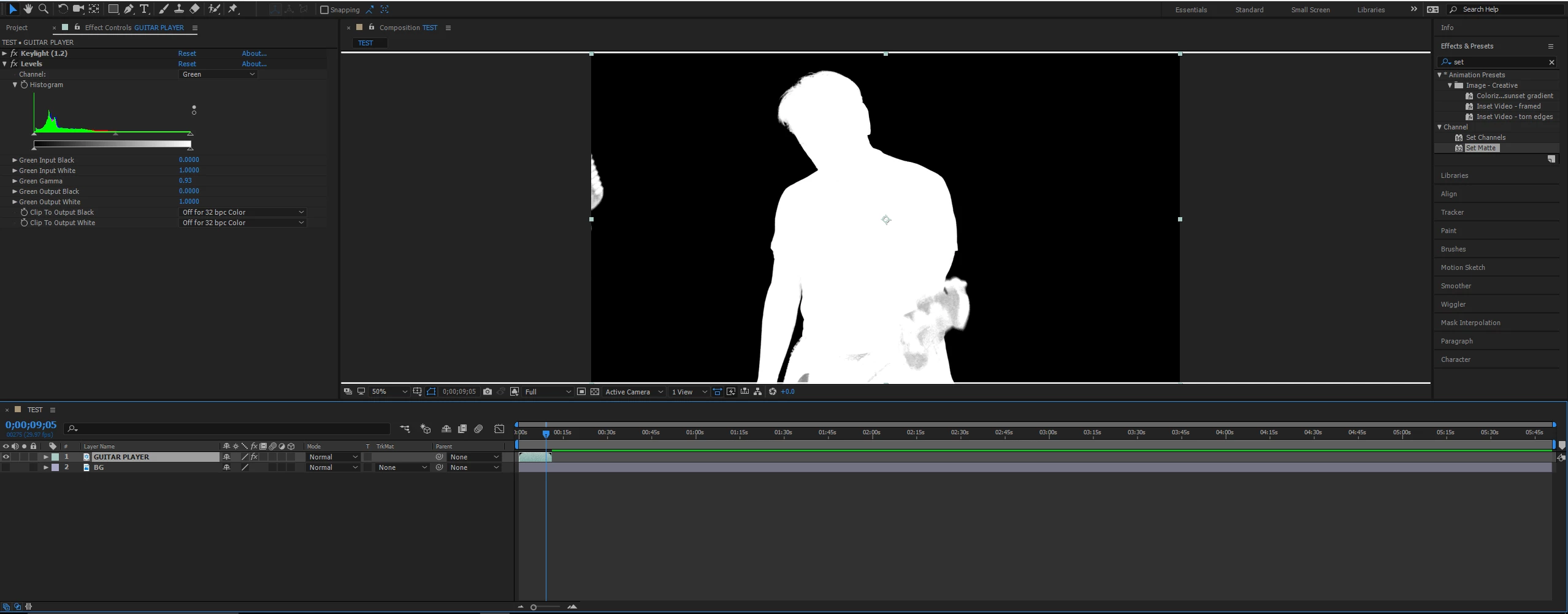
I made sure I have my alpha channel there.
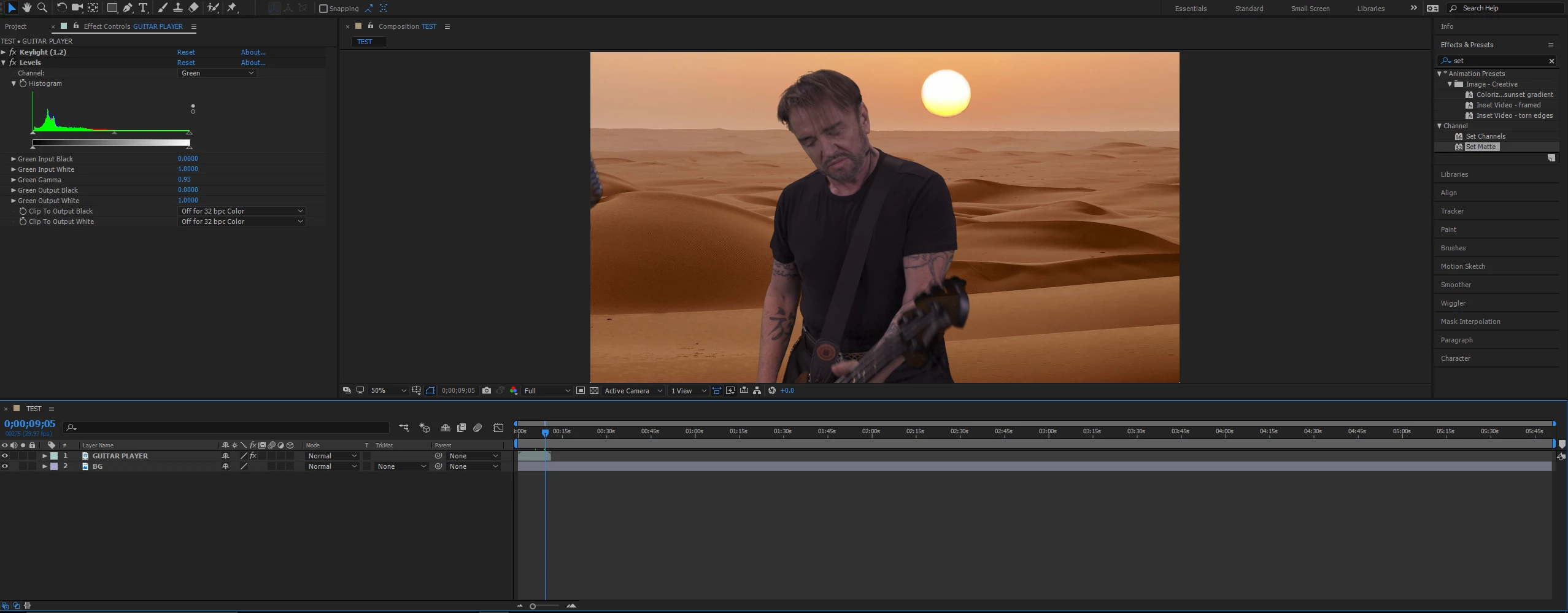
I've added my background (which is the desert just for testing purpose for now)
I have duplicated my background and placed the copy above my guitarist
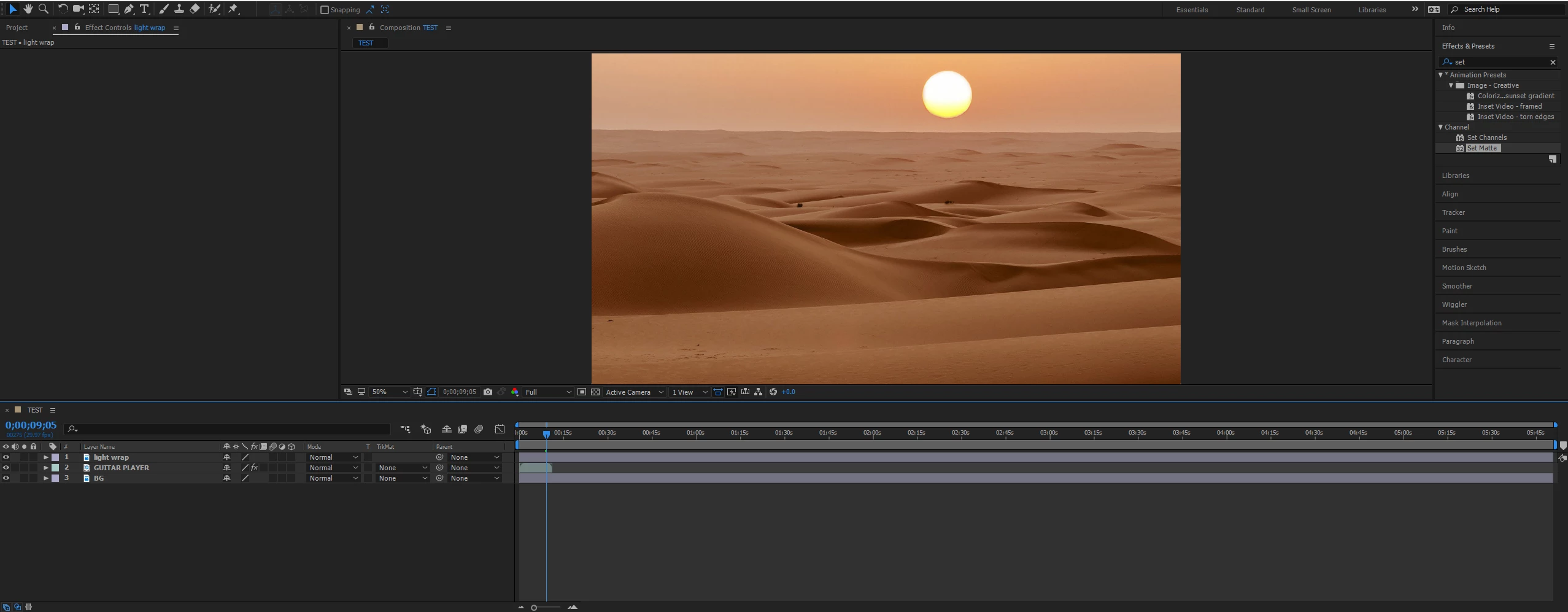
used my set matte
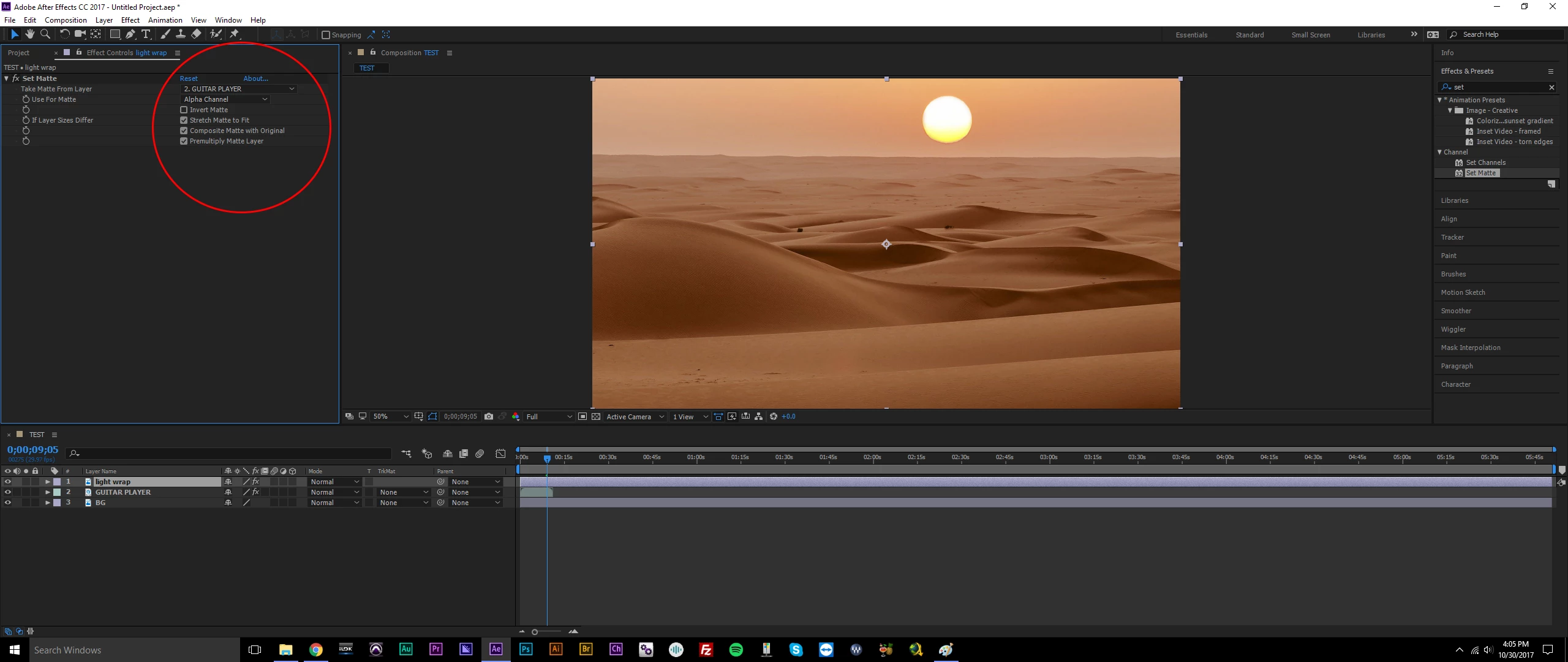
Nothing happens.
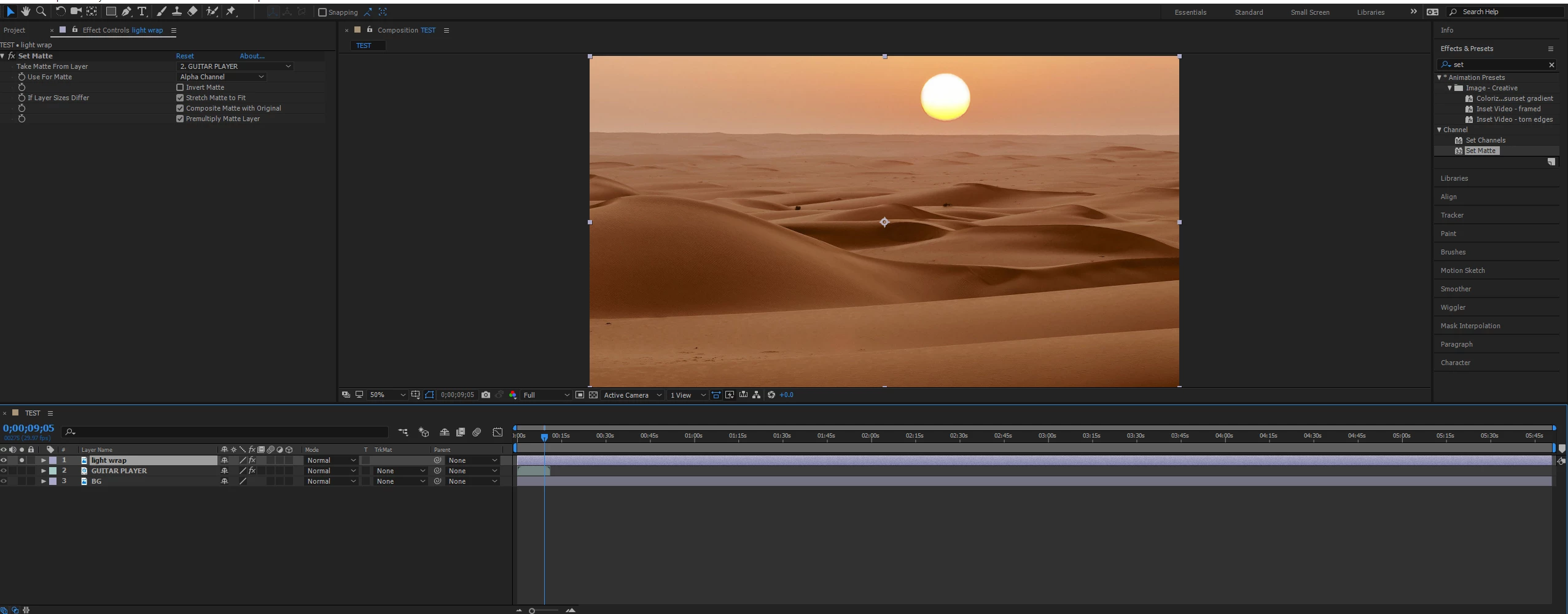
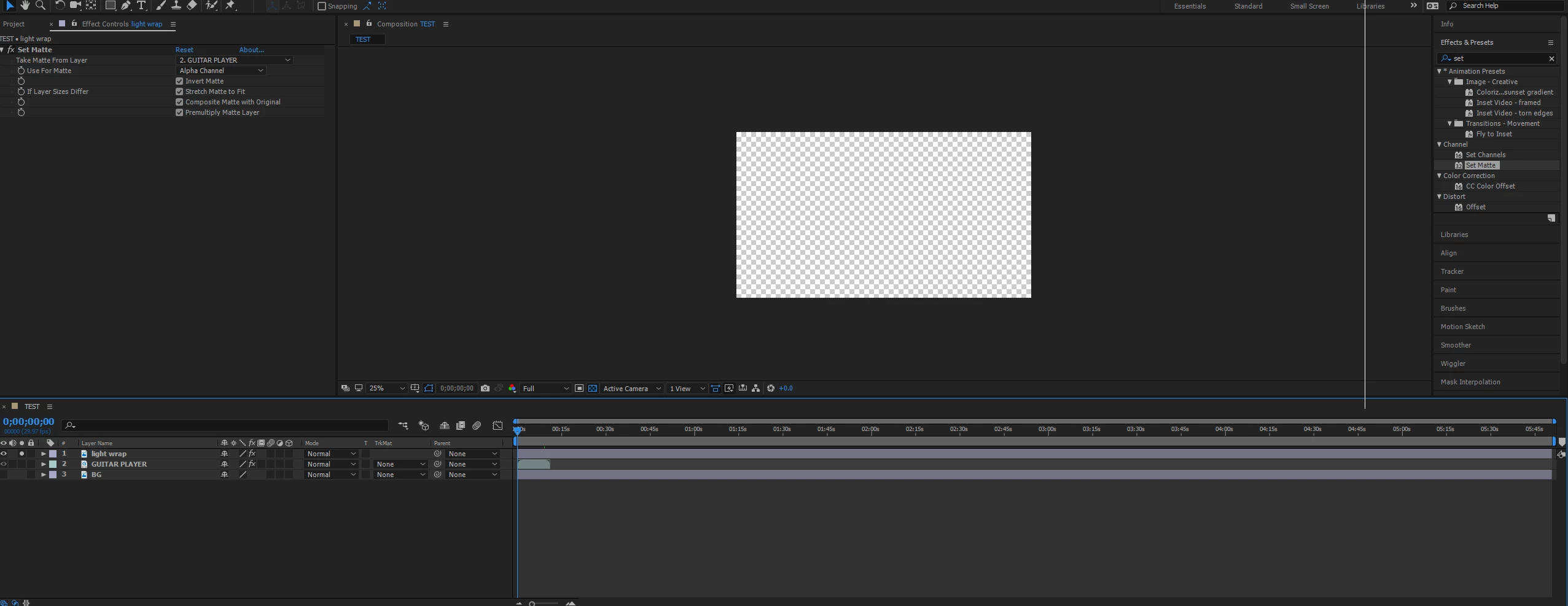
I tried to check the alpha channel on the layer with the set matte and i am getting all transparent.
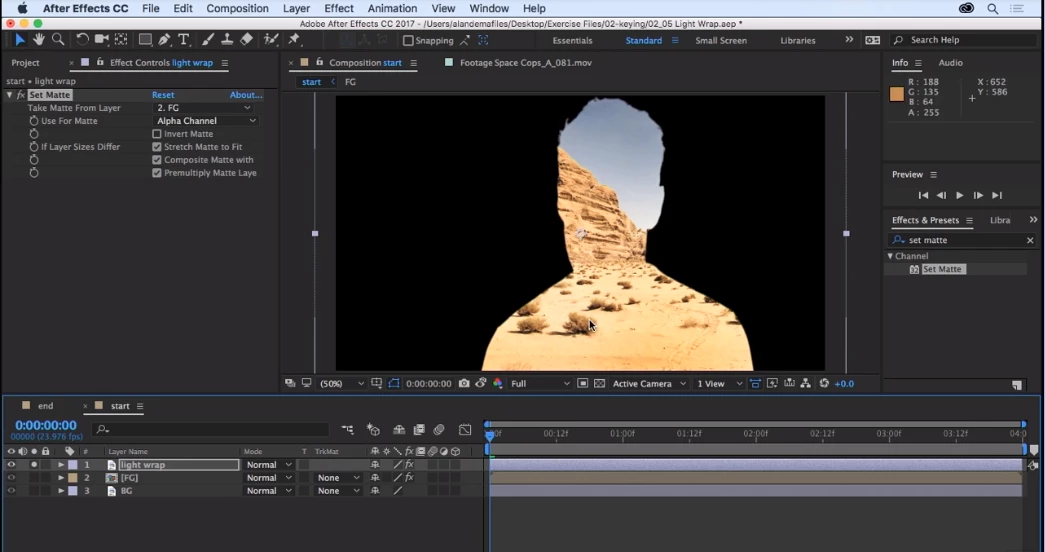
i thought it should look something like that when checking the alpha channel on the layer with the set matte effect (grabbed from an online course on after effects)
Can anyone tell me what I am doing wrong Plz ?? It is driving me insane !

Oh I tried precomposing the top layer and did the same to the guitarist layer still the same....

somebody help plz !!

    This topic has been closed for replies.
    Correct answer Rick Gerard

    You must make sure you move all attributes to the new comp when you pre-compose.

    2 replies

    Rick GerardCommunity ExpertCorrect answer
    Community Expert
    November 1, 2017

    You must make sure you move all attributes to the new comp when you pre-compose.

    ryanallamAuthor
    Participating Frequently
    November 1, 2017

    Rick thank you so much !!

    Community Expert
    October 31, 2017

    I don't understand why you want a copy of the desert above your keyed layer. If you want to end up with something like the image in your last screenshot you could just set the keyed layer as an inverted alpha track matte for your desert layer.

    Did you vet your trainer? Many of the tutorials on the web teach weird and inefficient workflows because a lot of amateurs produce are anxious to share their brand of magic. About half of the tutorials I look at are being used by folks on this forum are using are very inefficient and produce poor quality results. Some of them are just really lousy and promote techniques that just don't work.

    If you must use Set Matte you will need to pre-compose the keyed layer moving all attributes to the pre-comp before Set Matte can find the alpha. Set Matte looks at the layer before it looks at the effects on the layer. It's a render order thing, not a bug. Rendering generally always starts at the top. There are only a few effects that can look at the pixels in another layer after the effects have been applied.

    ryanallamAuthor
    Participating Frequently
    October 31, 2017

    Hi Rick,

    Thank you for your reply.

    I want to mimic how light works in the real world. I want to get a color casting on his shoulder and hair. Right now the edge between his shoulders and hair and the background are too sharp. With the set matte I can have a little light wrap that will make these sharp edges smoother.

    Community Expert
    October 31, 2017

    I usually use a different technique to create "Light Wrap/" If your tutorial did not mention pre-composing the key, then the trainer did not do that good a job. Here's one from someone that has a fairly good technique: After Effects Tutorial: Using Light Wrap

    I usually use a slightly different technique that gives me more control over the light direction and the edge width but pre-composing your keyed layer will do the trick.

    If you had started your question by saying something like "I am trying to use set matte to create a light wrap" then my answer would have been one sentence - pre-compose your keyed layer.