
Participant
September 3, 2012
Question

Strange Problem with 3D Camera Tracker's screwed up Bullseye, Create Text or Solid and Camera

  • September 3, 2012
  • 6 replies
  • 42725 views

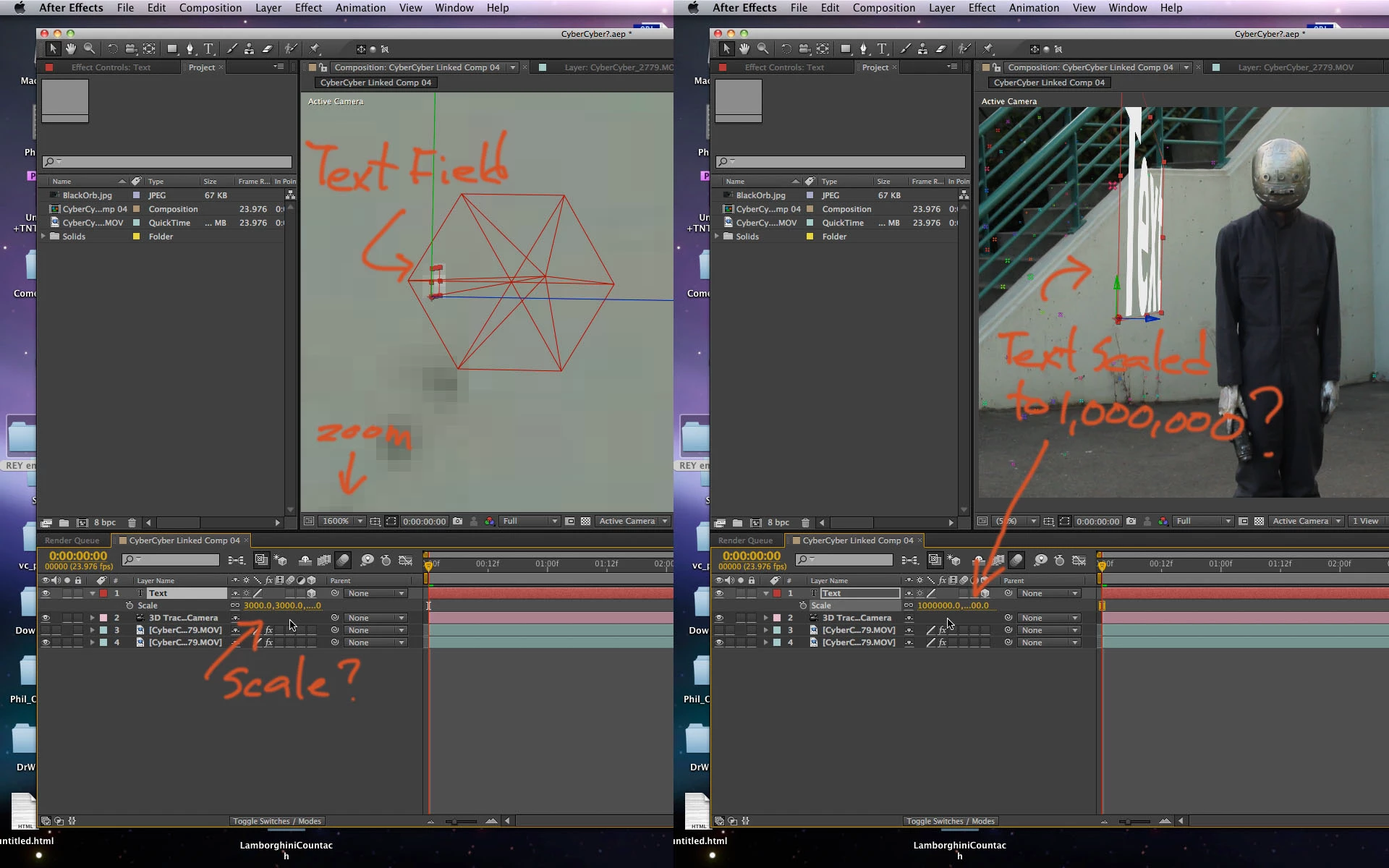
After I create a 3D Camera Tracker Solve I get no bullseyes target, but I can see all the tracker points. When I right click to create the "Create Text and Camera" I also get nothing no Text or Text field. I've been following several tutorials to the "T" and I still get nothing. What's strange is this was working fine last month when I was using the Creative Cloud trail free for 30 days.

On further trail and error I noticed something very, very weird. I noticed after I made the "Text and Camera" there was a  red pixel blinking within the triangulation of the 3 points. I zoomed in all the way to 1600% into the red blinking pixel and noticed it was the Text field's Cursor. When I inspect the Text layer's "Scale" it stated that the Text is already sized at 3000. WTF? Even zoomed in at 1600% it's only the size of my pinky finger nail. If I enter a ridiculous Size amount such as 1,000,000 I can finally see it on the screen and to top it off the 3D orientation is totally off from the plane chosen from the triangulation of the 3 points. The orientation is also totally wrong in a different plane then the 3 tracking points.

Please help I can't follow any tutorials because something is terrible wrong. This is way beyond me. Everytime I watch any tutorials I'm stuck because of this. I'm going to attach some photos to better illustrate these problems.

Ps. I also noticed when zoomed in at 1600% I could finally see the Bullseye which made me realize the connection. so again like the Text Field issue if I max out the Target size to 10000% I can finally see the bullseye target. Even sized at 10000% the target displays only at approx. 2" This is totally wierd.

thanks for your time, betamax.
    This topic has been closed for replies.

    6 replies

    Known Participant
    January 9, 2017

    I have to say that Adobe's built-in camera tracker quality/abilities range from mediocre to terrible. When they actually gets a target correct it's a cause for celebration. Two get multiple targets correct is practically a miracle. And if it actually produces a solid that is placed correctly with the proper plane alignment it's time to call the press. We end up taking most of our camera tracking into other apps and then import the data into AE.

    Participating Frequently
    October 23, 2015

    I just experienced the same thing and I had my comp view set to FRONT view...instead of ACTIVE CAMERA.  Then I could see the markers and grab what I needed.

    Participating Frequently
    July 22, 2014

    We just ran into this problem and our problem was that the comp window was NOT selected to view "Active Camera." It was "Top"... we changed back to Active Camera - reset the tracker so it tracked again and voila!

    Participant
    May 6, 2013

    EASY FIX!!! I had the same problem.  Make sure the 'Toggle Mask and Shape Path Visibility' switch in the comp window is set to 'on'. The tracking points will become selectable and the bullseye will show up. Easy as that!

    Participant
    September 13, 2013

    AHHH thank you. Such an easy mistake to make!! Was getting worried I needed a new graphics card, glad I skipped to the end of the forum first!

    Participant
    October 30, 2013

    how do you do this? im having the same problems, there is no track points showing:/ can you reply asap im halfway through a edit:/

    Alec Molloy
    Inspiring
    October 5, 2012

    Hey BETAMAXandtheMCP,

    For a personal project I had been experiencing the same issue. I was tracking a very simple scene with almost no motion and distinct textures, but getting tracking points so small that I had to resize them to 9990% their size to see them.

    Seeing as most of my video was one big plane in the background with a subject in the foreground, I went into the advanced section and changed my Solve Method to "Mostly Flat Scene". This almost instantly gave me tracking points that I could work with.

    I'm not sure if this solution is right for you as I am by no means an AE expert (I stick to print and digital publishing), but maybe playing around with these settings might solve your issue.

    Participant
    March 24, 2024

    OMG thank you so much... I have struggling with that so freaky tiny text created by 3D camera tracker. It's really helpful

    Mylenium
    Legend
    September 4, 2012

    Your footage is crap for any sort of 3D tracking, that's the simple harsh truth here, at least based on the pic you provided. Sorry to say so, this is loco and cannot work the way you want it. The tracker simply interprets your absence of structural details as a huge scene, possibly compounded by your camera move. That aside, any 3D tracking solution is arbitrary - it is a mathematically plausible reconstruction of the scene, not necessarily a physically exact representation of the real thing, even more so in an uncalibrated track such as this. You can try with other options, but the truth of the matter is it will probably never work. Your only option is to use a solution that supports manual tracker placement to re-construct e.g. the stairs and railing as "reference geometry".

    Mylenium

    Community Expert
    September 4, 2012

    You need to make sure that you reset 3D Camera Tracker before you start a track. Make sure that the Track Point Size and Target size are at 100%.

    Your Track Points should look like this:

    If they don't then either there's too little detail (not enough points to track) or the values for Target and Track Point are wrong. Your shot doesn't have a lot of detail to track but if you pick the right track points you should be able to get something to work.

    Once you pick a target by either selecting points or moving around the shot until you find ones you like, click then position the pointer in the center of the target and click and drag to set the position of your layer, then Alt/Option click to scale the target to the right size.

    Any new solid created with the 3D camera tracker will be the same size as the Target at 100% scale. Text works a little differently. You need to set the text size in the Character Panel before you create Text or Text and a Camera from 3D Camera Tracker.

    I usually set some temporary type in the frame that's a little larger than the the text I want in the scene. I then delete the temporary text layer and create the 3D text layer from 3D Camera Tracker. I then check the scale property, reset it to 100%, then set my final size with the Character Panel.

    This workflow has worked for every shot that I have successfully tracked so far. It should work for you.

    Here's a 1 minute look at 3D camera tracker.

    Community Expert
    September 6, 2012

    BETAMAXandtheMCP,

    Did you ever get the camera tracker problem fixed?