Participant
October 1, 2021
Question

Transparency issue with image layer

  • October 1, 2021
  • 3 replies
  • 306 views

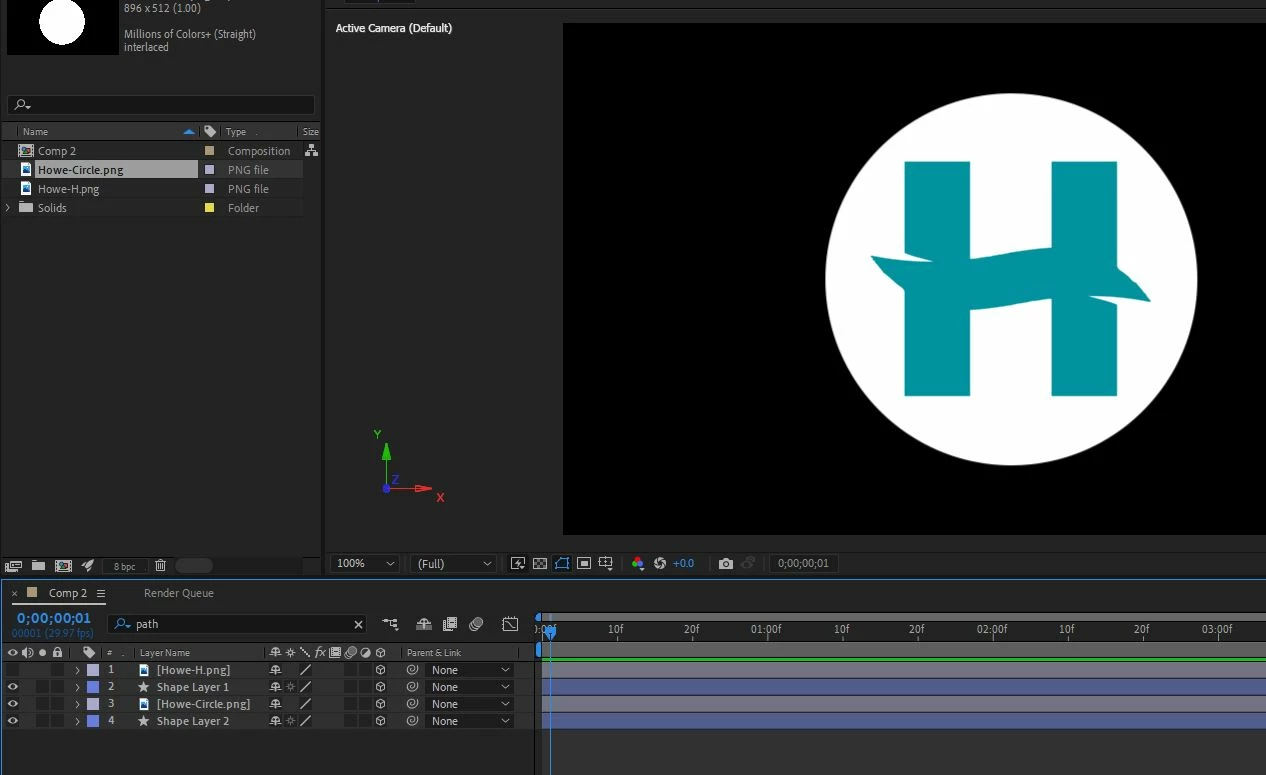
I am trying to animate two shapes in a comp. When the top image layer is turned on it causes the bottom shapelayer to become transparent (or maybe it just doesnt showup) What is causing this?

 

This topic has been closed for replies.

3 replies

Community Expert
October 2, 2021

We can't see the modified properties of the layers so maybe they are all at 0, 0, 0. You did not solo the bottom shape layer (Layer 4) so we have no idea what it looks like. We also don't know if you are using the Classic 3D or C4D rendering engine. 


My first guess is that Layer 4 is behind Layer 1 by at least 1 pixel in Z space. My second guess is that you are using the C4D rendering engine and all of the layers are on the same plane. They usually just interact in a strange way if you are using the 4D rendering engine so my first guess is probably correct.

nishu_kush
Legend
October 2, 2021

Hi Neil,


Thanks for writing in.

Would you mind sharing a screen recording that demonstrates the issue? It'll help us to understand what's going on.

Looking forward to your response.


Thanks,

Nishu

Community Expert
October 1, 2021

Show both the Modes and Switches columns in the timeline by turning on the first two icons in the bottom right corner of the timeline and you will probably see that Layer 1 has been set as an Alpha Track matte for Layer 2. 

Participant
October 1, 2021

Thank you - this is what is showing.


Participant
October 1, 2021

The reason I am trying to fix this is my previous comp my .pngs both became transparent above the shape layers, which of course made it impossible to shade the shape layers darker for definition.