I'm trying to replace a watch face. I have the footage tracked in mocha and the watch face in place in AE.
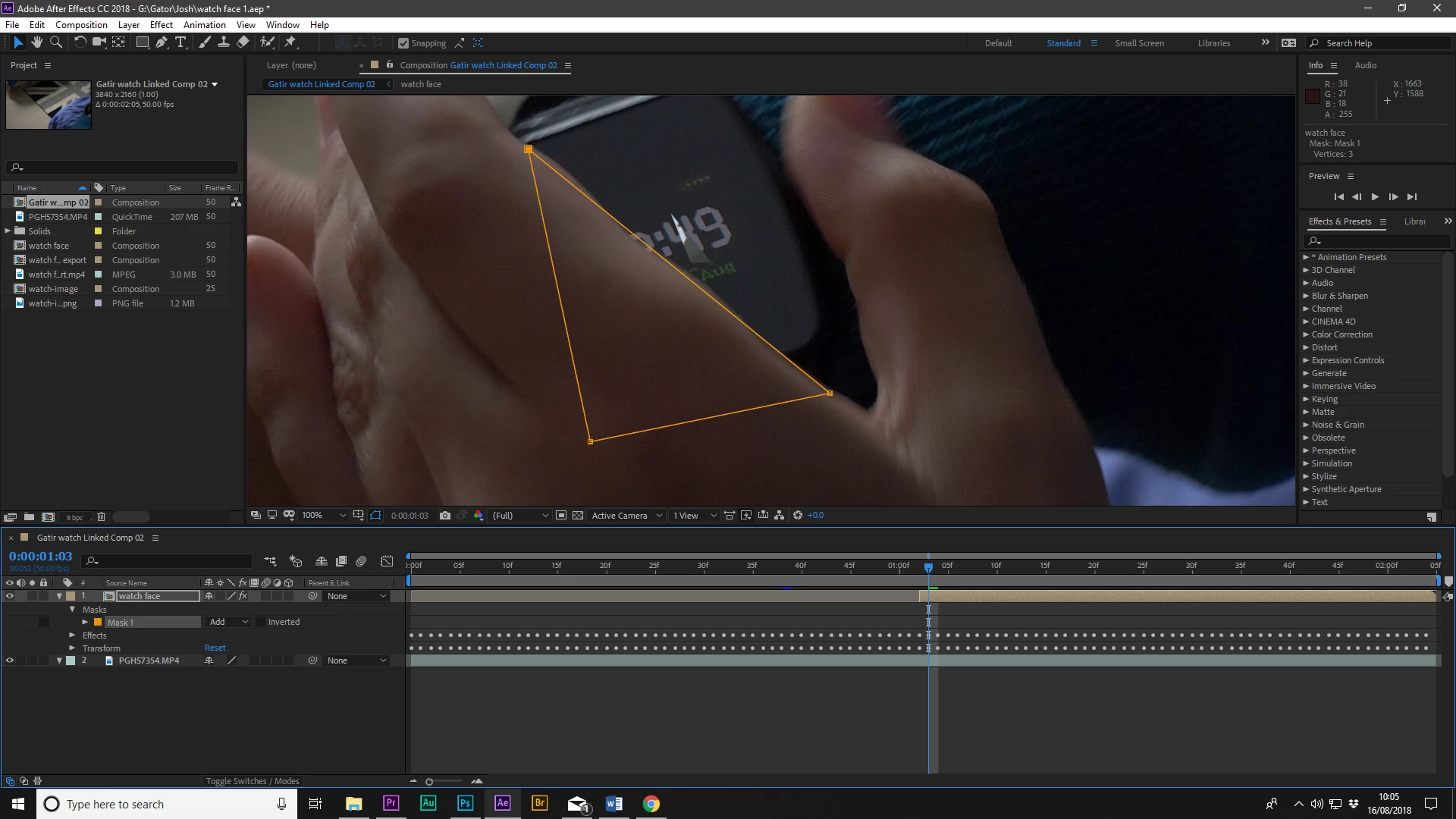
When i try to mask out the watch face under the fingers, the mask which i apply onto the layer takes effect, but on a much smaller scale:
I did wonder if it's because the watch face image was really small, but I resized it to be the same as the comp and it's still happening. The comp I am trying to mask out has the tracking data applied directly to it, and consists of a solid object (which I removed as an attempt to fix the issue), and the watch face image that I want to use.
I can make it work by drawing the mask MUCH bigger than the footage, but that's obviously daft.
It looks like you are using corner pin tracking from Mocha. Just drawing a mask on a corner pinned layer is not going to work because the mask is applied before the transformation effect from corner pin.
You have a couple of options. When I need to do roto and am using corner pin I usually prefer this method because it gives you a much bigger canvas to work with and stabilized everything so there are a lot fewer keyframes for the mask.
There are dozens of other ways to work out a solution. You could duplicate the footage layer, put the duplicate on top and then mask just the finger, You could add a colored solid above the watch face layer, change the blend mode so you can see through the layer and then animate a mask on the solid then use it as a track matte for the watch face layer. You could pre-compose the watch face layer and then animate the mask, but actually doing the roto on the watch face layer is the least efficient way to do the roto. You could even generate a matte layer in Mocha and export that to use as a track matte for the replacement layer.
I did a similar project the other day and there were only about 15 frames where the replacement surface was occluded by somebody's hand and there was little camera movement so I just added an orange solid that was about a half second long above the replacement layer, changed the blend mode to screen so I could easily see through the layer, temporarily turned off the replacement layer so I could see the hand below, moved the CTI to where the finger movement changed direction, drew a mask, moved to in point of the solid and adjusted the mask, moved to the out point of the solid and adjusted the mask, added one additional keyframe to fix a small tracking problem, then turned on the replacement layer and adjusted the feathering on the mask a bit to give me a little light wrap around the finger to complete the composite. The total roto work took about 2 minutes. The most efficient workflow depends entirely on the shot. Without seeing the actual shot you are working with I can't give you the easiest solution but this should give you some ideas.
One more note. When you post a screenshot it is a lot more helpful if you select the layer giving you problems and press the U key twice so we can see all modified properties in that layer. I had to guess that you had used Corner Pin in your project.
It looks like you are using corner pin tracking from Mocha. Just drawing a mask on a corner pinned layer is not going to work because the mask is applied before the transformation effect from corner pin.
You have a couple of options. When I need to do roto and am using corner pin I usually prefer this method because it gives you a much bigger canvas to work with and stabilized everything so there are a lot fewer keyframes for the mask.
There are dozens of other ways to work out a solution. You could duplicate the footage layer, put the duplicate on top and then mask just the finger, You could add a colored solid above the watch face layer, change the blend mode so you can see through the layer and then animate a mask on the solid then use it as a track matte for the watch face layer. You could pre-compose the watch face layer and then animate the mask, but actually doing the roto on the watch face layer is the least efficient way to do the roto. You could even generate a matte layer in Mocha and export that to use as a track matte for the replacement layer.
I did a similar project the other day and there were only about 15 frames where the replacement surface was occluded by somebody's hand and there was little camera movement so I just added an orange solid that was about a half second long above the replacement layer, changed the blend mode to screen so I could easily see through the layer, temporarily turned off the replacement layer so I could see the hand below, moved the CTI to where the finger movement changed direction, drew a mask, moved to in point of the solid and adjusted the mask, moved to the out point of the solid and adjusted the mask, added one additional keyframe to fix a small tracking problem, then turned on the replacement layer and adjusted the feathering on the mask a bit to give me a little light wrap around the finger to complete the composite. The total roto work took about 2 minutes. The most efficient workflow depends entirely on the shot. Without seeing the actual shot you are working with I can't give you the easiest solution but this should give you some ideas.
One more note. When you post a screenshot it is a lot more helpful if you select the layer giving you problems and press the U key twice so we can see all modified properties in that layer. I had to guess that you had used Corner Pin in your project.
Thanks very much for laying that all out, and I've noted your point about hitting U to show modified properties.
For now I think I will duplicate the footage layer as a workaround. What beats me is that I followed this tutorial pretty much to the letter (except for "just save to desktop") and he has no issues masking later on.
I have another shot to do later on so will follow the video you have posted. Thanks again!
The tutorial you posted is only fair. The presenter did duplicate the footage and do the masking on the top copy. I won't go into the things in his workflow that can be improved but his Mocha technique was really sketchy, nothing was done about the edges or the screen replacement, nothing was mentioned about color correcting and a bunch of other things that would have greatly improved the final shot. Just for fun here's a tutorial on hand roto using a layer that you'll use as a track matte. I think it's a lot easier to do in the long run and a track matte from a solid renders a lot faster than masked compressed camera original.
This was also thrown together in a couple of minutes to demonstrate using multiple masks and the efficient way to animate mask shapes when doing roto work.
Great! Thanks again, Rick. I actually got away with not having to mask on the second shot I wanted to use. I ended up cutting in just a little later.
And thank you for another helpful tutorial. I have subscribed!



 AdChoices