
Type-writer effect for text converted to shapes - how to expand Opacity for each letter?
Hi. I have a couple of lines of text that must be converted into shapes.
Then I need to have the text appear letter by letter, like a typewriter affect.
I have a pretty good idea of how to do this.
I mean there might be a quicker way I'm not aware of, but what I intend to do is to go to
Text converted to shape layer > Contents > [individual letter] > Transform > Opacity
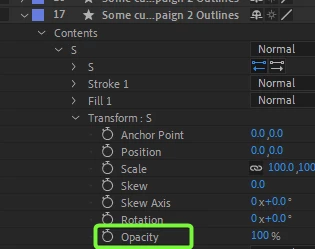
Then:
- Set Opacity to 0%
- Set keyframe to hold
- Bring playhead to where I want the letter to appear
- Create another keyframe and set Opacity to 100%
- Repeat for each letter with staggered 2nd keyframes
However, it would make my life so much easier if I could make only the "Opacity" property appear for all individual letters under "Contents".
When I hit the shortcut "T" for Opacity, it opens the Opacity property for the entire shape layer.
Is there a way to similarly only expose the Opacity for each of the letters so that I can see all those for all letters at a glance and not have to twirl through a million things for each letter?
 AdChoices