Participant
January 8, 2020
Answered

Visibility of Shapes

  • January 8, 2020
  • 2 replies
  • 2454 views

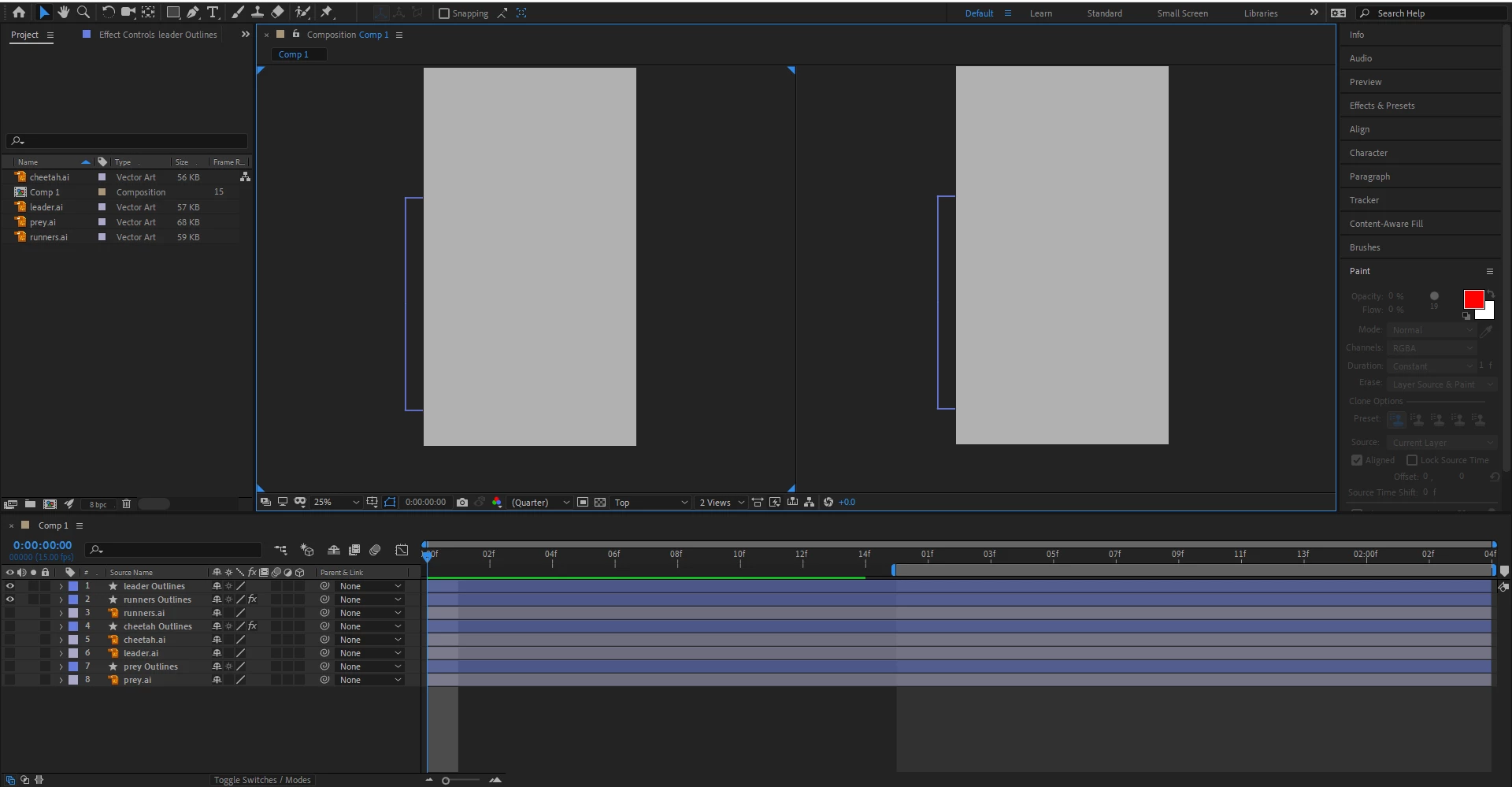
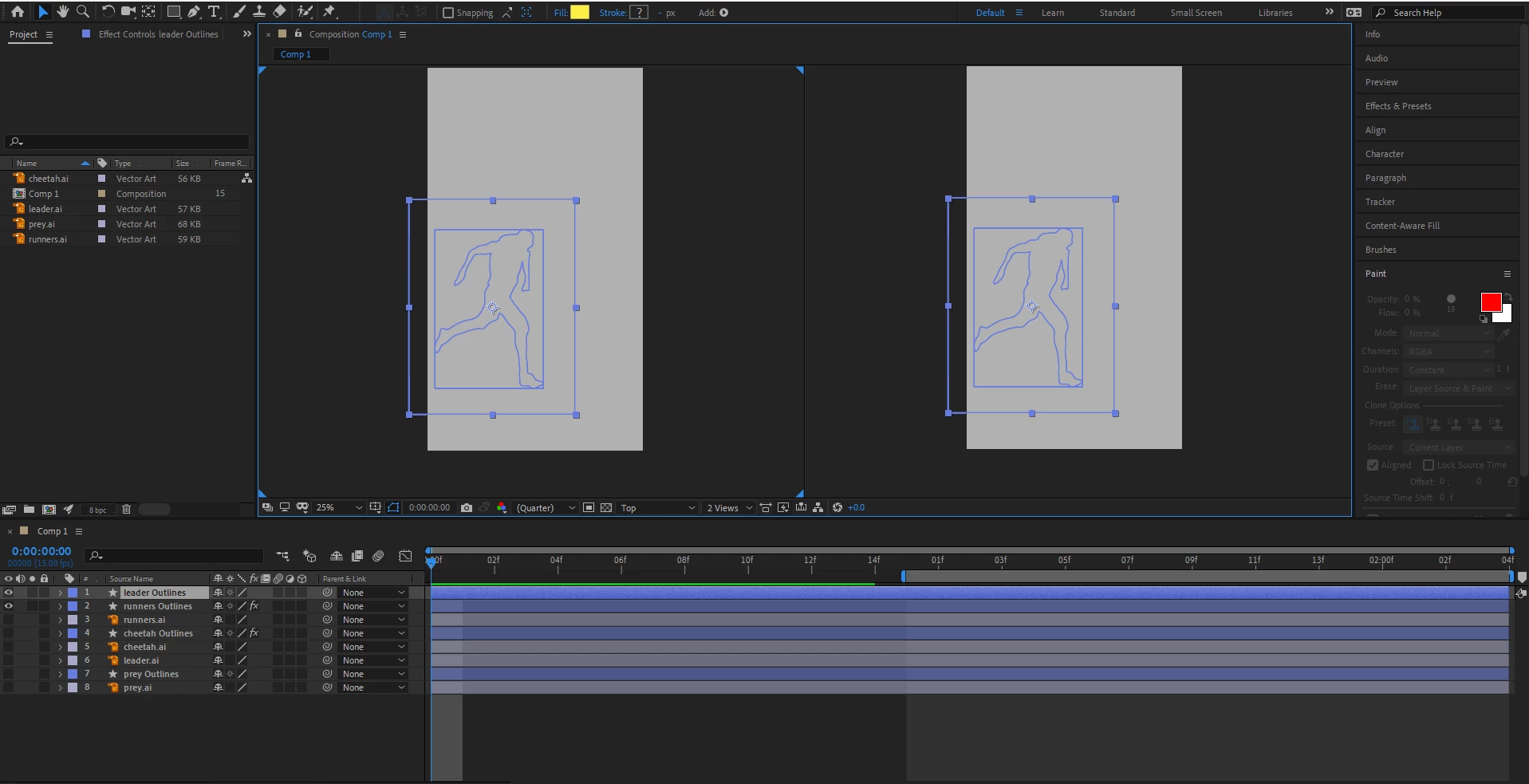
The shape is invisible until I click on it, then i can see the path of the shape, if i click off it goes away, any ideas as ti whatI need to do to see it, thanks? 

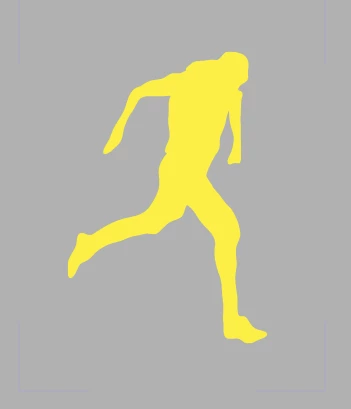
The screenshots are before and after clicking on the shape, and the bottom yellow pic is the ai file before i clicked create shape layer from vector layer.


This topic has been closed for replies.
Correct answer Roland Kahlenberg

You wrote - "The shape is invisible until I click on it, then i can see the path of the shape, if i click off it goes away".

This is expected behavior with respect to viewing Shape/Mask Paths — they only appear after a layer is selected. Otherwise, you'll get a messed up Comp Panel with tonnes of paths.


It looks like you applied the Create Shape from Vector Layer feature to convert your AI file to Shape Layers. During this process, AE will have issues with Artboards from AI and open paths. To rectify this issue, you have to dive into the Shape Layer's Contents section to select each path, to see which paths are causing the issue. It's a good idea to disable the view of ALL paths and enable one at a time while you're searching/rectifying the problem. You will have to delete extraneous/redundant paths during this process. For open paths, occasionally, the Fill Shape Operator gets wrongly applied and you will have to disable the Fill Shape Operator.


This is a cumbersome procedure if you have a complex AI file - be patient. If you perform a lot of AI to Shape Layer routines, you will want to invest in the Overloard Script from https://www.battleaxe.co/overlord

2 replies

Roland Kahlenberg
Roland KahlenbergCorrect answer
Legend
January 9, 2020

You wrote - "The shape is invisible until I click on it, then i can see the path of the shape, if i click off it goes away".

This is expected behavior with respect to viewing Shape/Mask Paths — they only appear after a layer is selected. Otherwise, you'll get a messed up Comp Panel with tonnes of paths.


It looks like you applied the Create Shape from Vector Layer feature to convert your AI file to Shape Layers. During this process, AE will have issues with Artboards from AI and open paths. To rectify this issue, you have to dive into the Shape Layer's Contents section to select each path, to see which paths are causing the issue. It's a good idea to disable the view of ALL paths and enable one at a time while you're searching/rectifying the problem. You will have to delete extraneous/redundant paths during this process. For open paths, occasionally, the Fill Shape Operator gets wrongly applied and you will have to disable the Fill Shape Operator.


This is a cumbersome procedure if you have a complex AI file - be patient. If you perform a lot of AI to Shape Layer routines, you will want to invest in the Overloard Script from https://www.battleaxe.co/overlord
Very Advanced After Effects Training | Adaptive & Responsive Toolkits | Intelligent Design Assets (IDAs) | MoGraph Design System DEV
Participant
January 9, 2020

Thank you Roland, I apreciate the depth of the response, it helped me understand and recitfy the problem. 

Ko.Maruyama
Community Expert
Community Expert
January 8, 2020

The shapes have been converted, but the fill hasn't translated.  Maybe because of the compound paths that you have?

Check to see that your shape paths aren't conflicting with each other.

You probably only need one path for the figure, then a fill value (eyeball turned on).


Select the path that you want to change, then create a fill color from the top bar, or add it to your shape.

Participant
January 8, 2020

thanks for the response, however I need more of an explanation, I am new this after effects