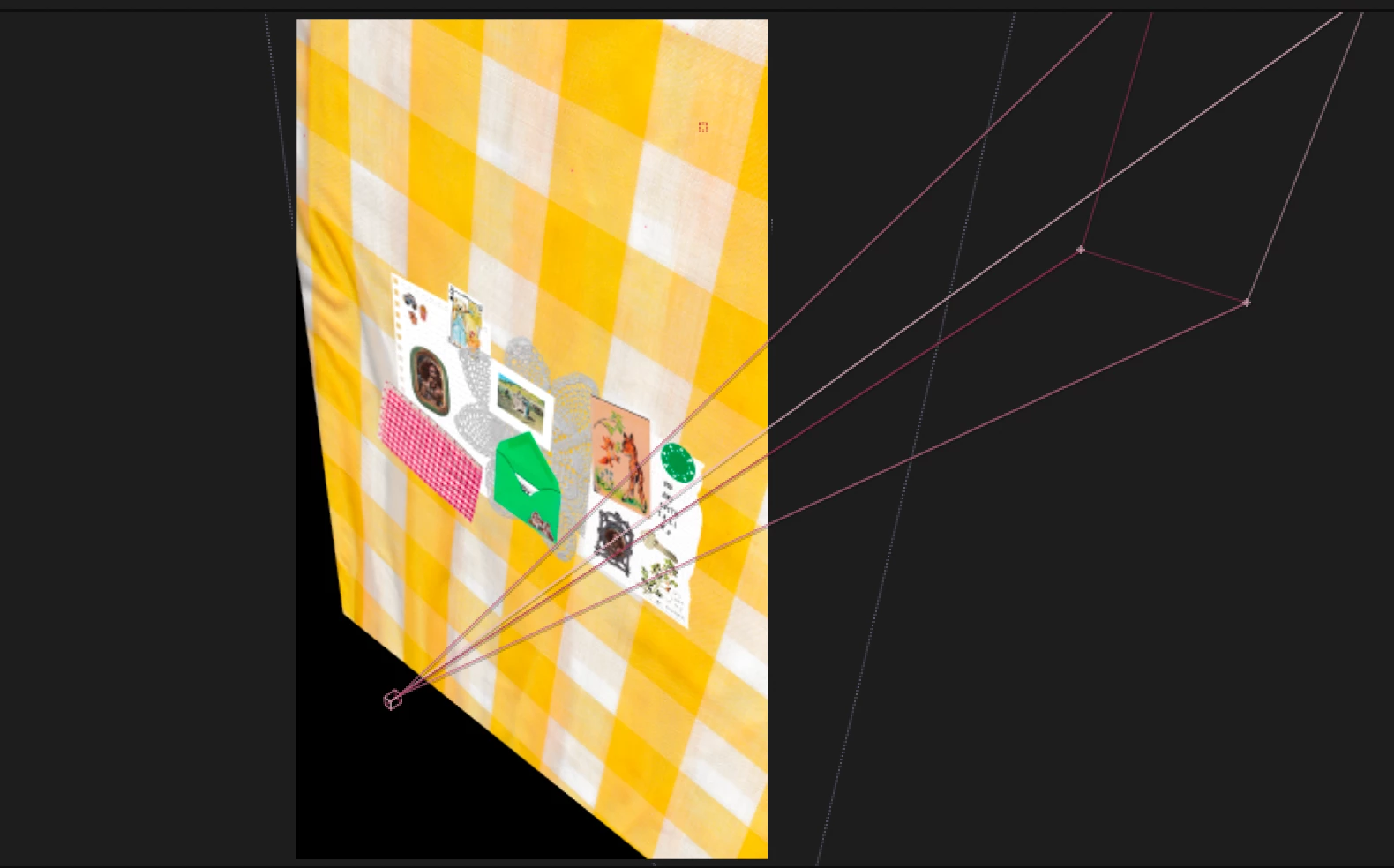
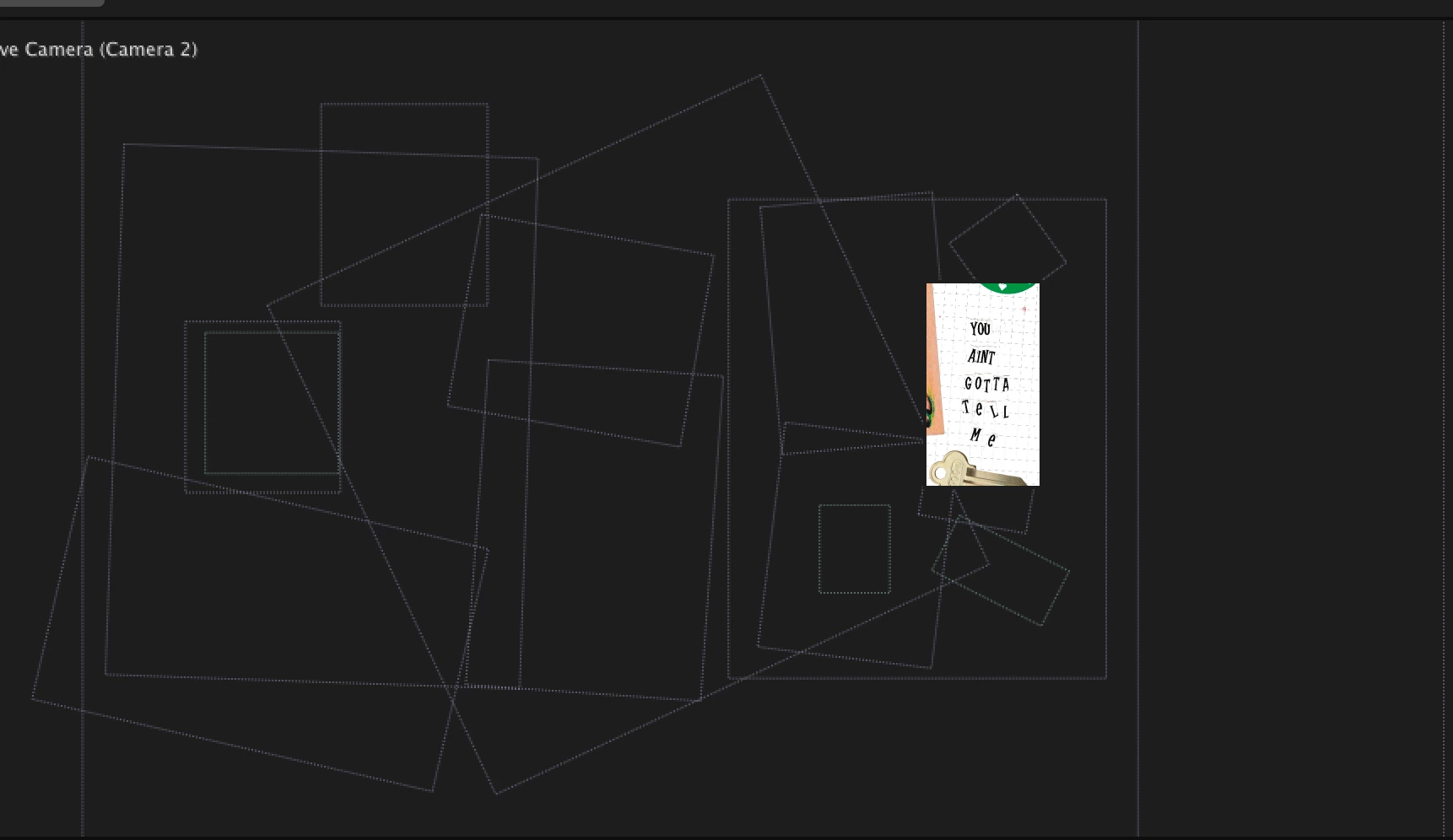
It's important to know that camera paths and overlays are usually hidden during playback to improve performance. This is why the view you see when you're paused disappears once you hit play. To fix this, go to the Preview panel and make sure the option Include Overlays and Layer Controls is checked. This will allow the camera path and 3D layer guides to stay visible even when the animation is playing, making it easier to capture using screen recording software.
To actually record this view, use a screen recording tool like OBS Studio, Camtasia, or your device’s built-in screen recorder. These tools will capture exactly what you see in the Composition panel, including the visible camera movements and overlays if enabled. If you want to go further, you can even create a separate composition that visualizes the camera path using a 3D null object or shape layer. This makes it easier to show the camera's path in a clean, intentional way. Alternatively, there are third-party scripts and plugins available that help visualize and animate camera movement more clearly for behind-the-scenes purposes.

 AdChoices